Zoho Books integration: Connect to Ramp
Step 1: Initiate connection from Ramp
- Sign in to your Ramp account.
- Navigate to the Accounting section on the left sidebar.
- Click on get started now .
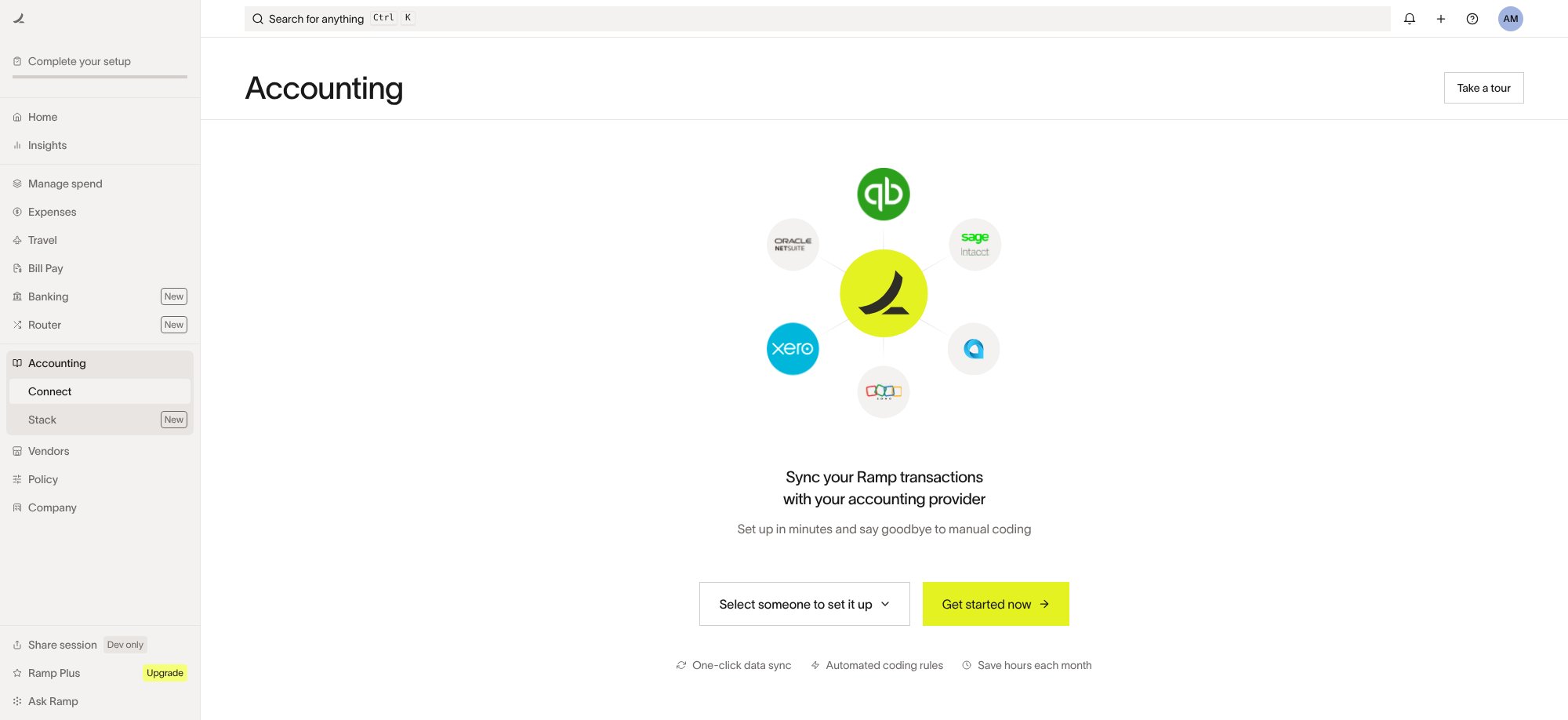
**Disclaimer:**Customers need to disconnect their Universal CSV integration (if it's active) in order to see the screen above.
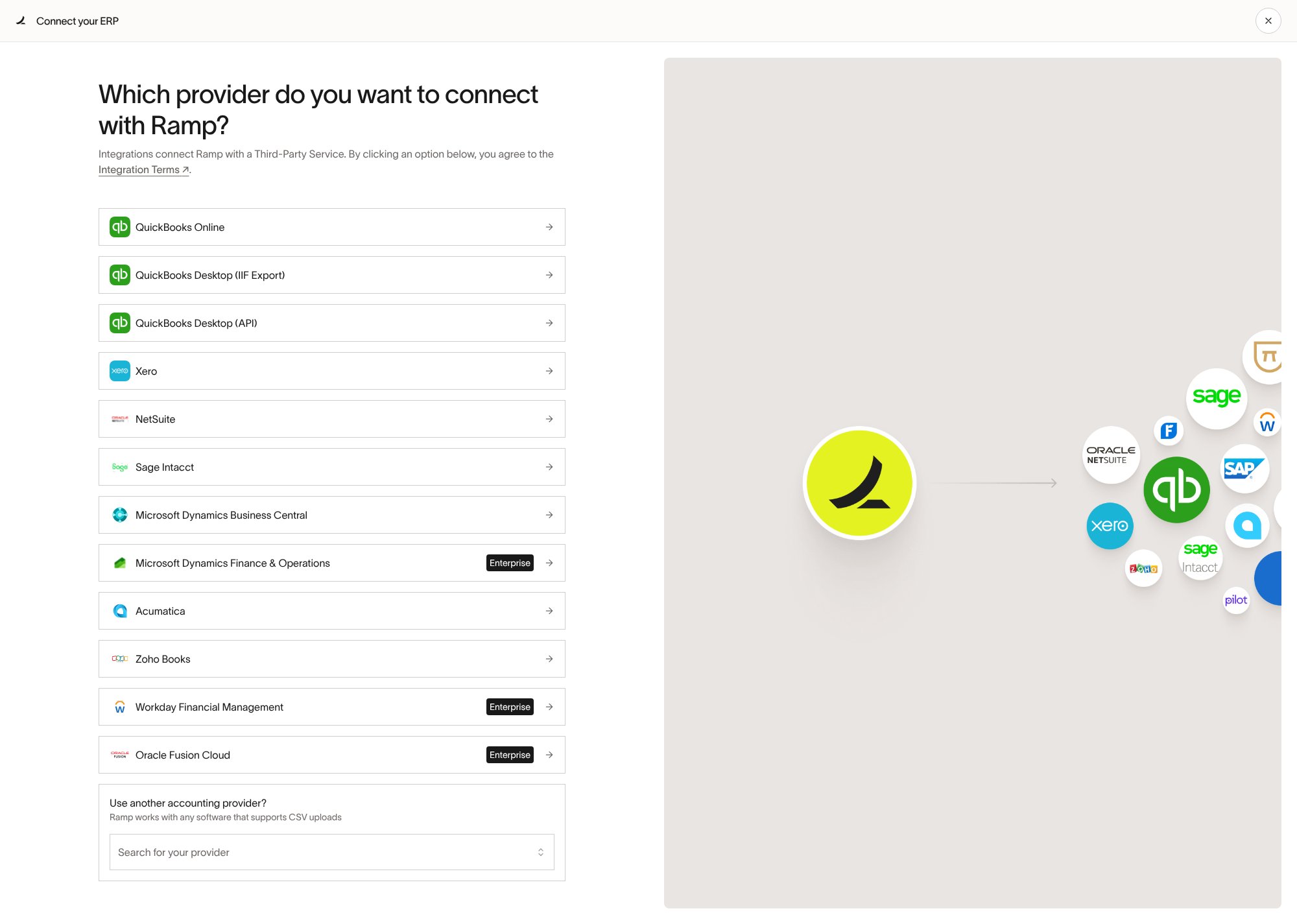
Step 2: Choose Zoho Books
- Select Zoho Books from the list of options.
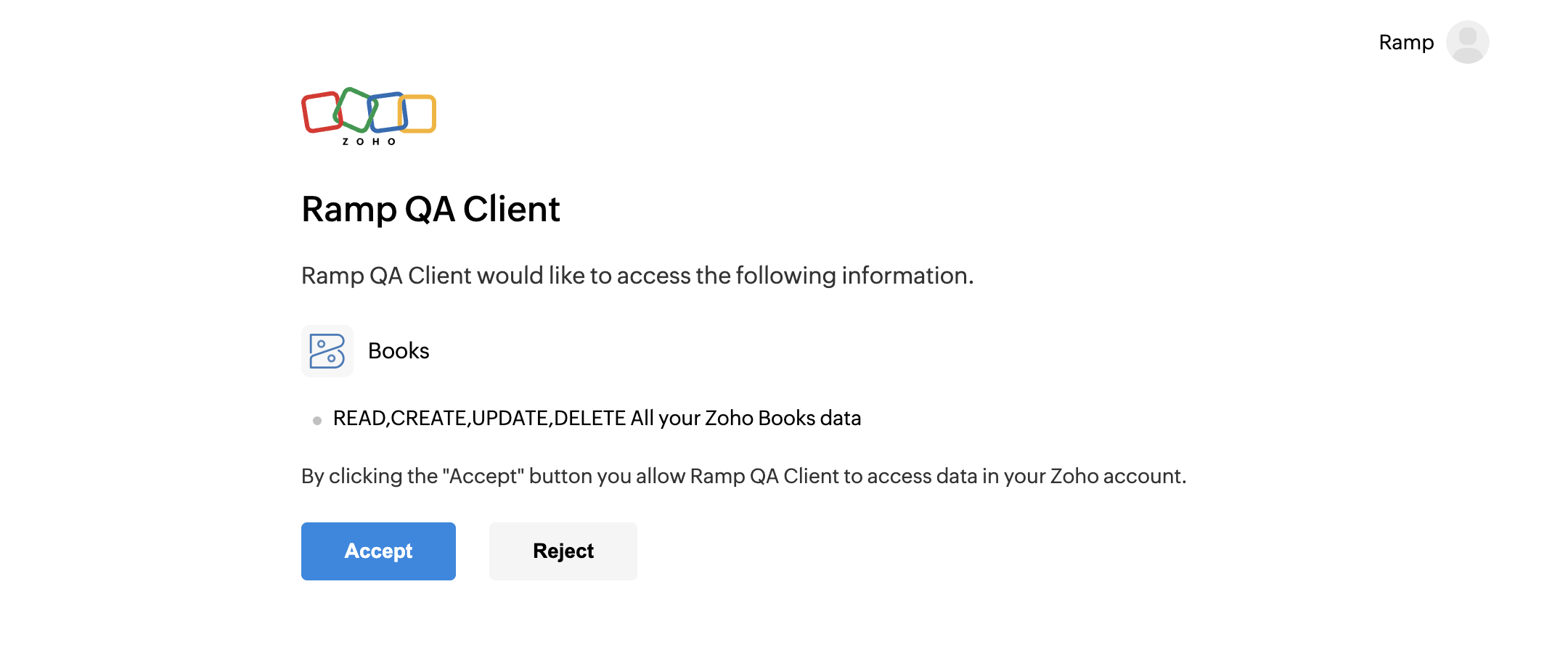
Step 3: Accept the Ramp client
- When presented with the below screen, please click Accept.
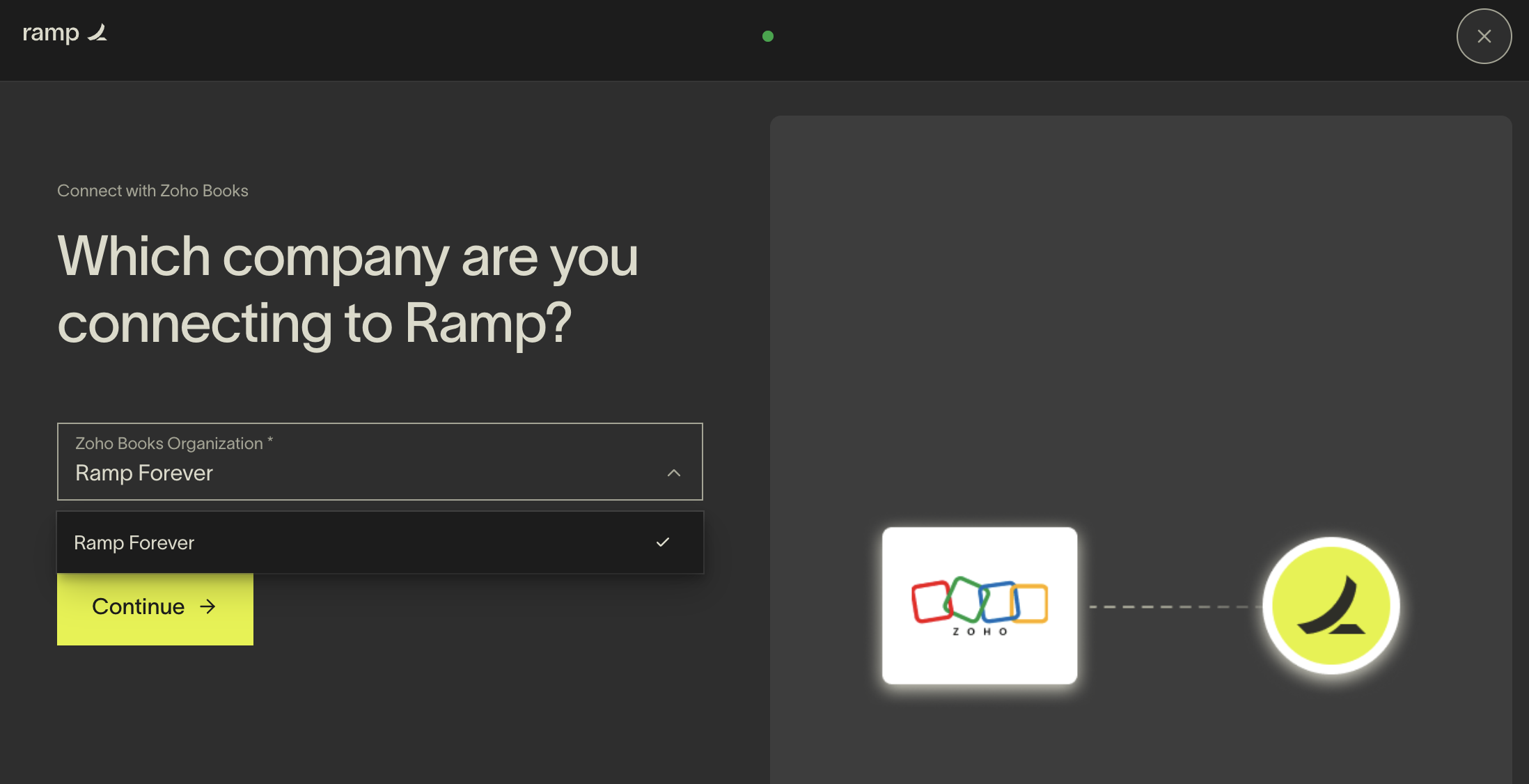
Step 4: Select your Zoho Books organization
- Select the Zoho Books organization you want to connect to Ramp.
- Click continue.
Ramp then connects to Zoho Books. This may take a few minutes. When the connection is complete, click Get started to continue.
Step 5: Select a liability account
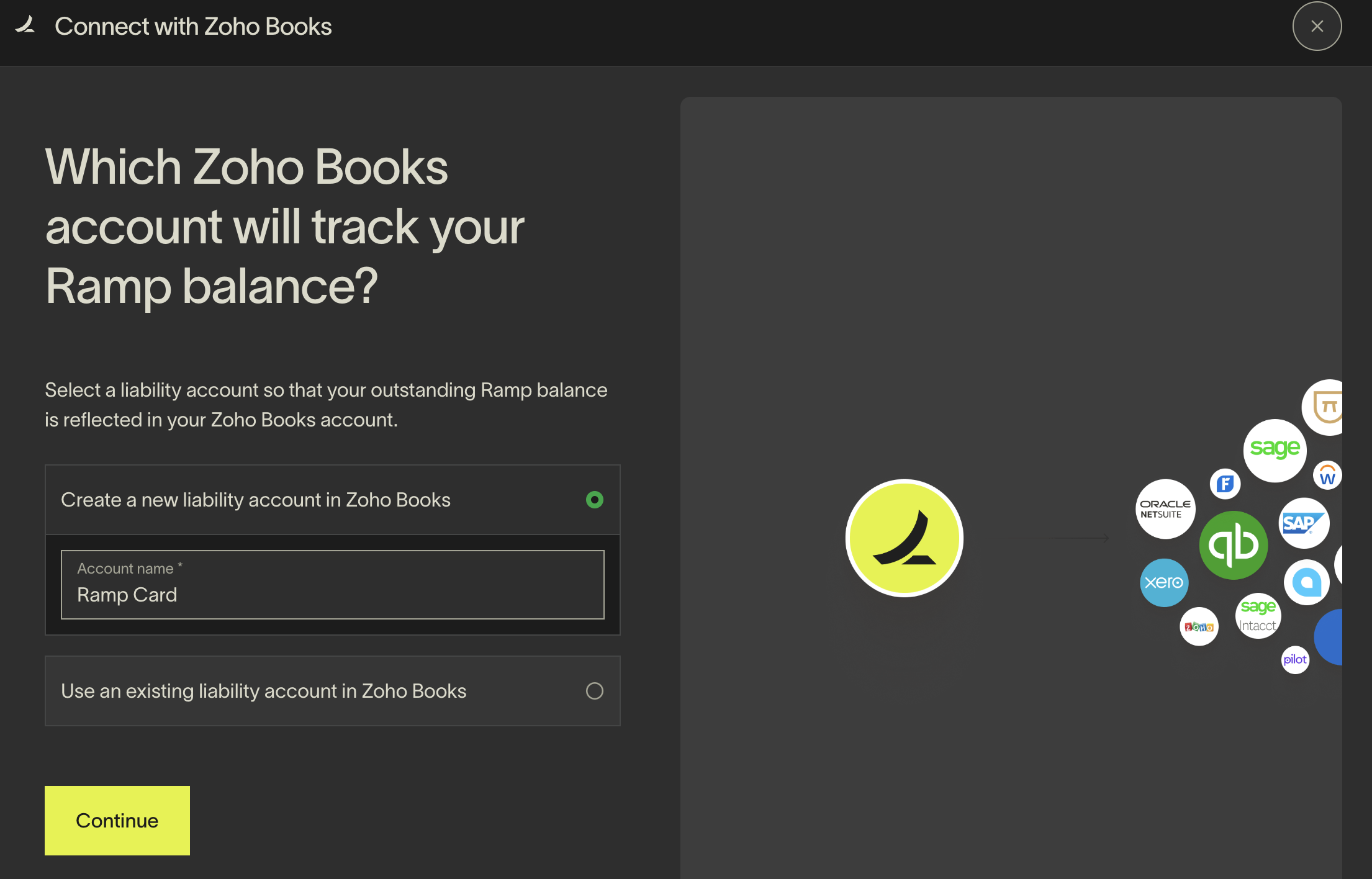
- Choose a liability account so that your outstanding Ramp balance is reflected in your Zoho Books organization. If this is your first time connecting Zoho Books to Ramp, then we recommend selecting Create a new liability account in Zoho Books and labeling the account "Ramp Card."
- Once you have made your selection click continue.