Ramp CLI and MCP integration: Manage agent keys
Overview
Early Access. Opt in from your Early Access settings.
Agent keys let you securely connect external agents to your Ramp account through the Ramp CLI and/or the official Ramp MCP server. Each key is named, scoped, and tied to you, and your admin has full visibility into agent connections across the company.
What are agent keys?
When you connect to Ramp through the Ramp CLI or MCP server, an agent key controls that connection. Agent keys are not API keys and do not expose a reusable secret to copy or store. The key inherits your Ramp role permissions, so an external agent can only access what you can access, and every action it takes is logged as your own, but properly marked as executed by an agent.
Each key has:
- A name: identifies the connection (e.g., "Expense review agent")
- A scope: Read-only access (view data, no changes) or Read and write access (view data and take actions you're authorized to perform). Scope can be changed after creation
- An expiration date: agent access automatically stops on the expiration date to keep your account safe. You can extend expiration at any time before or after a key expires
- An owner: you. The key inherits your role and permissions, and can be scoped down (e.g., to read-only) but never up
Your Ramp role permissions define the maximum access available to the agent. The OAuth scopes granted during authorization further limit which data and actions the connected CLI or MCP tool can use. If either your role or the granted OAuth scopes do not allow an action, the agent cannot perform it.
Connecting Ramp CLI and MCP
When you authorize the Ramp CLI or the Ramp MCP server, you are taken to an authorization screen that lists your existing agent keys. Select the key you want to use for the connection. The screen shows the read or write permissions the key grants so you can confirm the right level of access before proceeding.
If you wish to use a key that has already expired, you will need to update it on Ramp first before you can select it again during the authorization flow.
Managing your keys
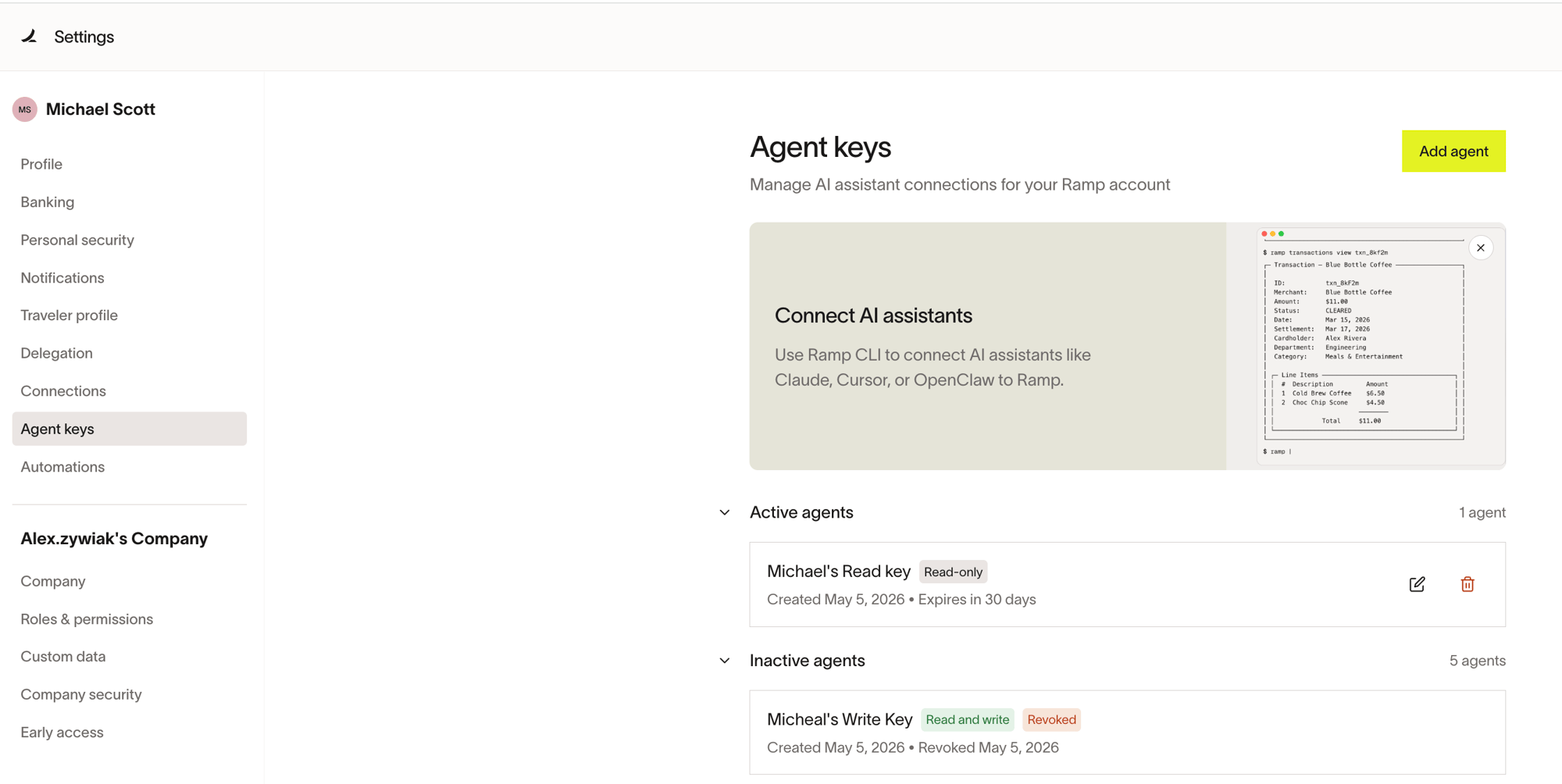
Go to Settings > Agent keys to see all your active and inactive agent keys.
Creating a key
- Go to Settings > Agent keys.
- Click Add agent.
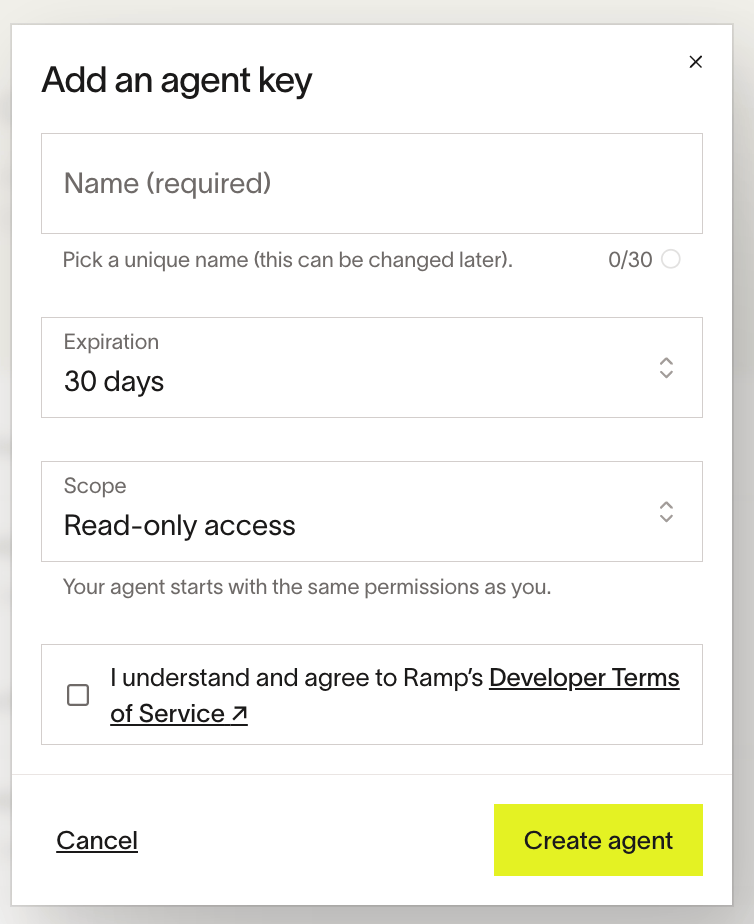
- Fill in the fields in the Add an agent key dialog:
- Name: pick a unique, descriptive name (up to 30 characters). You can change this later
- Expiration: use the date picker to select an expiration date
- Scope: choose your access level. This can be changed after creation:
- Read-only access — view bills, transactions, cards, departments, users, vendors, and other company data
- Read and write access — manage and create bills, cards, limits, transactions, users, vendors, and more across Ramp
- Check the box to confirm you understand and agree to Ramp's Developer Terms of Service
- Click Create agent.
After you create the agent key, Ramp saves it to your account. You do not need to copy an agent secret. When you connect the Ramp CLI or a supported Ramp MCP tool, select the key from the authorization screen.
Editing a key
You can edit a key's name, expiration, and scopes, including after it has expired. To edit, click the edit icon on the key's row in Settings > Agent keys. Use the date picker or quick-select buttons to choose a new expiration date.
Revoking a key
Keys are listed under Active agents and Inactive agents. To revoke an active key, click the Revoke agent button on its row.
Revoked keys stop working immediately. If you believe a key has been compromised, revoke it right away and create a new one.
For Admins and managers
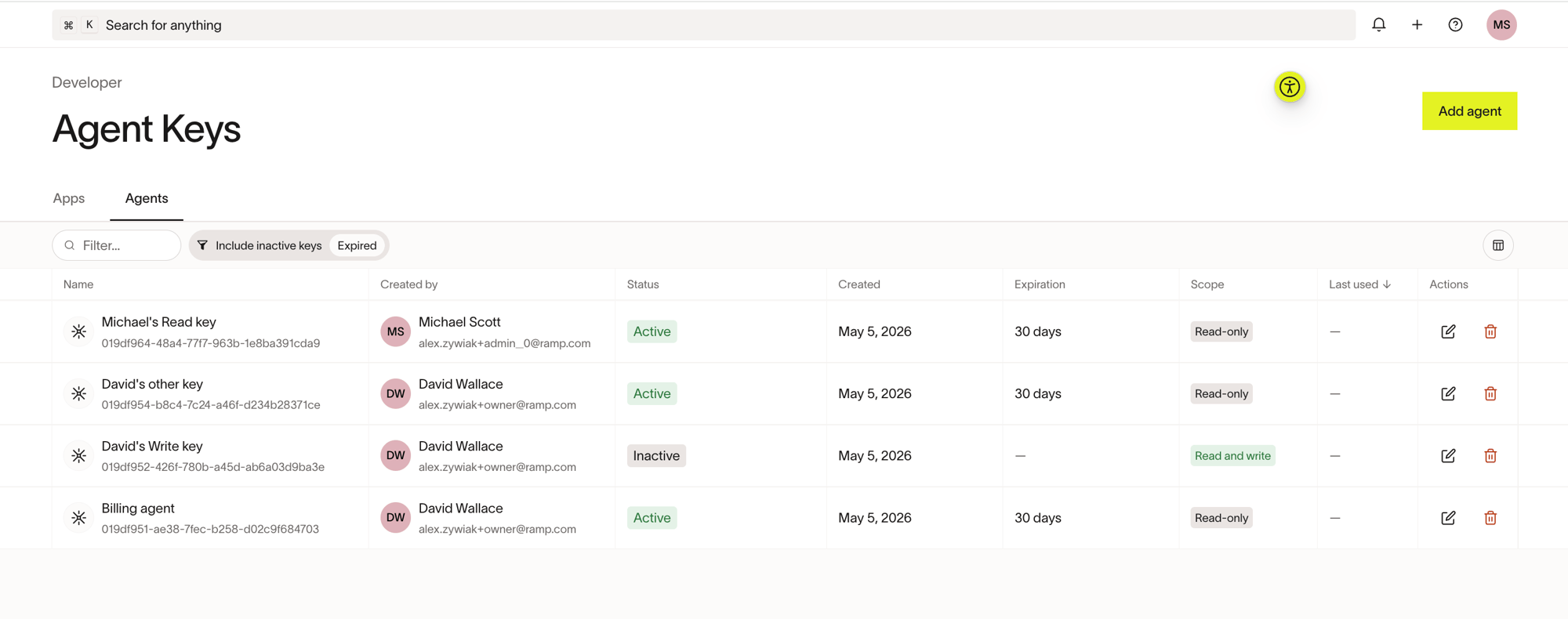
Admins and managers can view and manage agent keys at Settings > Developer > Agents. Admins see all keys across the business; managers see keys belonging to members of their team.
From this view, admins and managers can:
- Create keys on behalf of users
- Edit a key's name
- Extend a key's expiration
- Edit a key's scopes
- Revoke any key
The view shows each key's name, the user who created it, status (Active or Inactive), creation date, expiration, scope, and last-used date. You can filter by inactive or expired keys using the controls at the top of the table.
Frequently asked questions
Can the CLI or MCP tool do more than I can?
No. The key inherits your permissions and can be scoped down, but never up.
What happens when a key expires?
The key stops working and moves to your Inactive agents list. You can extend the expiration at any time, including after it has expired, by clicking the edit icon on the key's row.
What happens when my agent-key session expires?
Agent-key sessions can expire separately from the key itself. When a session expires, the agent can automatically refresh the session without requiring any user interaction. If you need assistance with authorization issues in the CLI or Ramp MCP, you can follow the troubleshooting guidance in Ramp MCP.
Can I change a key's scope after creating it?
Yes. Edit the key directly from your personal list, or from the administrative table if you're an Admin.
Can I have multiple keys?
Yes — you can create separate keys for different tools or purposes.
Can my admin see my keys?
Yes. Admins can view all agent keys across the business. Managers can view keys belonging to members of their team. Both can see each key's scope and last-used date.
What's the difference between read-only access and read and write access?
- Read-only access: view data (bills, transactions, cards, vendors, etc.) but cannot make changes
- Read and write access: view data and take actions your role allows, such as managing cards, creating bills, and more
Do I need to copy an agent secret?
No. Agent keys do not expose a secret value after creation. To connect the Ramp CLI or a supported Ramp MCP tool, start the authorization flow and select an existing key from the authorization screen.
Where can I learn more about Ramp MCP?
For setup options and supported use cases, see Ramp MCP.