Contracts & renewals
Note: Contracts & renewals is a Ramp Plus feature. The following capabilities are available with the Procurement add-on: requesting a renewal, expansions, and linking contracts to purchase orders.
Overview
Contracts & renewals helps teams manage vendor contracts, track upcoming renewals, and route renewal and expansion decisions through Ramp. It gives customers a single place to create, upload, import, and manage contracts; monitor key dates like contract end and last date to action; and take follow-up actions such as requesting a renewal, requesting an expansion, or marking a contract as renewed or not renewed.
With contracts & renewals, you can:
- Create, upload, or import contracts
- Track contract details such as amount, dates, auto-renewal, owners, and renewal status
- Request a renewal or expansion tied to an existing contract
- Use redirection to link requests to the correct contract when Ramp surfaces a likely match
- Merge related contracts for the same vendor into a unified view
- Configure renewal reminders at the company and contract level
- Build approval workflows with renewal- and expansion-specific logic
Create and track contracts
You can create contracts directly in contracts & renewals, upload documents to existing contracts, or use contract tracking within procurement workflows.
When contract tracking is enabled for a Spend Program, Ramp scans any documents attached to spend requests and only enables contract creation when it detects contract-related documents, such as order forms or master services agreements (MSAs). You can also create contracts manually and review pre-filled fields before saving.
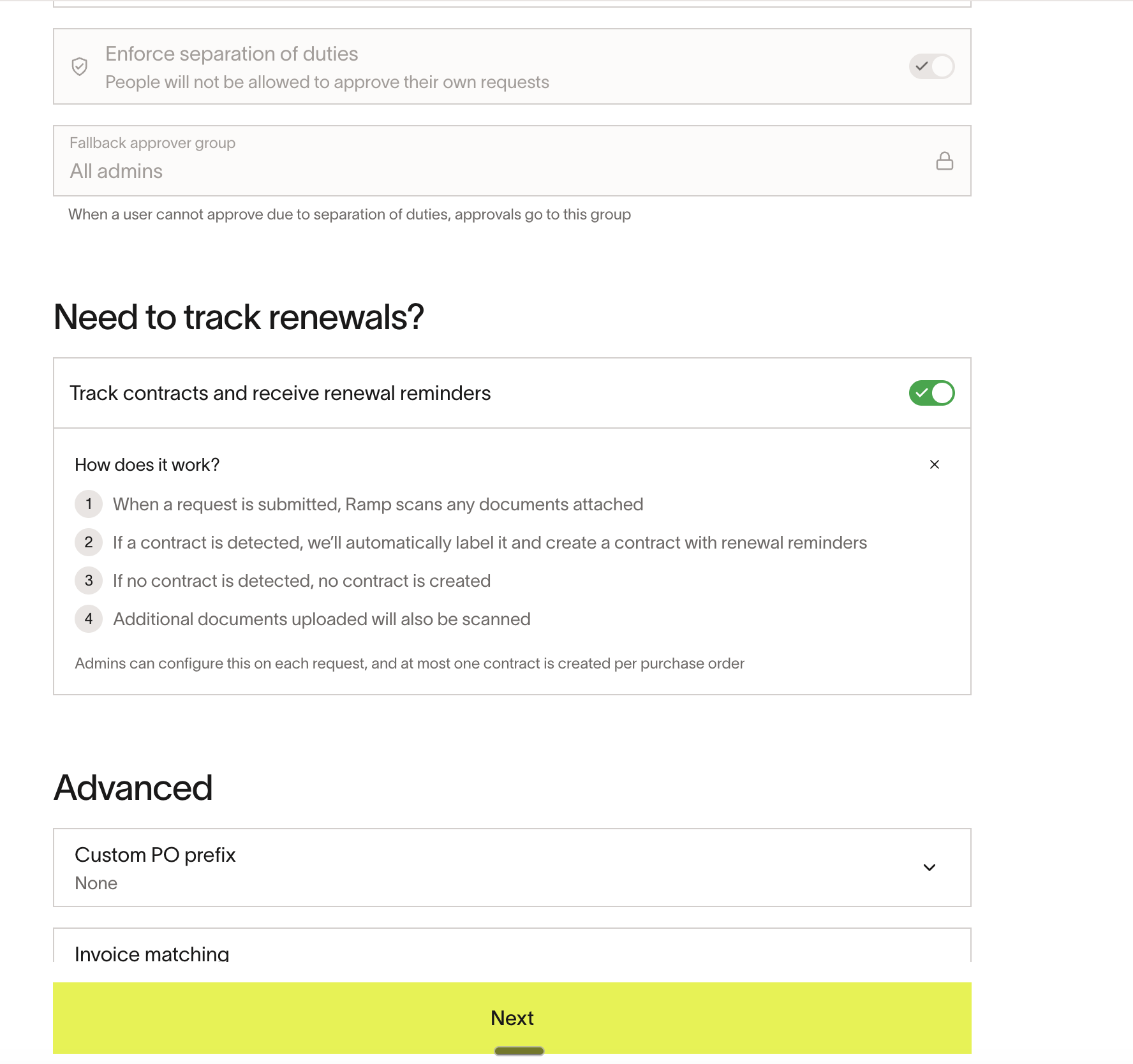
Enable contract tracking on a Spend Program
- Go to Manage spend > Programs .
- Select the Spend Program you want to configure and click Edit .
- Toggle on Track contracts and receive renewal reminders .
- Save your changes.
How document detection works
Once contract tracking is enabled:
- A user submits a spend request through the program.
- By default, the setting to create a contract is toggled off on the request.
- When the user uploads a document, Ramp scans it automatically.
- If Ramp detects a contract-adjacent document (e.g., an order form or MSA), it toggles contract creation on.
- If the document is later reclassified to a non-contract type (e.g., an invoice), Ramp resets the toggle to off.
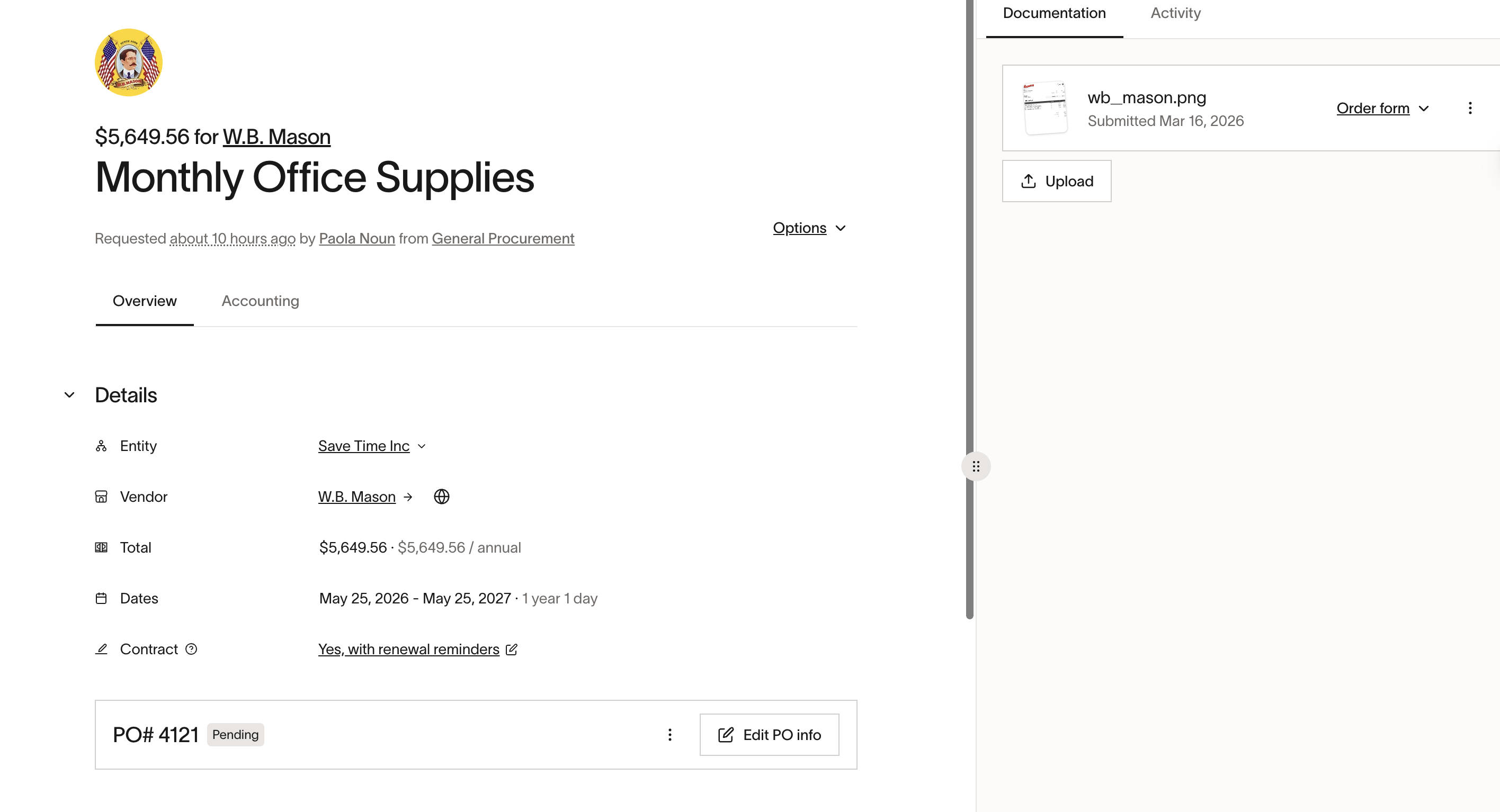
Note: A user can manually toggle contract creation on or off at any time on the request. Once manually toggled, Ramp will no longer propagate automatic updates to that setting.
You can manage contract details such as:
- Contract name and description
- Start date and end date
- Last date to action
- Auto-renewal
- Amount and currency
- Reminder settings
Create a contract from an existing purchase order
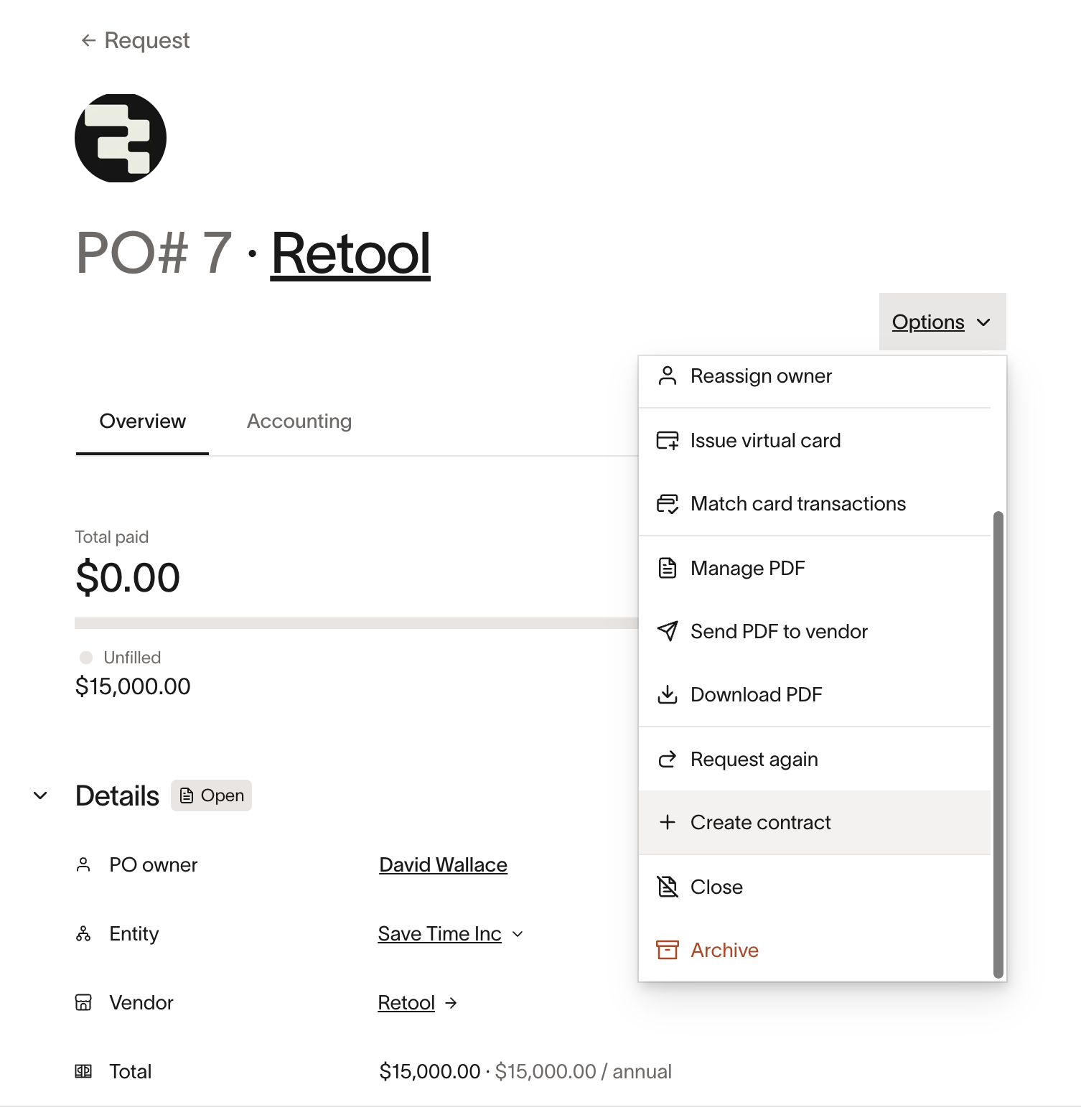
If you have purchase orders that were created before contract tracking was enabled, you can create contracts from them using AI. Ramp pulls information from the purchase order to pre-fill contract details, which you can review before saving.
- Navigate to the purchase order.
- Click Options > Create contract .
- Ramp pre-fills contract details using information from the purchase order.
- Review the details and click Create contract .
Request a renewal
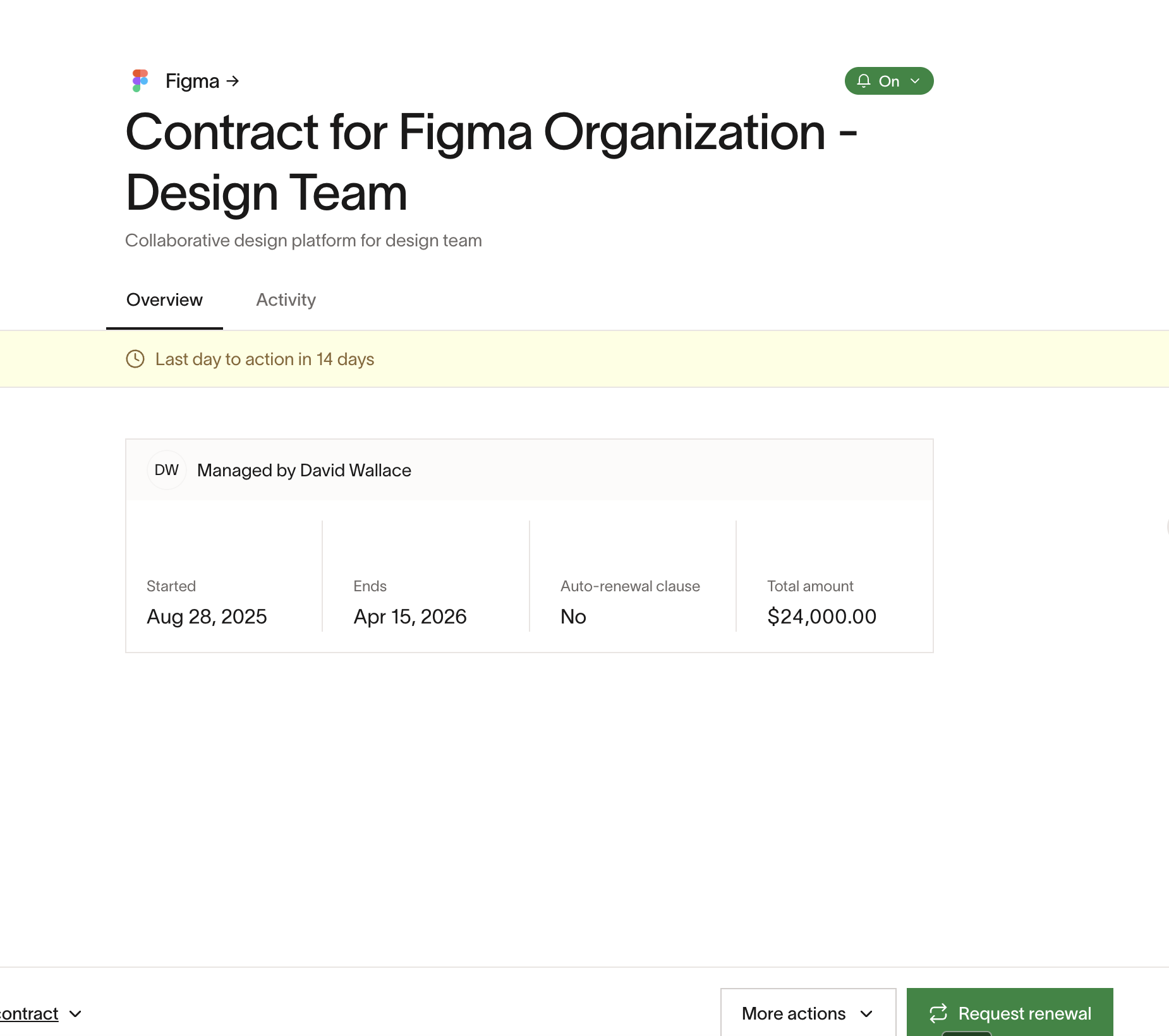
When a contract is approaching its end date, Ramp surfaces it as a renewal to manage. You can create a renewal request from the homepage or from the contract itself.
Start a renewal request
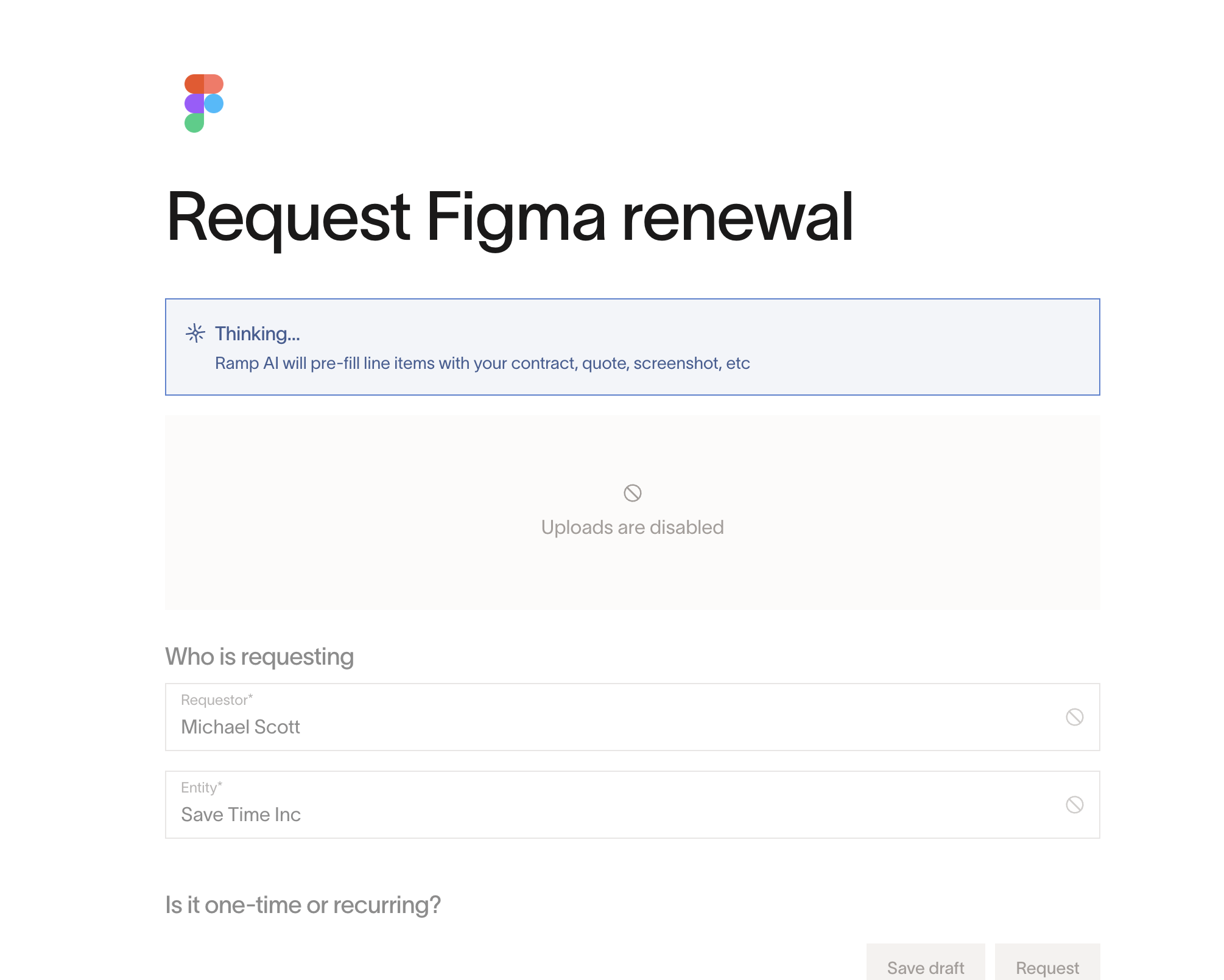
- Navigate to the contract ( Vendors > Contracts & renewals) or locate the renewal on your Homepage .
- Select Request renewal .
- Ramp uses AI to determine the best Spend Program for the renewal and pre-fills the request form using context from the existing contract, including linked purchase orders and attached documents.
- Review the pre-filled information, adjust the Spend Program if needed, make any changes, and submit the request.
Other renewal actions
Depending on contract state and request state, you may also be able to:
- Continue an in-progress renewal — Resume a renewal request that was started but not yet submitted.
- Snooze — Temporarily dismiss the renewal reminder from the homepage and email notifications.
- Mark as renewed — Manually mark a contract as renewed without submitting a request.
- Mark as won't renew — Indicate that you do not plan to continue the vendor relationship.
- Reopen for renewal — Reopen a contract that was previously marked as renewed or won't renew.
What happens after a renewal request is approved
When a renewal request is approved, a new contract is automatically created for the renewal. The new contract links back to the previous contract, maintaining a clear renewal history, and renewal reminders are configured on the new contract so the cycle continues.
Request an expansion
If a contract is active and not yet up for renewal, you can submit an expansion request to add spend against the existing agreement. Expansion requests are useful for mid-term changes like adding seats, services, or additional scope.
Expansion requests keep that incremental spend tied to the original contract, rather than treating it like a brand-new vendor purchase.
Create an expansion request
- Navigate to the contract you want to expand.
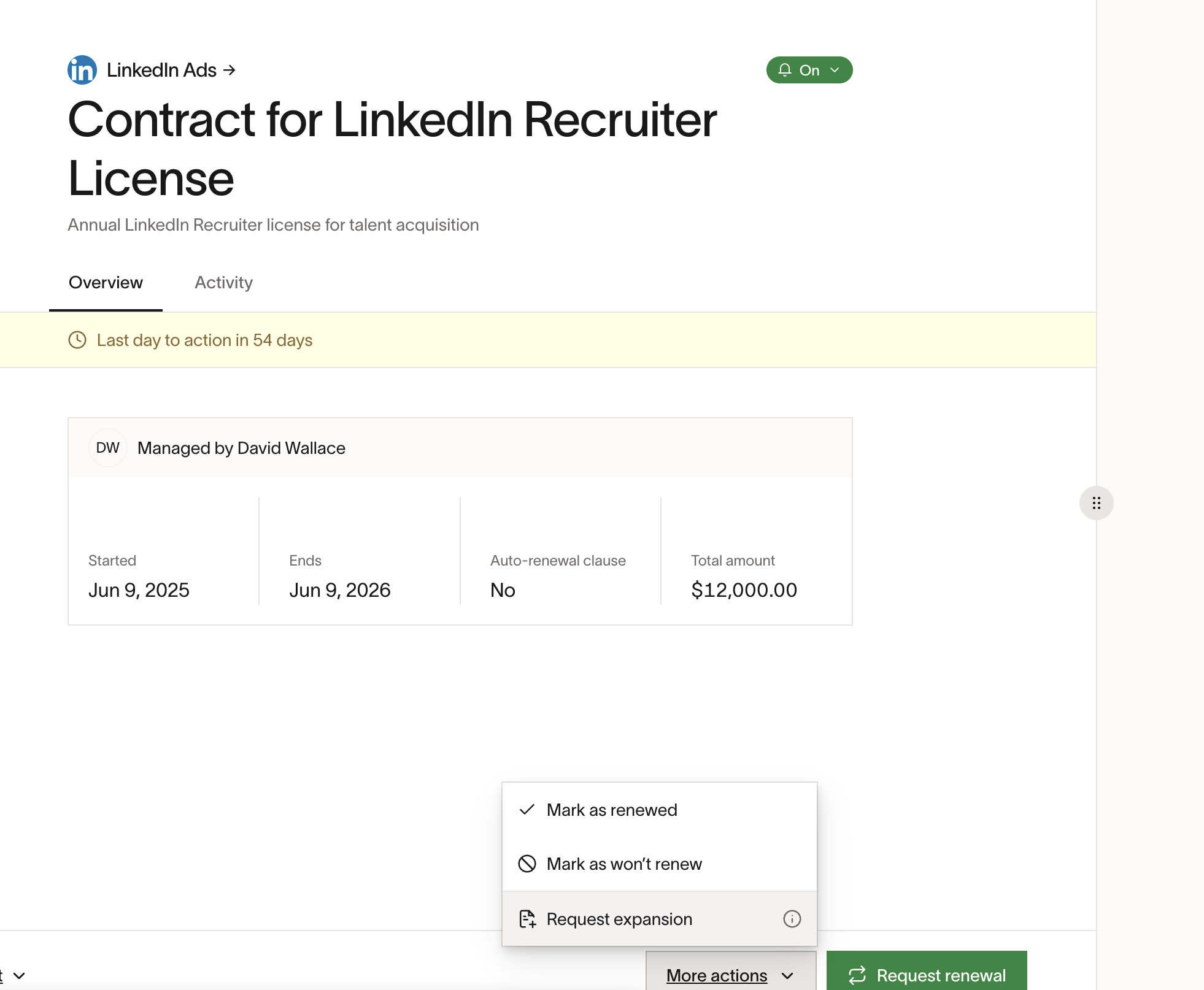
- If the contract is not yet up for renewal, the default action is Request expansion . Click it.
- Otherwise, navigate to More actions > Request expansion.
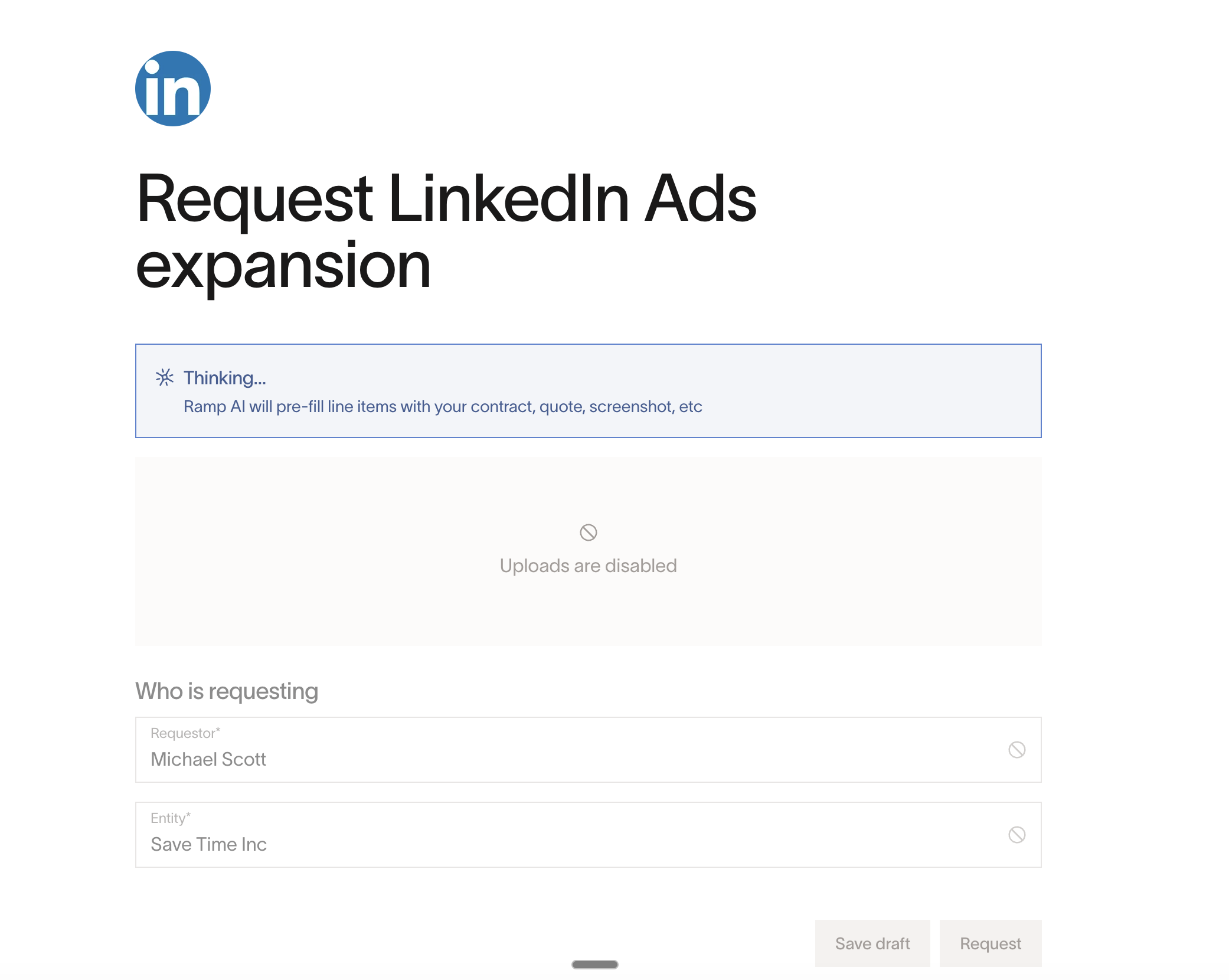
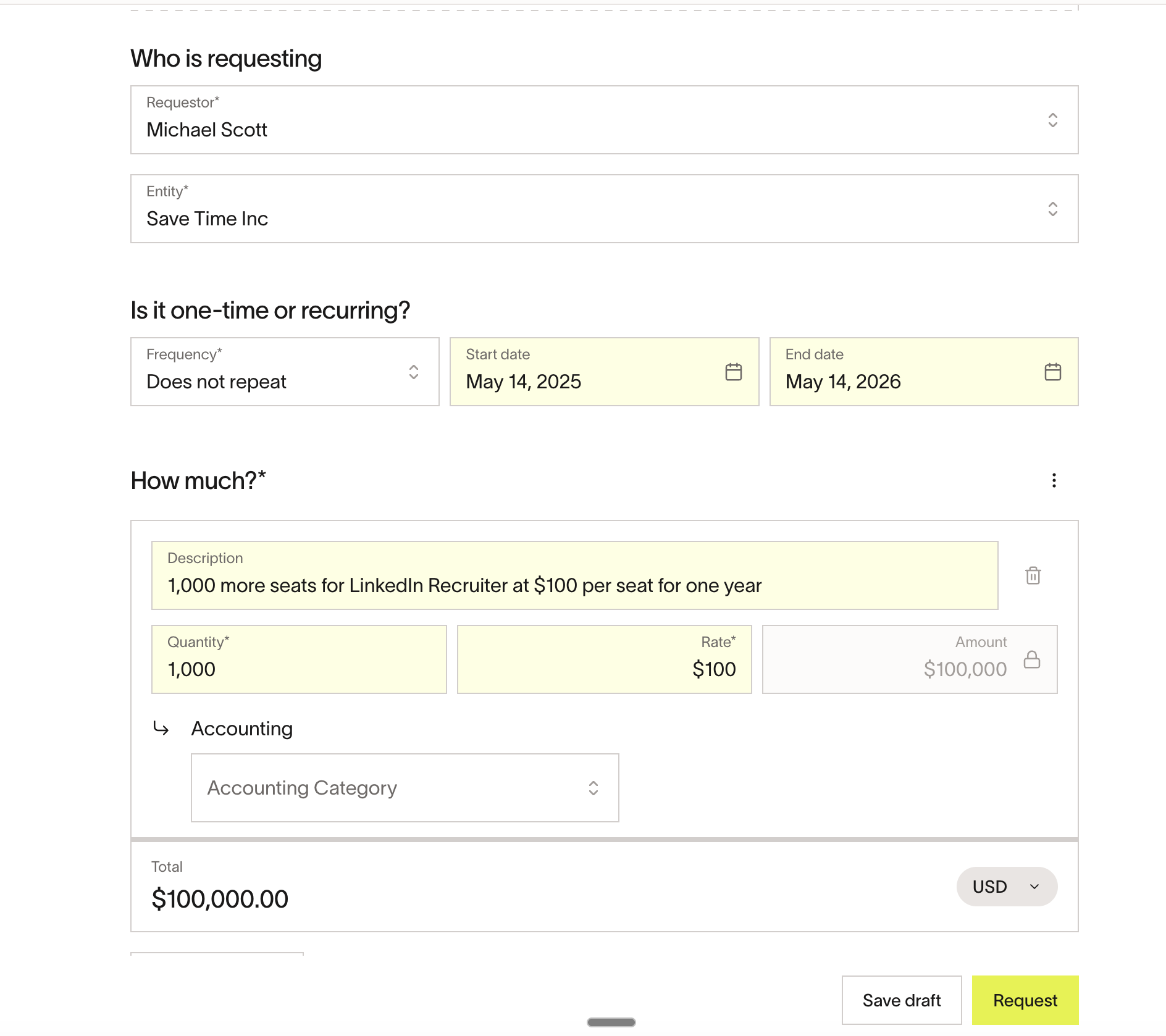
- Enter the expansion details (e.g., number of additional seats, additional cost).
- Ramp pre-fills the request form using the context of the existing contract.
- Review and submit the request.
What happens after an expansion request is approved
On approval, a purchase order is created for the expansion amount. The contract's total value is automatically updated to reflect the expansion (e.g., a $10,000 contract with a $5,000 expansion becomes $15,000), and the expansion purchase order is automatically linked to the contract.
Redirection
Redirection helps ensure that spend requests intended as renewals or expansions get linked to the correct existing contract. When a user submits a request that Ramp identifies as a potential renewal or expansion, it prompts the user to confirm and link the request to the matching contract.
- A user fills out a spend request for a vendor that has an existing contract.
- Ramp identifies that the request may be a renewal or expansion and surfaces a prompt.
- If the user confirms, Ramp uses the existing contract context to pre-fill the remainder of the request form.
- On submission, Ramp automatically links the request to the contract as a renewal or expansion.
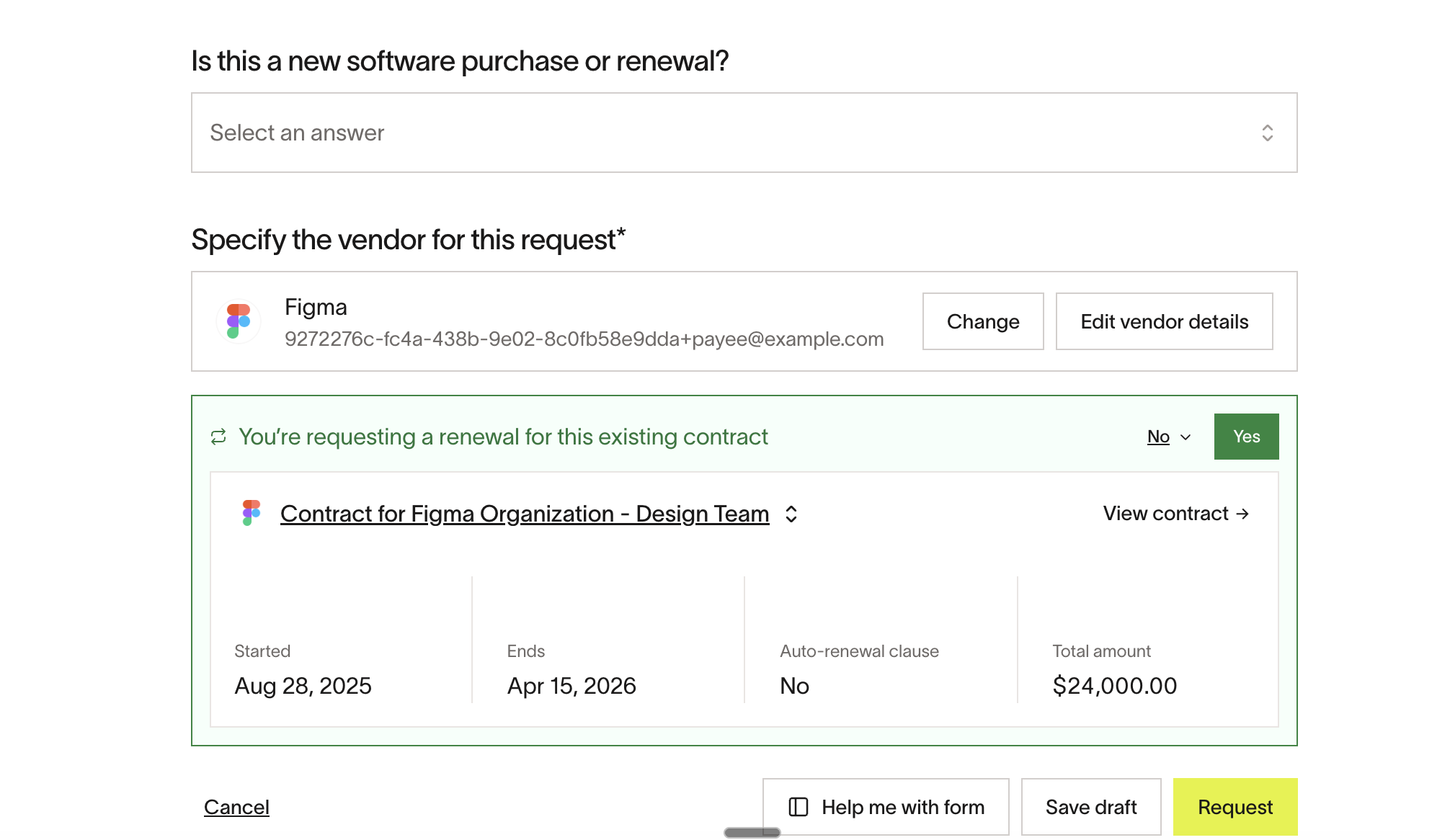
Once linked, the request continues through the appropriate procurement flow with the contract association preserved.
Merge contracts
Contracts & renewals supports merging multiple contracts for the same vendor into a single view. This is useful when you have multiple related agreements and want a cleaner, more consolidated contract record.
- Go to Vendors > Contracts & renewals.
- Select the contracts you want to merge.
- Click Preview .
- Review the merge preview — purchase orders, documents, and fields from all selected contracts are shown together.
- Confirm the merge.
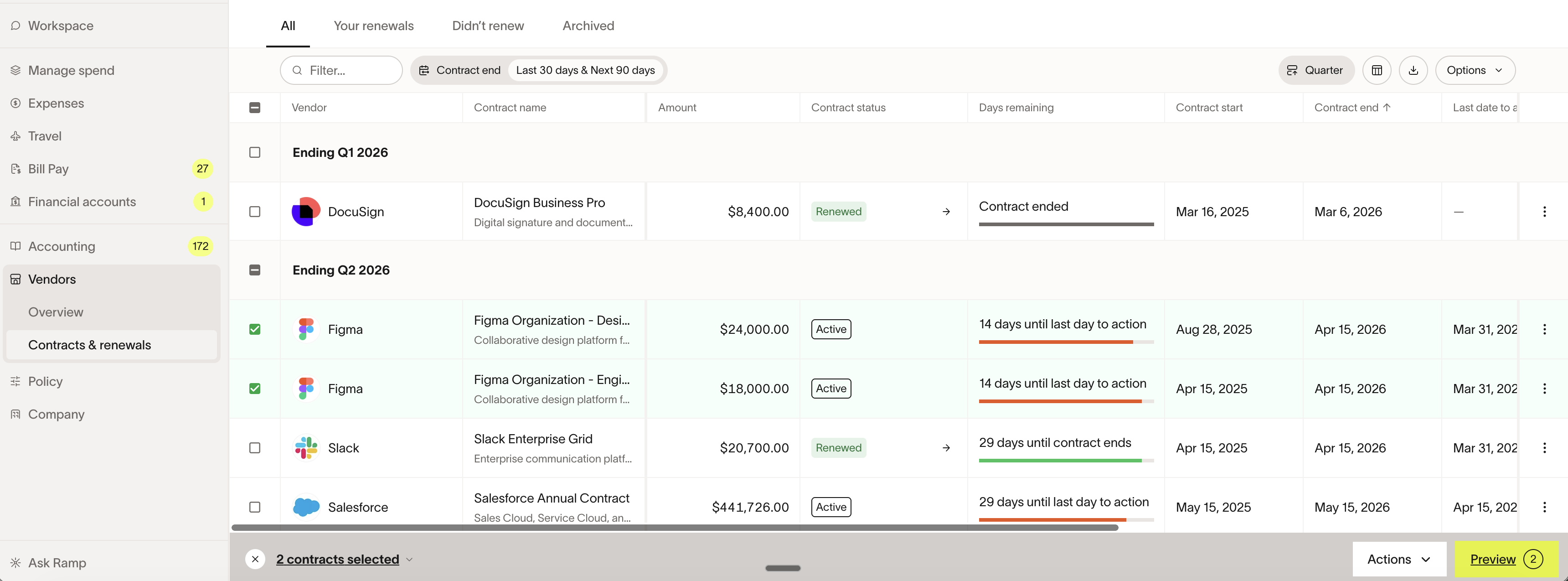
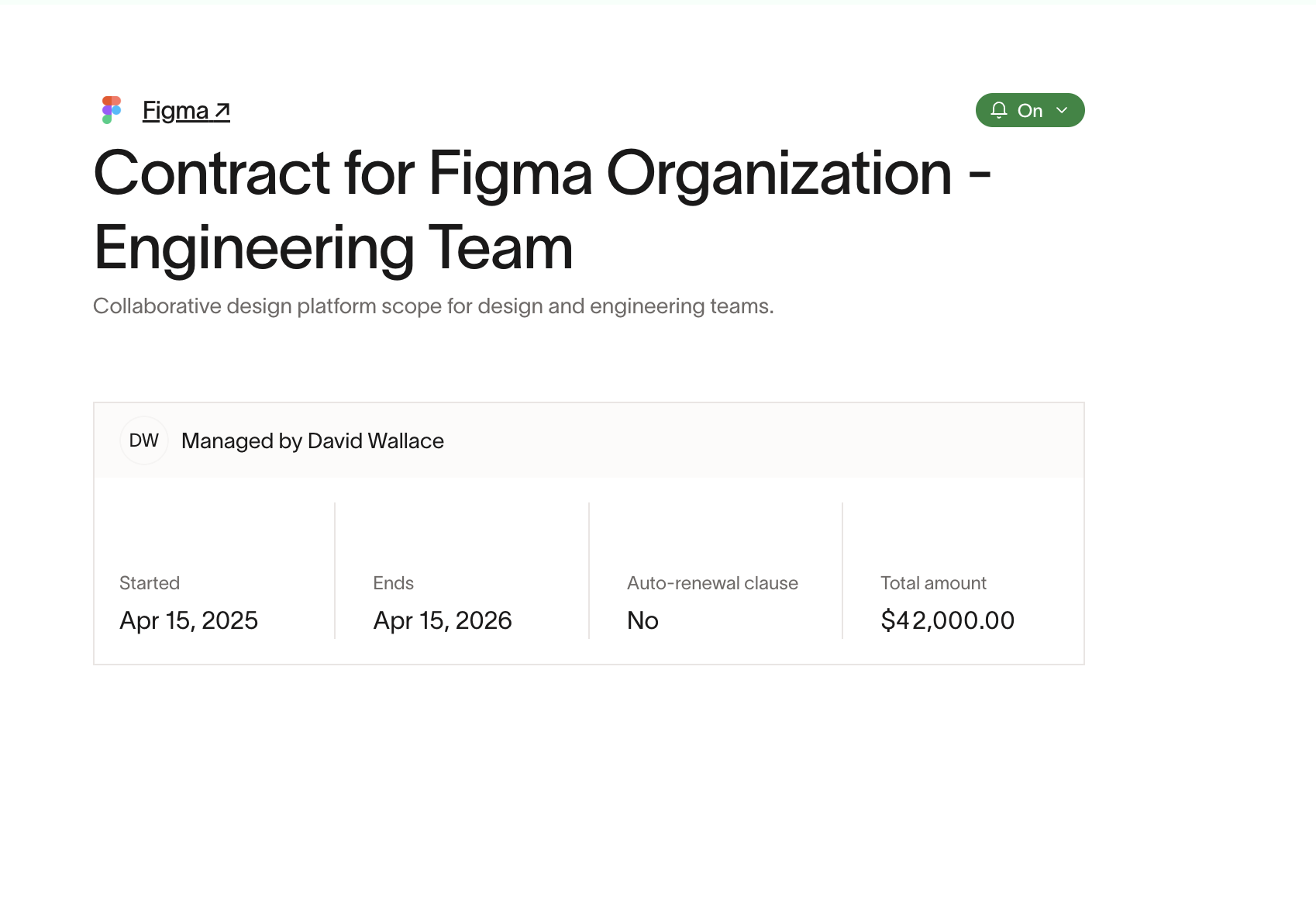
Note: merging will be a suggestion on the homepage when multiple contracts that Ramp detects are mergable are up for renewal together.
Renewal reminders
You can configure renewal reminders at both the company level and the individual contract level to help teams stay ahead of upcoming renewals without relying on manual tracking.
Reminder settings support
- Company-wide default reminder settings
- Per-contract reminder overrides
- Reminder triggers based on contract milestones, including contract end / renewal and last date to action
- Recipient routing to configured stakeholders
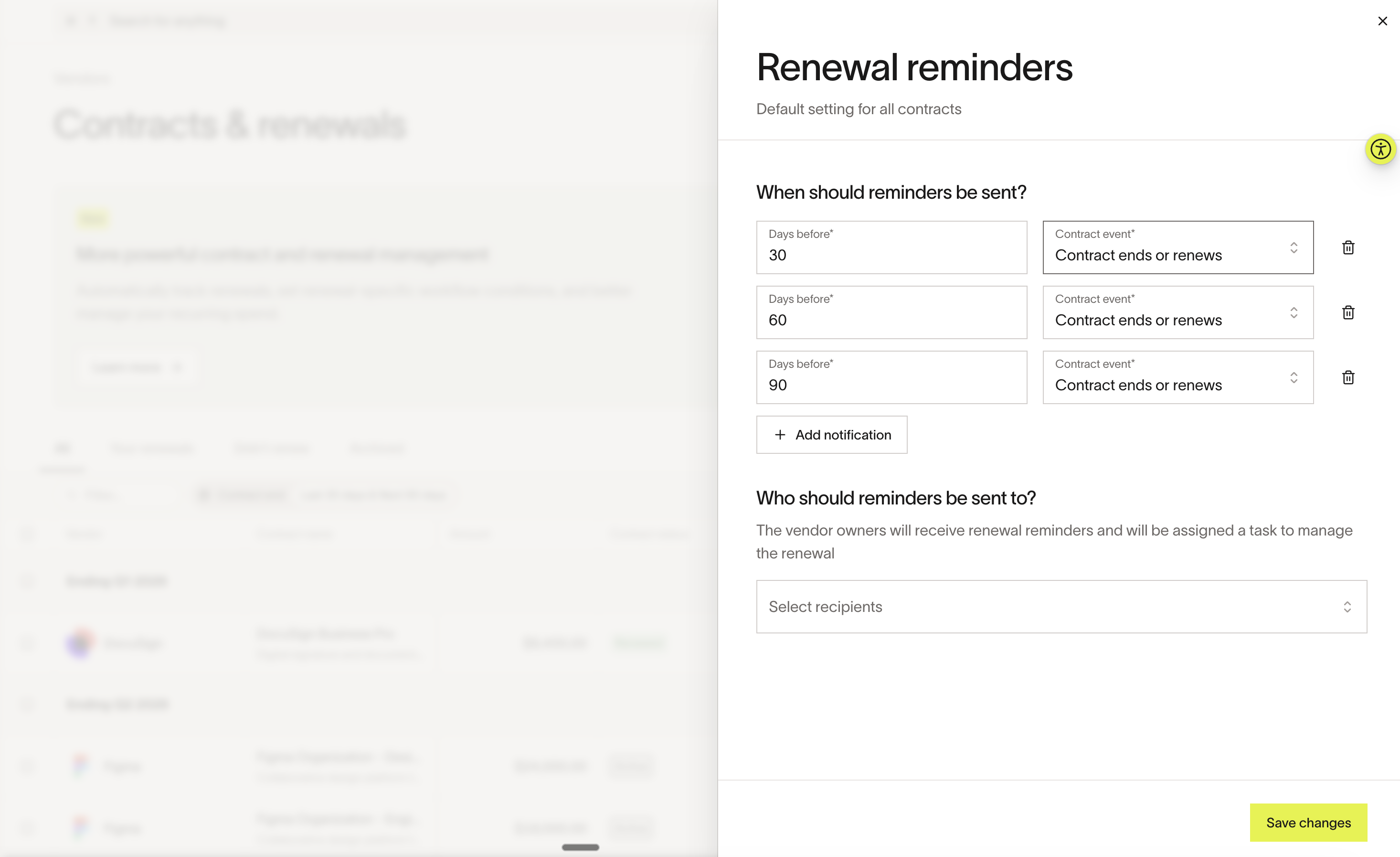
Set up company-level reminders
- Go to Vendors > Contracts & renewals.
- Open Settings .
- Configure when reminders should be sent (e.g., 30, 60, or 90 days before a contract's end date or the Last date to action).
- Configure which stakeholders should receive reminders.
Customize reminders on a specific contract
- Navigate to the contract.
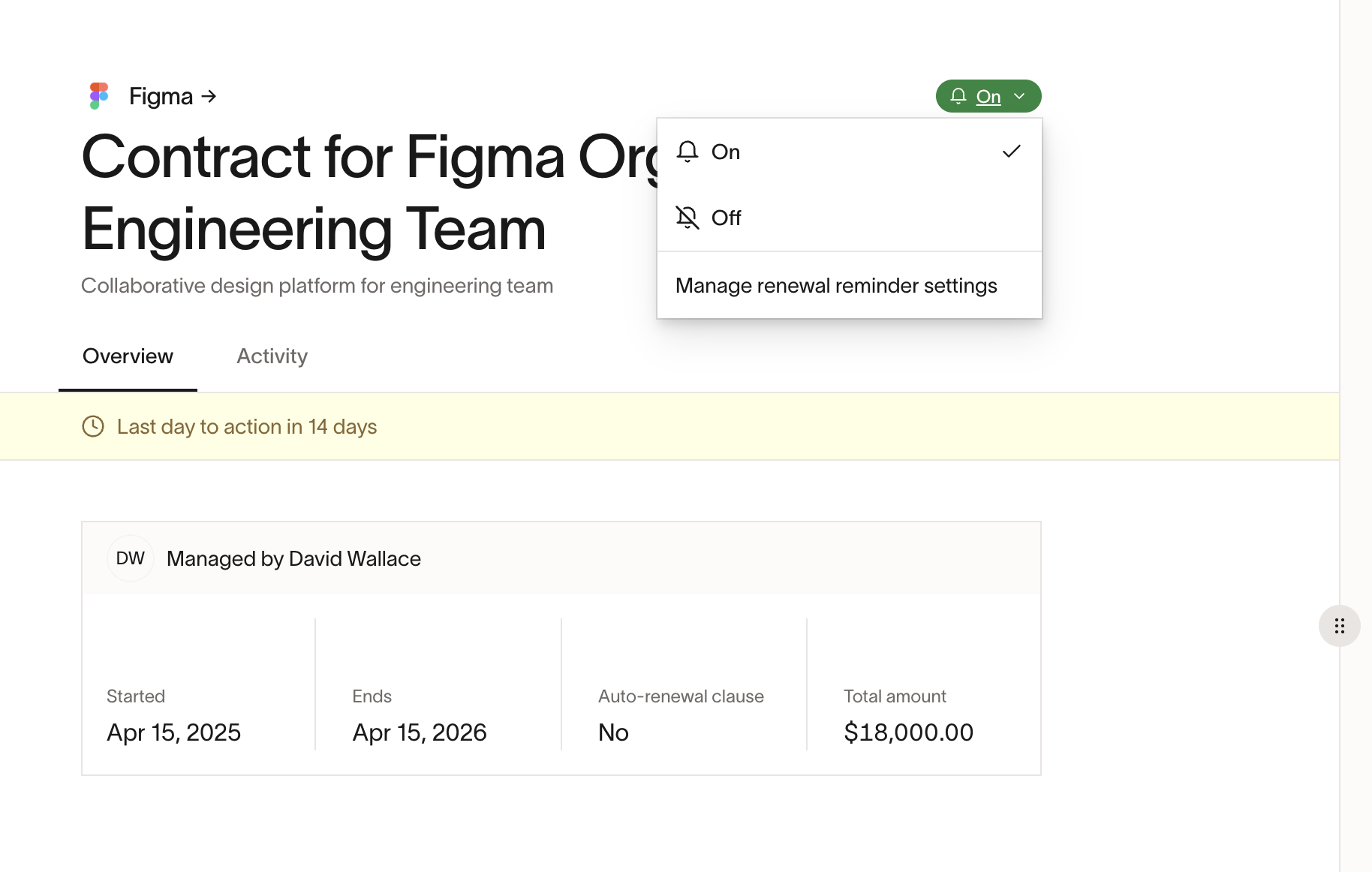
- Click the notification bell on the top right hand corner, and select Manage renewal reminder settings .
- Adjust the reminder timing and recipients for that specific contract.
Approval workflows
Contracts & renewals integrates with procurement approval workflows. Admins can build logic that branches based on request type and renewal- or expansion-specific criteria.
Supported workflow conditions
Workflow logic can include conditions based on:
- Request type (renewal, expansion, or new)
- Renewal change amount
- Renewal change percentage
- Expansion change amount
- Expansion change percentage
Configure renewal-specific approval logic
- Go to Manage spend > Programs .
- Select a program and open its approval workflow.
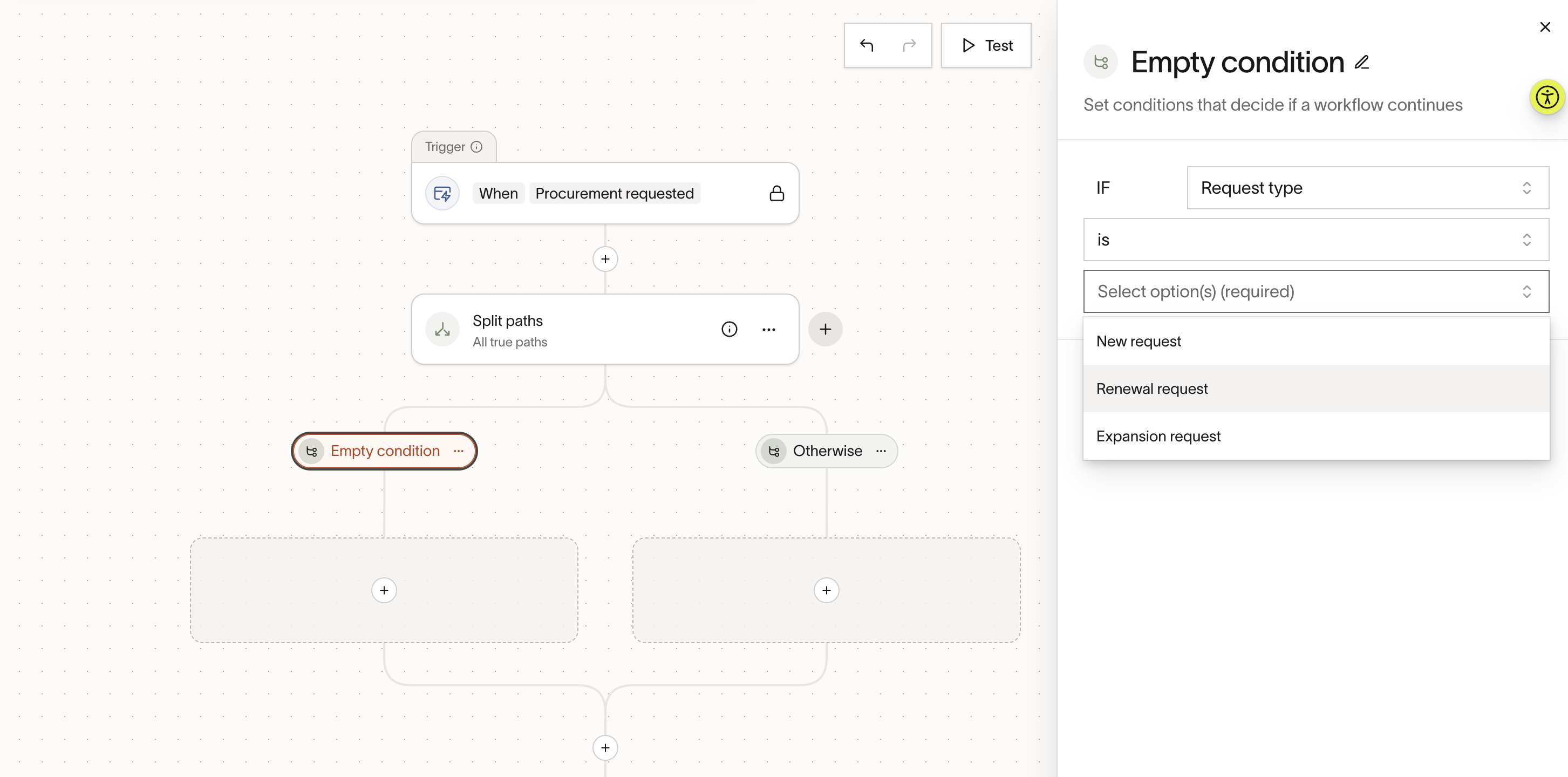
- In the workflow builder, add a condition based on Request type (or any other contract/renewal conditional types).
- Add additional conditions for renewal or expansion branches as needed.
- Configure the appropriate approvers for each branch.
Custom form questions
Teams can also condition custom form questions on other form fields so requests capture the right information.
- In the Spend Program settings, go to What's on the request form?
- Add a condition to a question based on the response to another form question.
- Configure which questions should appear for each condition.
Use cases and examples
Staying ahead of auto-renewals
A procurement team enables contract tracking across their Spend Programs. When an employee submits a request and attaches an order form, Ramp detects the document and creates a contract with renewal reminders configured. Sixty days before the contract's end date, the configured stakeholder receives a reminder and submits a renewal request — giving the team time to renegotiate terms instead of being locked into an auto-renewal.
Tracking mid-contract seat additions
A company signed a $10,000 annual contract with a SaaS vendor. Six months in, a team needs 100 additional seats at a cost of $5,000. Instead of creating a separate, unlinked request, the team lead submits an expansion request against the existing contract. On approval, the contract total updates to $15,000 and the expansion purchase order is automatically linked.
Cleaning up legacy contracts
Over the years, a company signed three separate agreements with the same vendor — an initial contract, an expansion, and a renewal. Using contract merging, the procurement admin consolidates all three into a single contract view with purchase orders, documents, and fields aggregated together.
Best practices and tips
- Enable contract tracking on procurement programs so that Ramp can detect contract documents and create contracts as part of the request flow.
- Upload contracts and supporting documents (order forms, MSAs, SOWs) to your contracts. The more context a contract has, the better Ramp can pre-fill renewal and expansion requests.
- Link purchase orders to contracts to maintain a clear paper trail between spend requests and agreements.
- Set company-level reminders as a baseline (e.g., 90 days out), then customize at the contract level for high-value or time-sensitive agreements.
- Use approval workflow conditions to route low-risk renewals (e.g., zero dollar change) for streamlined approval while requiring additional review for renewals with significant cost increases.
- Merge related contracts periodically to keep your contracts table clean and reduce vendor sprawl.
Frequently asked questions
What happens if I manually toggle contract creation on a request?
Once you manually toggle contract creation on or off, Ramp stops automatically updating that setting based on document detection. Your manual choice takes precedence.
Can I create a contract from an existing purchase order?
Yes. Navigate to the purchase order and click Create contract. Ramp pre-fills the contract details from the purchase order information for you to review and save.
What is the difference between a renewal and an expansion?
A renewal is used when a contract is nearing the end of its term and the business wants to continue the vendor relationship. An expansion is used when the contract is still active, but the business needs to add spend or scope mid-term.
Can I undo a contract merge?
No, a merge cannot be undone.
Who receives renewal reminders?
Reminder recipients depend on the configured reminder settings for the business or contract.
Does redirection work for all spend requests?
Redirection activates when Ramp detects that a new spend request is likely a renewal or expansion of an existing contract for the same vendor. It prompts the user to confirm and link the request.
Can I merge related contracts?
Yes. Contracts for the same vendor can be merged through the merge preview flow.
Can I configure renewal reminders?
Yes. Reminder settings can be managed at the company level and overridden on individual contracts.