Ramp Developer API overview
Overview
Ramp’s Developer API allows teams to programmatically access Ramp data and build automations or integrations tailored to their workflows. It provides secure, scoped access to objects like transactions, cards, users, and more. This help article explains what the API is, how to get started within the Ramp app, and where to find full technical documentation and real-time assistance. Complete reference guides, endpoint schemas, and end-to-end examples live in the Ramp Developer API documentation.
Setup guide and feature support
To begin using the Ramp Developer API, you must first create a developer app to obtain your API credentials. Admin access is required.
- Open Developer apps in Ramp.
- For your first app, click Start building. If you already have an app, click Create new app.
- Name your app (e.g., “API Quickstart”) and accept the Terms.
- Under Grant types, confirm Client credentials is turned on.
- Under Scopes, click Configure allowed scopes and select the scopes available to your business that your use case needs, such as
transactions:read. If a required scope is unavailable, submit a Developer API support ticket to ask about access. - Copy your Client ID and Client Secret. Store these securely—you’ll need them to generate your access token.
Video walkthrough: Generate Ramp Developer API credentials from the Ramp dashboard. Best when you're creating your first app and need client credentials and scopes. Watch the video.
Once credentials are created, follow the this guide on how to generate an access token.
Sandbox environment
Ramp provides a sandbox environment where you can build and test your API integration before connecting to production. The sandbox is a separate environment with its own base URL and credentials — it is not a mode within the production API.
- Sandbox API base URL:
https://demo-api.ramp.com - Production API base URL:
https://api.ramp.com
The sandbox uses a separate API base URL and app credentials from production. It cannot process real money and includes demo-only simulation actions.
Requesting sandbox access
Request access using the sandbox access form. Your sandbox should be ready in about one minute. Check your inbox for an account access email. Ramp provisions a sandbox business pre-populated with sample data (such as transactions, cards, users, departments, and reimbursements) so you can test against realistic data without affecting your production account.
You will need to create a separate developer app in the sandbox environment to obtain sandbox-specific OAuth2 credentials (Client ID and Client Secret). Follow the same setup steps described in Setup Guide and Feature Support above, but within your sandbox account.
Sandbox vs. production
- Use the API for your own Ramp business: Create a separate developer app in your production Ramp account and send production requests to
https://api.ramp.com. - Build for other Ramp businesses: Test your integration in sandbox. When you are ready, apply for production access. After Ramp approves your application, onboard production customers through OAuth.
How to submit a developer API support ticket
-
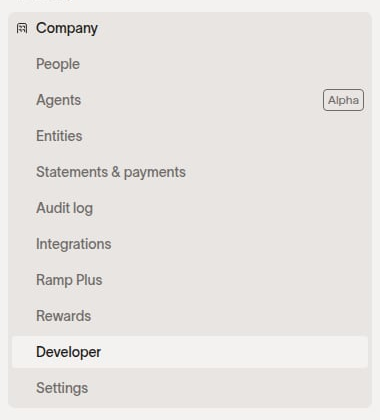
Open Developer apps:
-
Click Developer API Support.
-
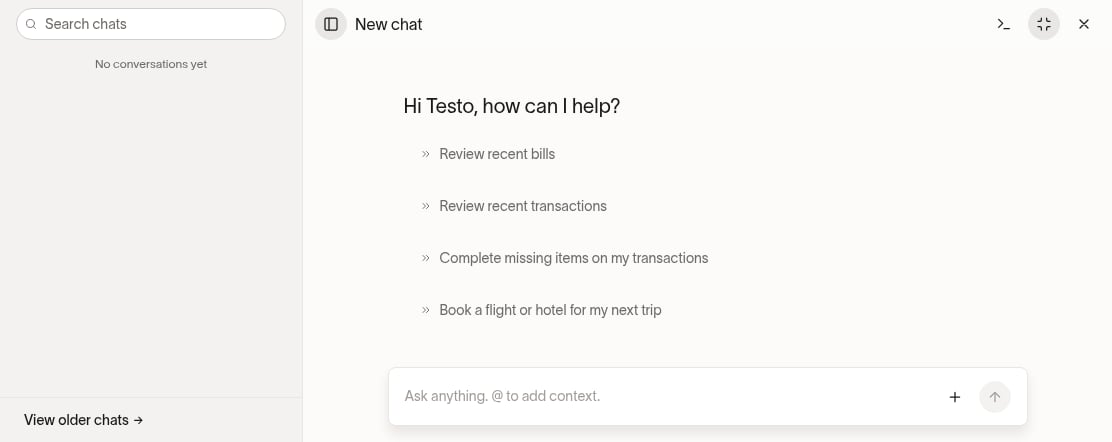
In Ask Ramp, describe your issue and ask to connect with the Developer Support team:
-
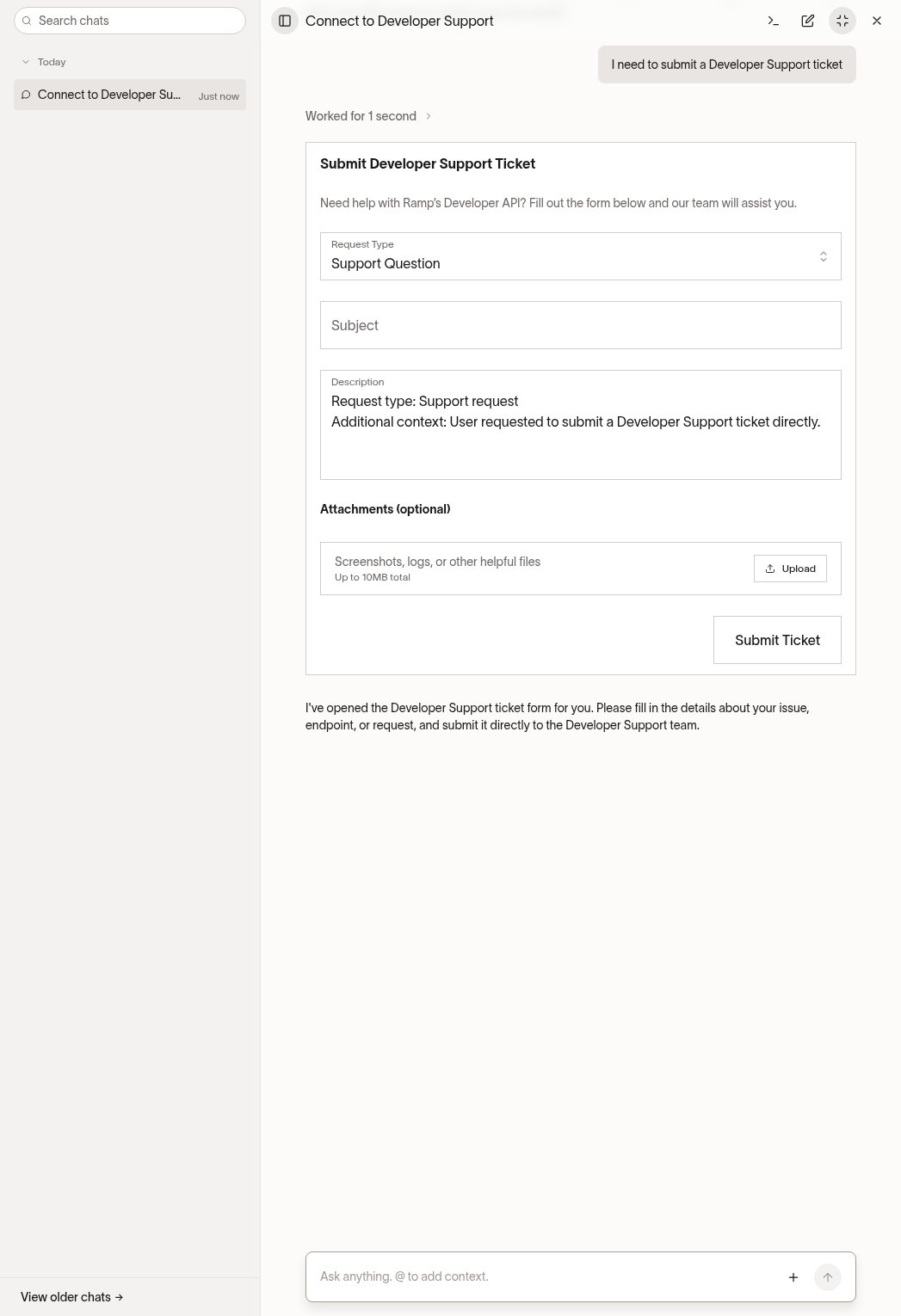
Review the pre-filled Description, enter a Subject, and add any other missing details:
-
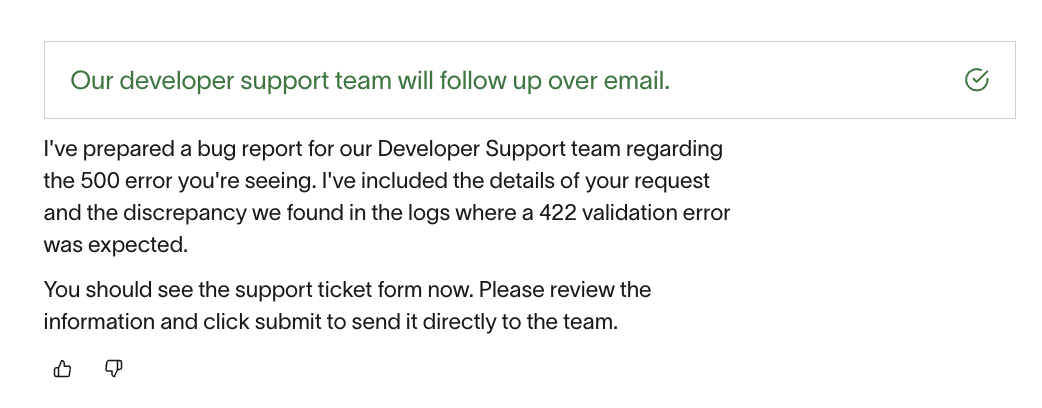
Click Submit Ticket to send your request to the team:
Developer assist
Developer Assist is an AI-powered helper built directly into the Ramp API documentation. It can answer questions about endpoints, parameters, errors, and implementation steps in real time.
To use it:
- Navigate to the Ramp Developer API docs.
- Click the chat icon in the bottom-right corner of the page.
- Type your question into the chat window to get instant guidance.
Video walkthrough: Test Ramp Developer API calls and manage scopes for your integration. Best when validating your setup or refining permissions for an existing integration. Watch the video.
For bug investigations or issues with API performance or unexpected behavior, submit a Developer API support ticket.