Bank account linking for vendors
Overview
A vendor can connect to their business’s bank account to add new payment details, or to confirm account details at the request of their payer. Read more below about why we do it and how it works.
Bank connections
Why a bank connection
Ramp uses data from your bank connection to automatically add new payment account information, or to confirm your payment account details for your customer who is paying you on Ramp.
How secure is it?
Our banking connection partners use bank-grade encryption to protect your data and we will never have access to your credentials.
Learn more about Ramp's security measures here.
Connecting directly
How do I connect my bank account directly?
If you're adding payment details in response to a payment detail request from your customer:
- On the 'Add payment details' page, click 'ACH (Direct deposit)'
- ACH ( Direct deposit) supports US-based bank accounts only
- Click 'Secure bank connection'
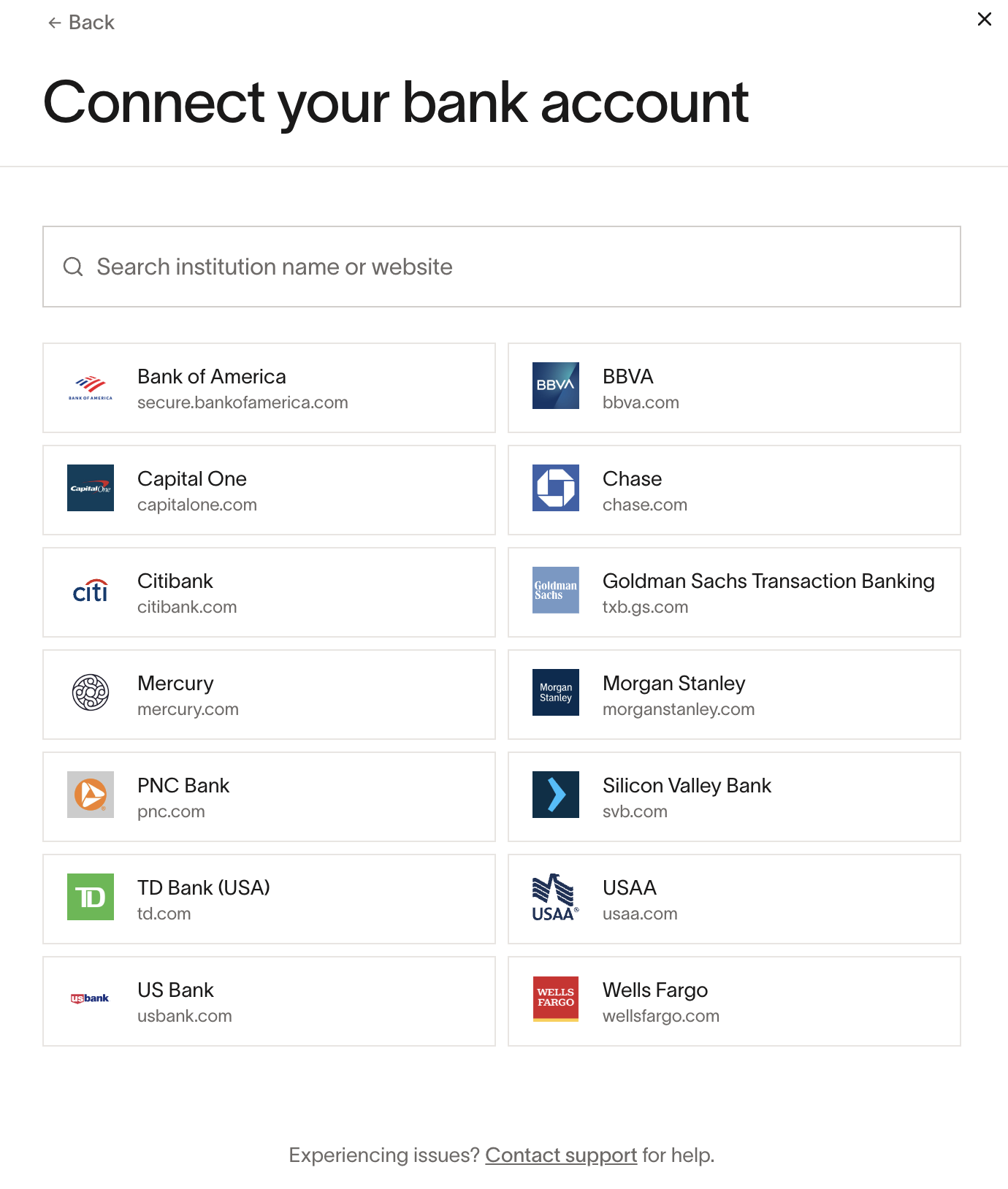
- Search for or select your banking institution and follow the prompts to connect your account
If you're adding a new payment account on your Vendor Portal account:
- Navigate to 'Vendor profile' > 'Payment details'
- In ACH (Direct Deposit), click on '+' or 'Add account'
- ACH ( Direct deposit) supports US-based bank accounts only
- Click 'Secure bank connection'
- Search for or select your banking institution and follow the prompts to connect your account
How do I share my payment details?
After adding your payment details, you will need to enable sharing for the details you want customers to see. To do this, go to Vendor profile > Payment details > Click on the payment details you want to share > select customers to share with. If a customer says they can't see payment details, ensure you've shared the details with them. Read more on sharing here.
What if my bank account uses an OTP or an MFA?
Unfortunately, we cannot link to bank accounts directly if your account uses an One-Time Password (OTP) or has Multi-Factor Authentication (MFA) enabled. You can use the manual bank account connection process, which consists of providing a bank statement.
What if I have trouble connecting an account from a listed banking institution?
Sometimes direct bank linking will fail even if the banking institution is listed as ‘covered’. If you’ve tried and failed to connect an account from a listed banking institution, try these tips:
- Log on to your bank's website to confirm your credentials are working
- Check to see that there aren't messages from your bank on your bank's website
- If your sign-in credentials use multi-factor authentication (MFA) to log on to your bank, try connecting with an account that does not require MFA
- Try a different browser
- Disable the ad-blockers on your browser
- If you are based within the US, please ensure all VPNs on your device are disabled
- If your IP address is based outside the US, use a VPN with a US-based IP address before attempting to reconnect
- Check to make sure that you are selecting the correct account type for your banking institution in the Ramp search box
- Some institutions (such as Chase or Wells Fargo) have multiple account types listed on Ramp’s application
If you are still running into issues, you can always add your bank account details manually.