Merging Vendors
Overview
Admin and Accounts Payable roles can merge vendors in Ramp to address confusion and inefficiencies in tracking spend.
How it works
- Ramp identifies and surfaces potential duplicate vendors automatically
- Merging allows multiple vendors to be merged into a single "Primary" vendor
- Minimizes disruption to existing ERP workflows (no automatic merge in ERP, but warnings and guidance for manual reconciliation)
Go to duplicate vendors table on vendors tab
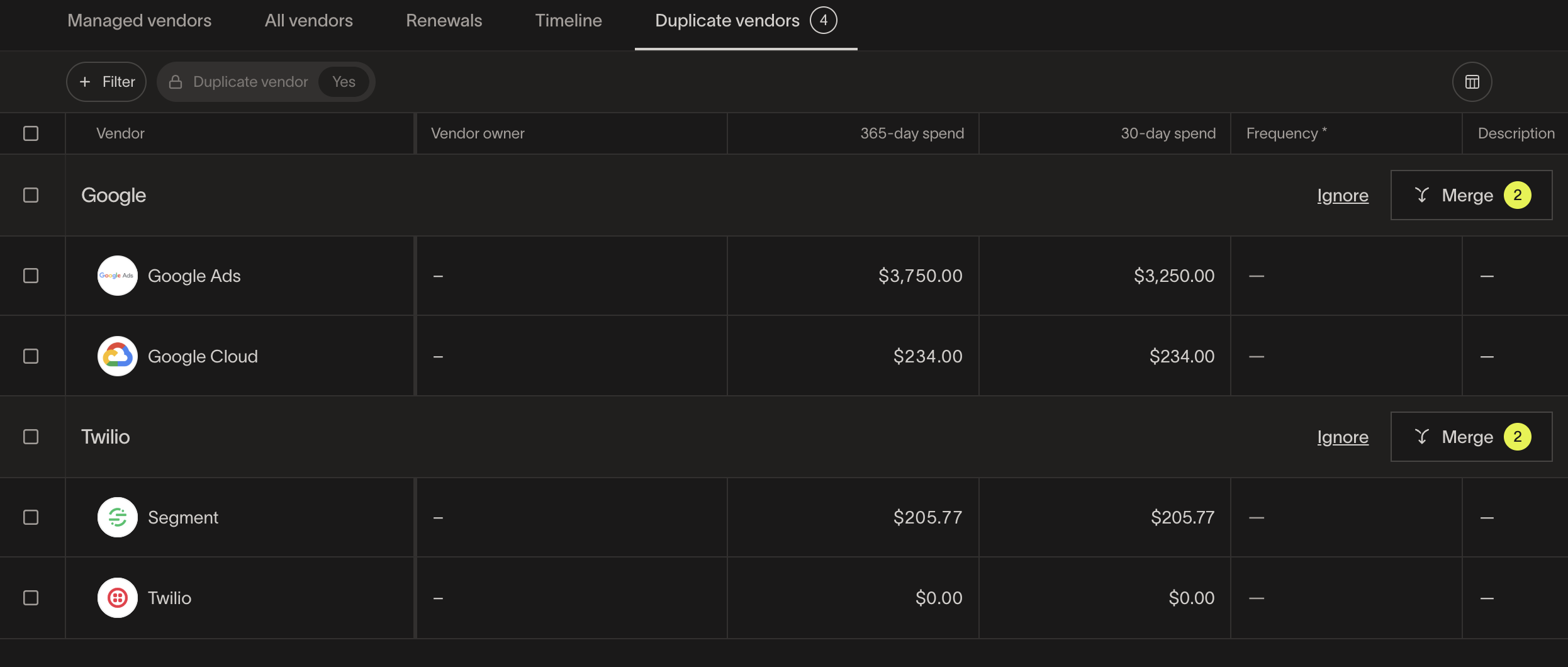
Ramp surfaces a list of duplicate vendors we've identified for you to merge in the Duplicate Vendors table. These suggestions are powered by a machine learning model that looks at vendor details like Name, Contact, Banking and Tax info to determine which vendors might be the same.
Determine which vendors to merge
If there are vendors on this list you want to intentionally keep separate, you can Ignore the suggestion to merge.In the example above, Segment and Twilio are suggested as duplicates because Twilio owns Segment, but your team may want to keep the spend on these vendors separate.
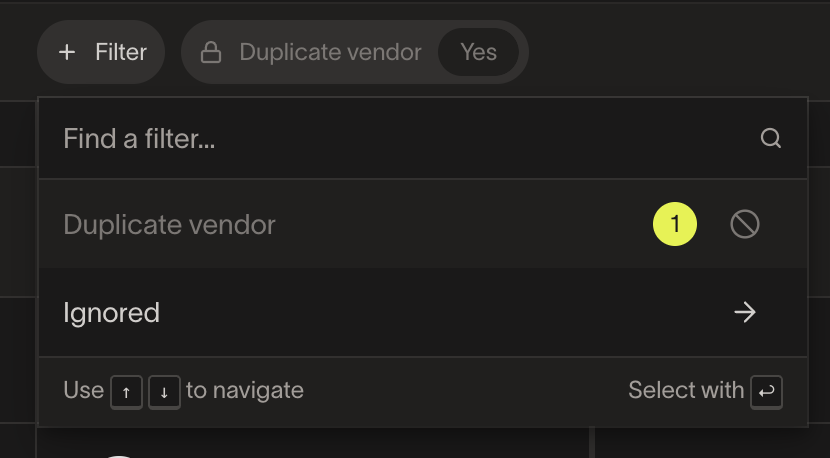
You can still find suggestions you ignore by filtering the table toIgnored.
Other entry points to merge vendors
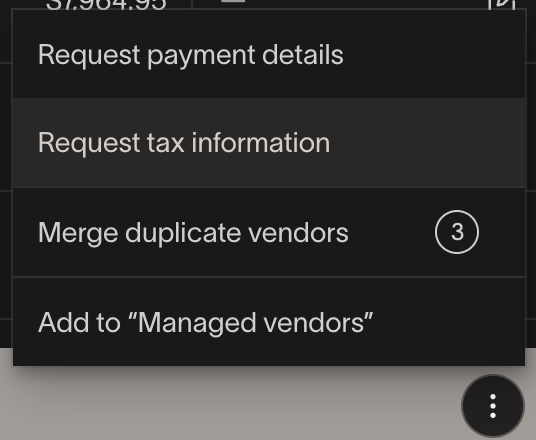
All Vendors Table
Select multiple vendors on this table then click the 3 dots at the bottom to see the option to merge.
From a vendor profile
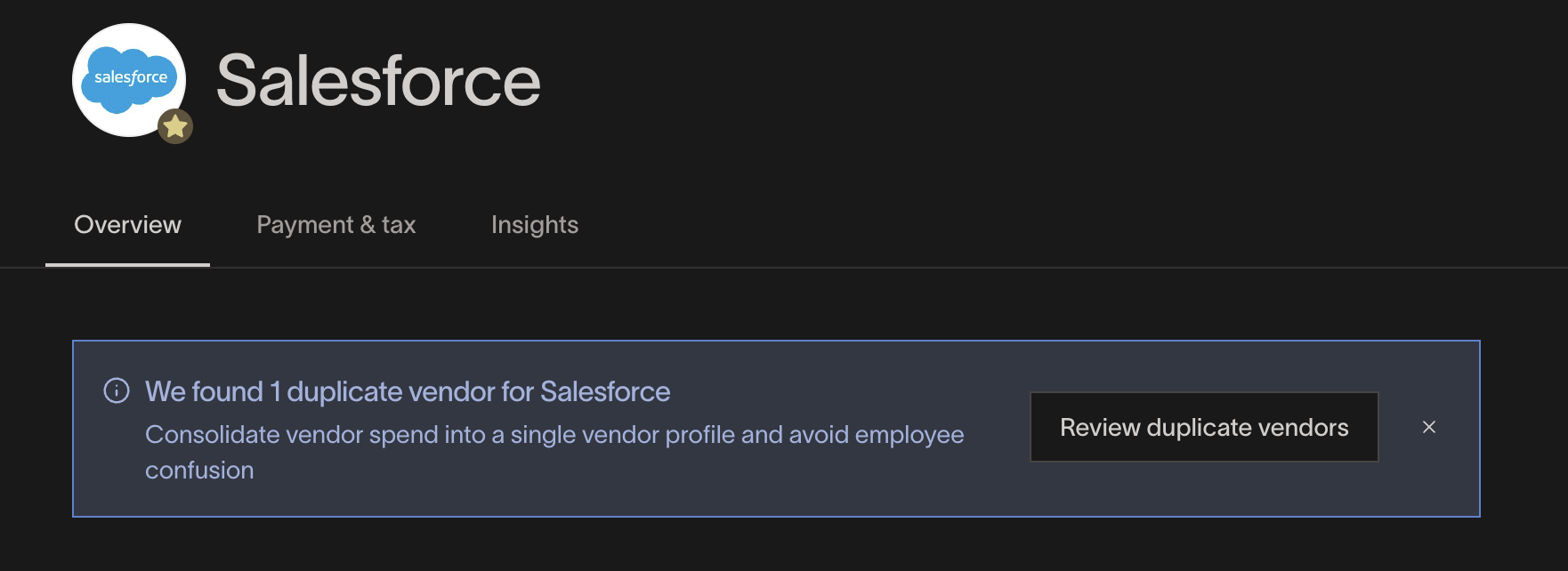
If you view a vendor profile that we have identified as a duplicate, you'll see the option to merge from there.
Merge duplicate vendors and select primary vendor
Once you hit Merge, you must confirm which vendor you want to be the Primaryvendor. The name and logo of the Primary vendor will be kept, and all other details will be merged into this vendor.
Ramp automatically defaults to the Bill Pay vendor with the highest spend in the last 365 days as the Primary, but you can change it.
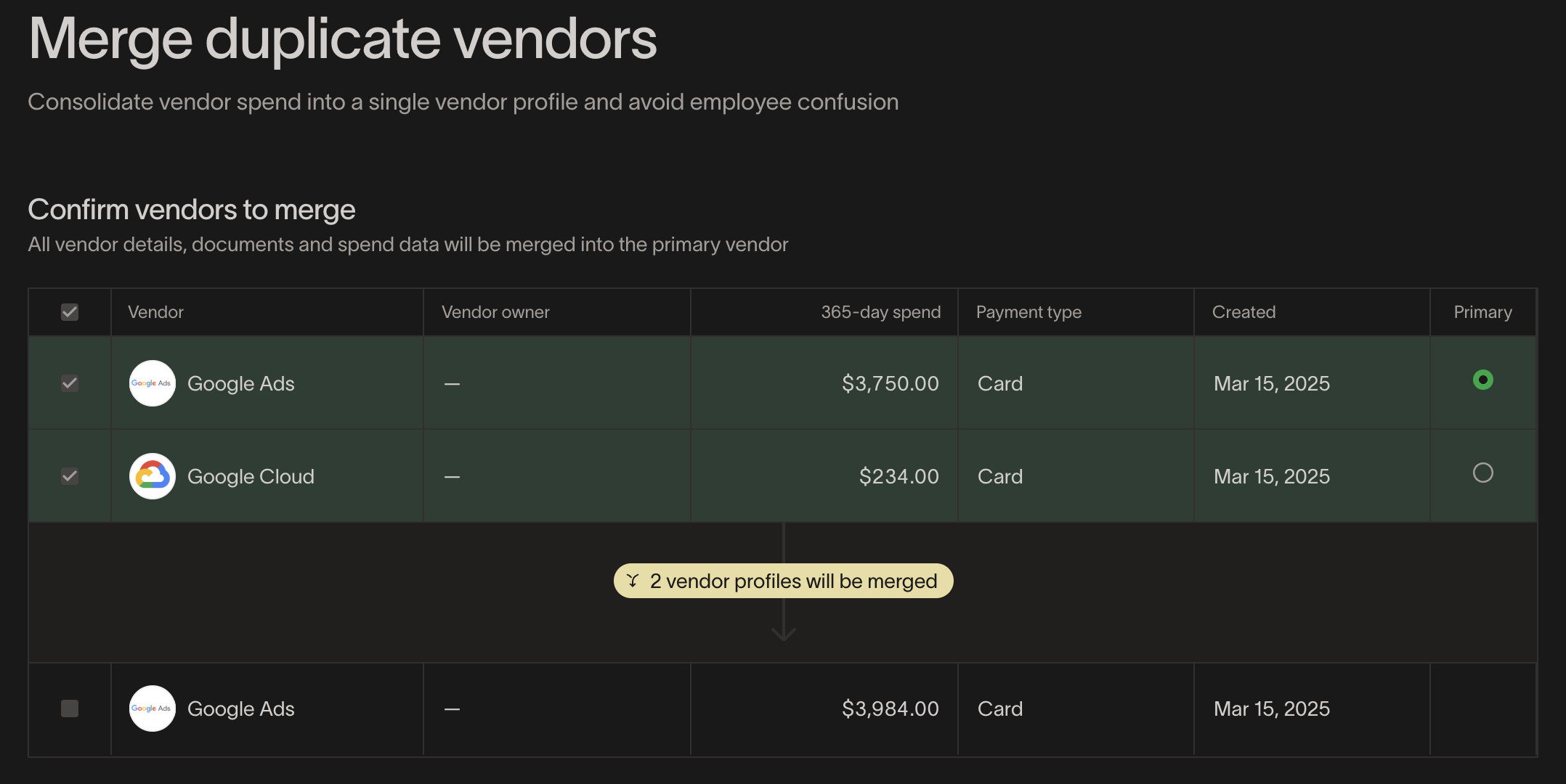
*Note:*If a vendor with open bills is selected as the primary vendor, the merge will not work. If the vendor(s) you're merging have open bills, but the primary does not, the merge will work.
Resolve conflicts and finish merge
Please note: Merges cannot be undone once complete.
If the vendors you are merging have conflicting owner, payment, or tax details, you will be asked to choose which information you want to keep on the Primary vendor. All other vendor details will be appended to the Primary vendor.
Review the updated vendor
Once the merge is complete, you'll be brought to the merged vendor's profile. Within this profile, you can view all transactions, bills, and vendor details.
Vendor sync to ERP
Merging vendors in Ramp does not merge those vendors in your ERP or delete any existing vendors in your ERP.The merged vendor profile will now point to the vendor in your ERP that was previously tied to the Primary vendor.
Once a merge is complete, we will do a one time sync of all the vendor profile information to your ERP to make sure your ERP is kept up to date. We won't sync over any previous transactions as to not double-count in the ERP.
Use cases and examples
- An employee swiped their card at TikTok Shop creating the vendor TikTok Shop, while your marketing team pays invoices for advertising to a separate vendor TikTok. The finance team wants to view all of this spend (transactions and bills) in one place and merges TikTok Shop into TikTok.