Transfer business ownership
Note: This article primarily applies to Ramp Administrators. Cardholders may find other articles in the Getting started section to be more applicable.
Overview
Business ownership in Ramp may need to change from time to time. You can transfer ownership to another Admin directly in the app.
The Owner role provides control over Separation of Duties settings, which govern approval requirements for Bill Pay, Spend, and Ramp Banking operations. The Owner can also transfer ownership to another Admin. All other admin capabilities are shared between Owners and Admins.
Note: Only existing Admins are eligible for ownership transfer within the app. If you need to transfer ownership to a non-Admin user, see the steps below.
Transfer business ownership to a Ramp Admin
-
Navigate to Company > Settings , then click the Edit profile button.
-
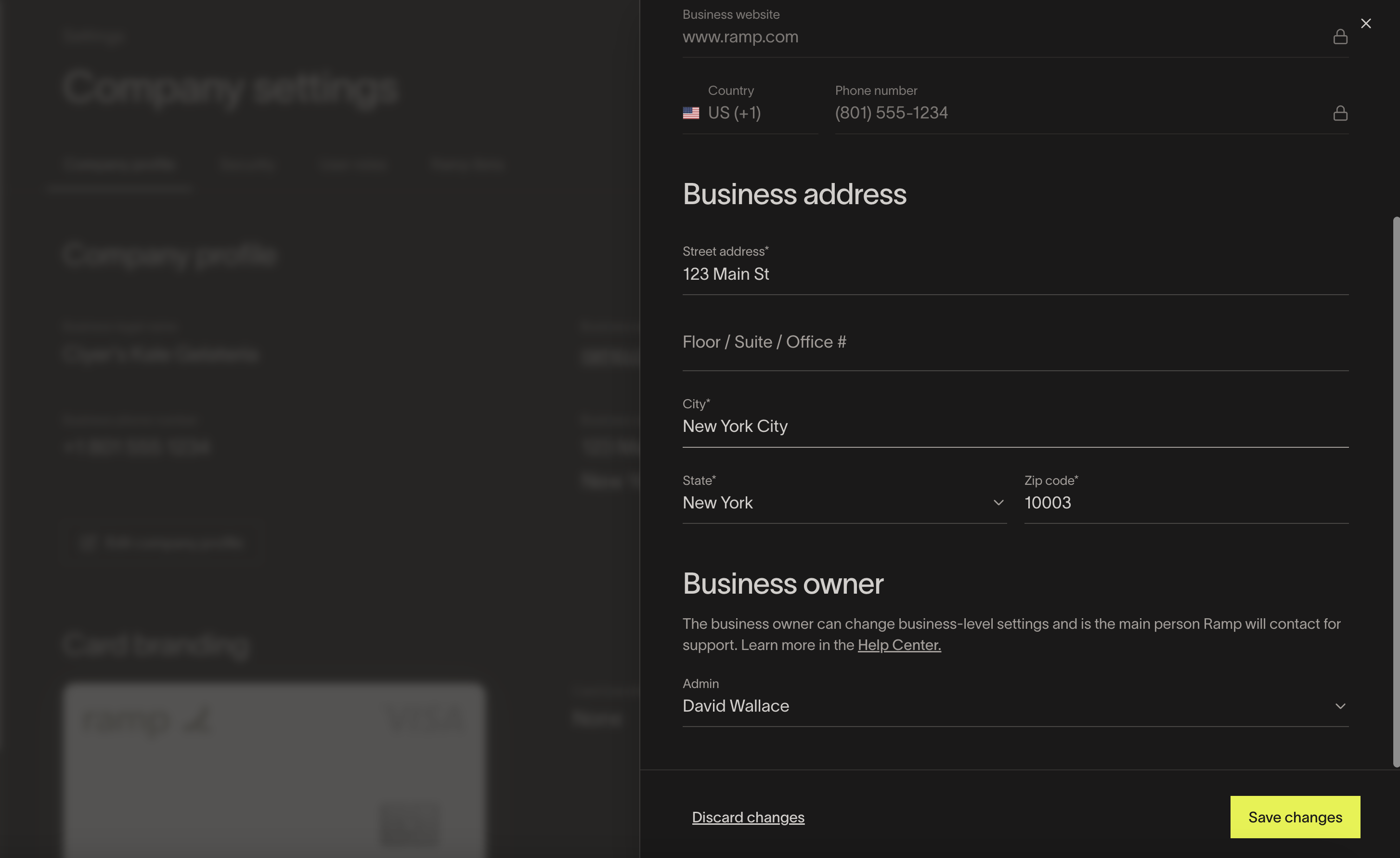
In the Edit company profile drawer, scroll down to the Business owner section.
-
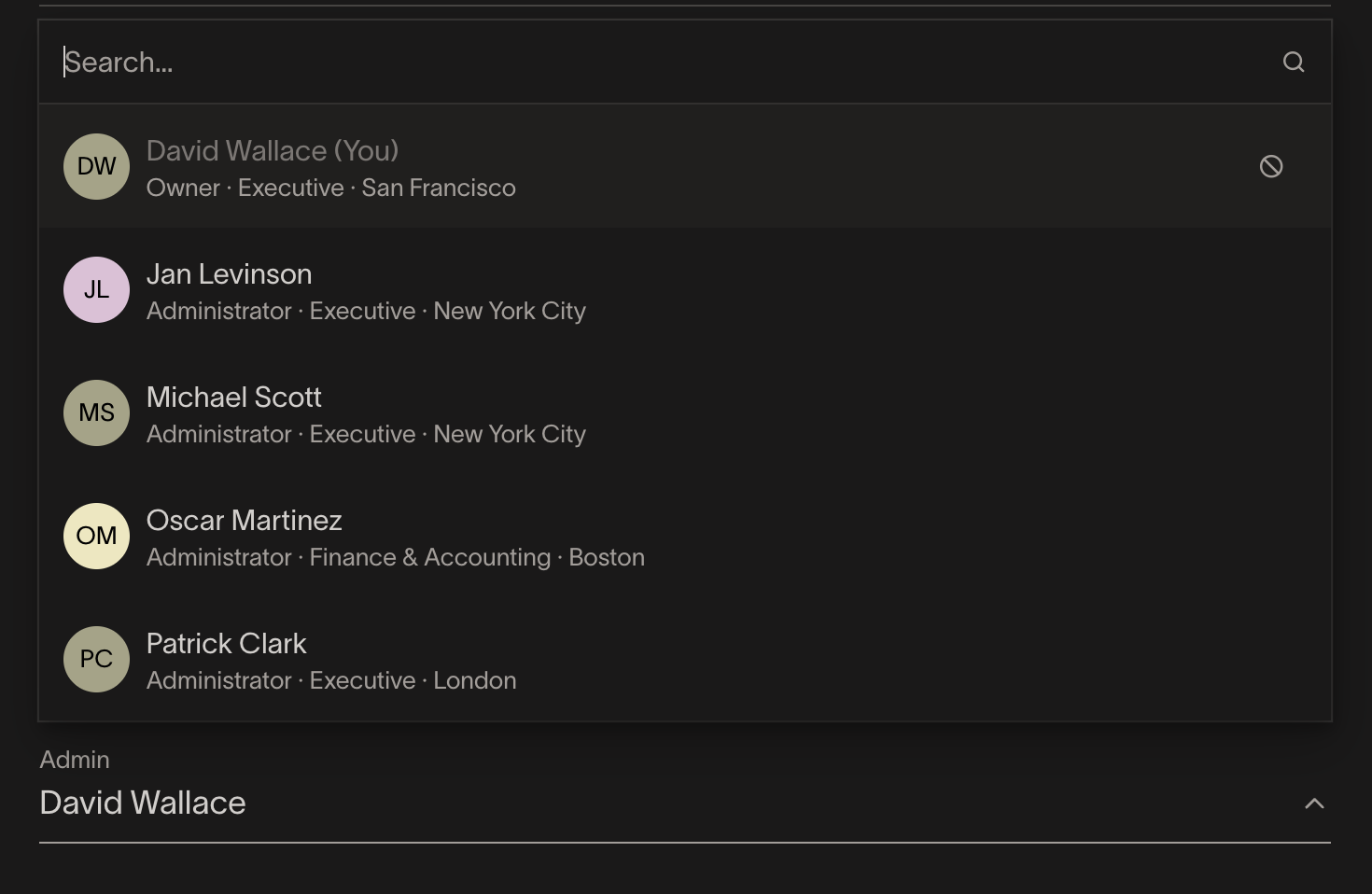
Click the dropdown to see the list of all other Admins at the company.
-
Select the Admin you would like to transfer ownership to, then click Save changes .
-
You may be prompted to verify via MFA code (via your designated method of SMS, authenticator app, or email).
-
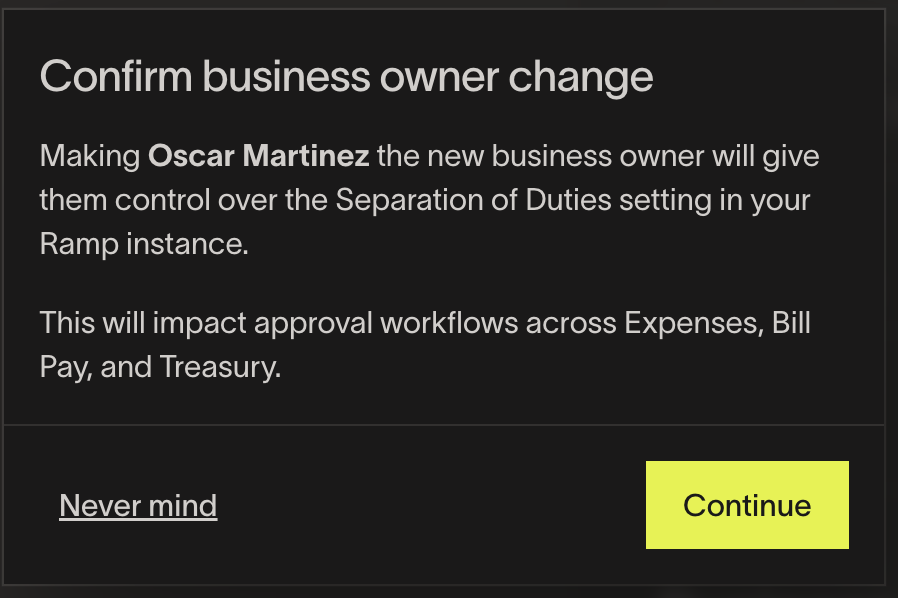
You will then be prompted to confirm the business owner change, which highlights the notice about Separation of Duties control. Click Continue .
-
The Business Owner name in Company profile should now be updated. The new owner will have the Owner role in the People tab, and the former owner will now be an Admin.
Transfer business ownership to a non-Admin user
Only Admins are eligible for the Owner role. To transfer ownership to a user who is not currently an Admin:
- First, change the user's role to Admin. Go to People > select the user > Edit Profile > change role to Admin. See Updating user information in Ramp for details on changing roles.
- Then follow the ownership transfer steps above .
Frequently asked questions
Can I reverse a business ownership transfer?
Yes. The transfer process works in both directions. The new owner (or any Admin) can transfer ownership back using the same steps. There is no lock-in period.
What exactly changes when ownership transfers?
- The new owner receives the Owner role and control over Separation of Duties settings (used in Bill Pay, Spend, and Ramp Banking products)
- The previous owner is automatically changed to an Admin role
- All other permissions, cards, and data remain unchanged
- All admins receive an email notification about the change
What if the current business Owner cannot access Ramp?
Any Admin who can sign in to Ramp can transfer ownership — it does not need to be the current Owner. If no one with Admin or Owner access can sign in, contact Ramp Support for assistance. They can verify identity and facilitate the transfer.
Does the transfer require verification?
Yes. The person initiating the transfer will be prompted to verify via MFA (SMS, authenticator app, or email, depending on your configured method) before the transfer is completed.
Can a non-Admin become the business Owner?
Not directly. Only existing Admins are eligible for ownership transfer. If you need to transfer ownership to a user who is not currently an Admin, first change their role to Admin, then proceed with the transfer. See Updating user information in Ramp for how to change roles.