Ramp Vendor Network
Overview
Ramp Vendor Network is a way for payers and vendors to more easily and securely collaborate all on the Ramp platform. Payers can get updates from vendors that have an existing Vendor Network profile, and optionally use their stored payment & tax information, eliminating the need for manual entry and sharing via less secure channels.
Payers can also invite vendors not yet on Vendor Network to create a Vendor Portal account and connect with them. If a payer invites a vendor and they join, they become connected and receive updates on the items listed below.
The benefits
With your vendors on Vendor Network, you can:
- Comment on bills directly with vendors
- Securely receive payment account updates
- Request and store tax details and W9/W8's
- Let vendors invoice you directly on Ramp
Inviting a vendor to Vendor Network
Invite from vendor profile
To invite a vendor to create a Vendor Portal account from a vendor's profile:
- Go to 'Vendors' and select the vendor you would like to invite
- In the ‘Vendor details’ section, under ‘Contact details’ on the right hand side of the window, click ‘Send invite’
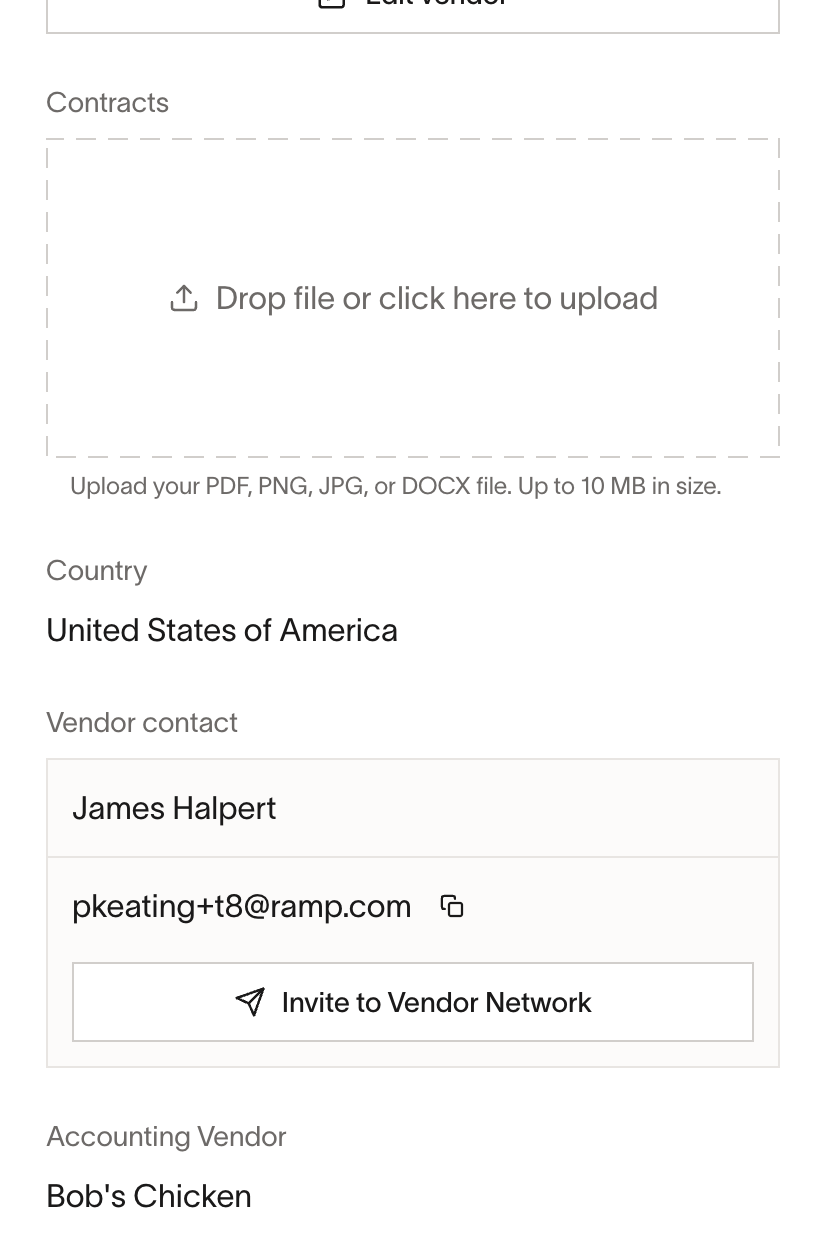
- Note - This will send an email invitation to the email address listed in the ‘Contact details’ section
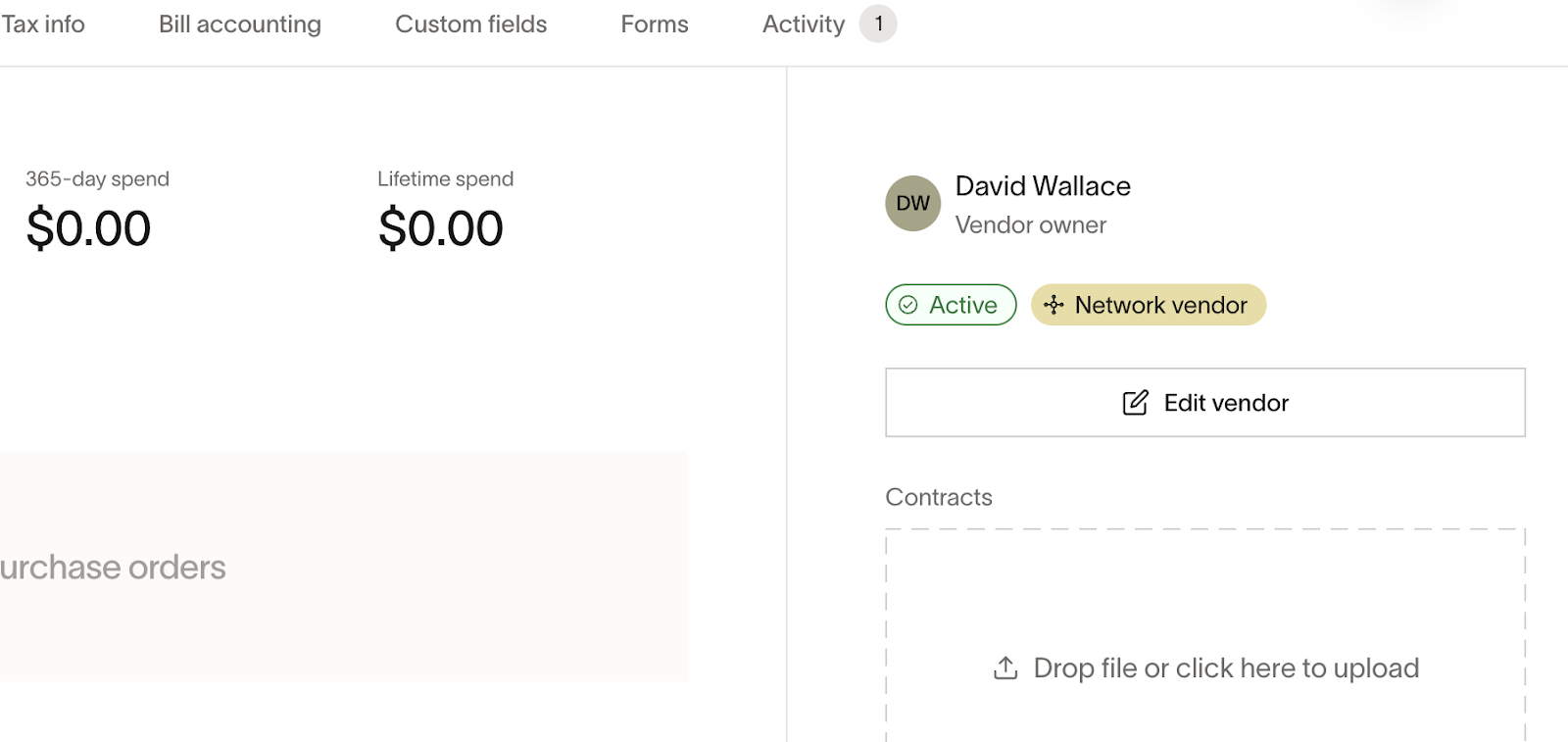
- Once your vendor has signed up for Vendor Portal, you will see a ‘Network vendor’ icon in your vendor information
Invite from vendor creation
To invite a new vendor to create a Vendor Portal account from vendor creation:
-
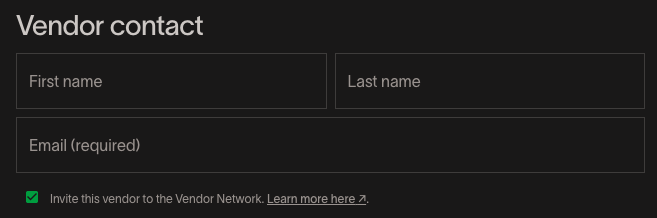
When you create a new vendor from 'Vendors' or through a bill, you will see the option to invite this vendor to the Vendor Network.
-
If the vendor does not have an existing Vendor Portal account, once they accept the invite and sign up you receive updates from this vendor
- If a vendor does have an existing account that matches the email you've entered, you will see the ability to automatically enable updates from that vendor and optionally pre-fill their payment/tax details
-
Go to 'Vendors Settings' to manage your 'Vendor Requests' setting. If this is toggled off, you won't have the ability to invite vendors to the Vendor Network during vendor creation. Note: This does not apply to imported vendors (CSV or ERP).

Enable updates from existing vendors
If you want to collect details from a vendor that is already on the Vendor Network:
- Open the vendor profile of the vendor you want to connect with
- In the ‘Vendor details’ section, under ‘Contact details’ on the right hand side of the window, click ‘Enable updates'
- This will auto-fill any existing details they've shared, and enable updates for your approval for future updates they make
Another way you will automatically enable updates from vendors on the Vendor Network is through PDR (payment details request) fulfillment. This means if you request payment/tax details from a vendor you're not connected to, if they submit the details and are on the Vendor Network, you will start receiving updates.
***Note:***A vendor must set themselves as discoverable from their vendor profile to be able to connect with them.
Updating vendor details
Payers have full control of their vendor management system, so any changes made by vendors to their payment/tax details will not sync automatically without input from the payer.
If a vendor you are connected to updates their payment details (bank account, check mailing address, card acceptance policy) or tax details, you can accept or reject the changes. The vendor can see that the updates are pending, accepted, or rejected.
Note: Any other information a vendor updates (like contact info) does not sync over the Vendor Network.

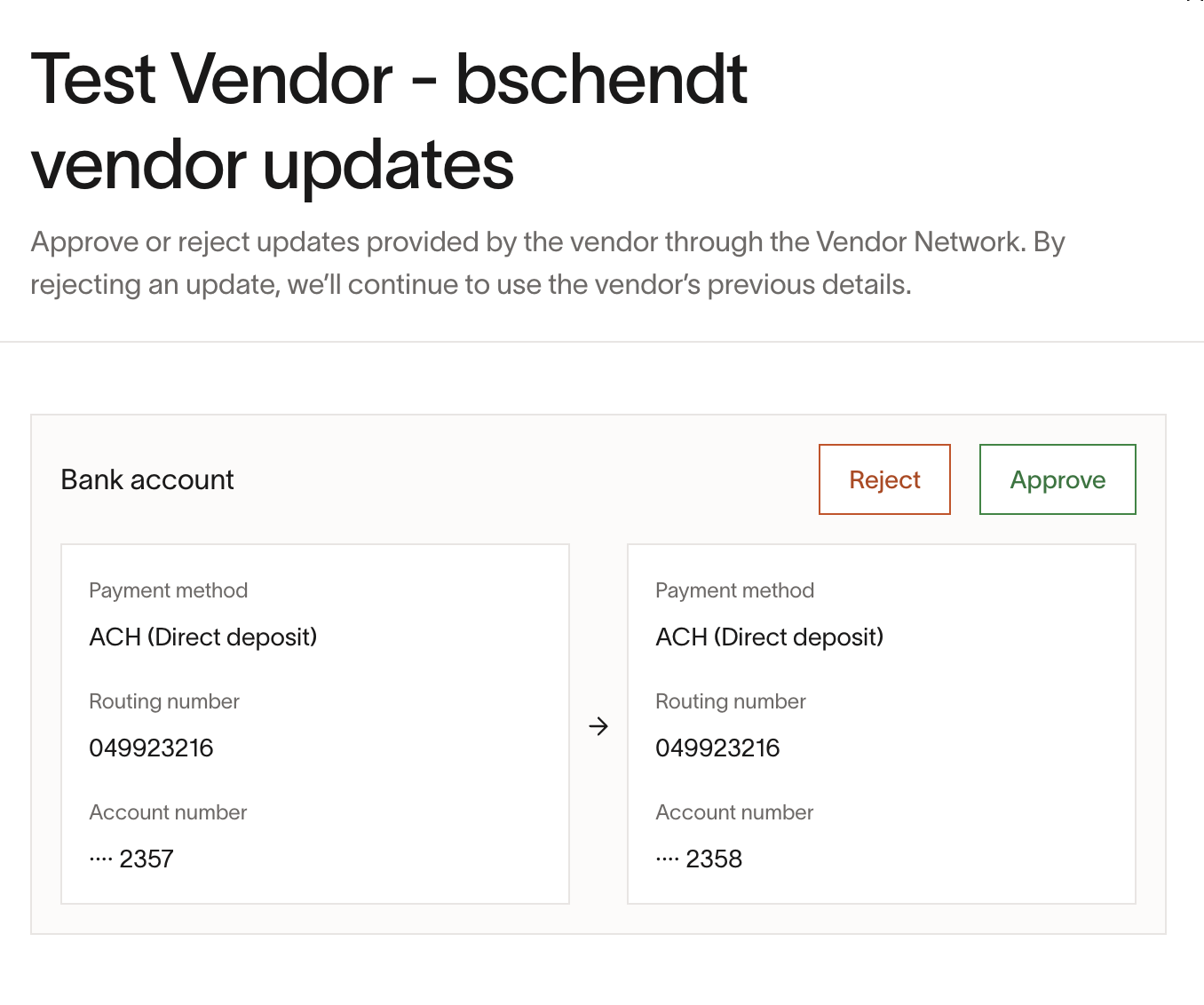
Security precautious with updates:
- Vendors set up MFA during onboarding and any changes to payment details are gated by MFA checks
- Any payment detail changes must be affirmed or declined by the payer
Disable updates from a connected vendor
To disable updates from a vendor, go to the vendor profile > 'Edit vendor' > scroll to the bottom of 'Vendor Details' to find the button to Disable updates.
Disabling updates from a vendor will not delete the vendor or any of their payment/tax details. You will just not longer receives updates for any changes they might make.
Commenting on bills
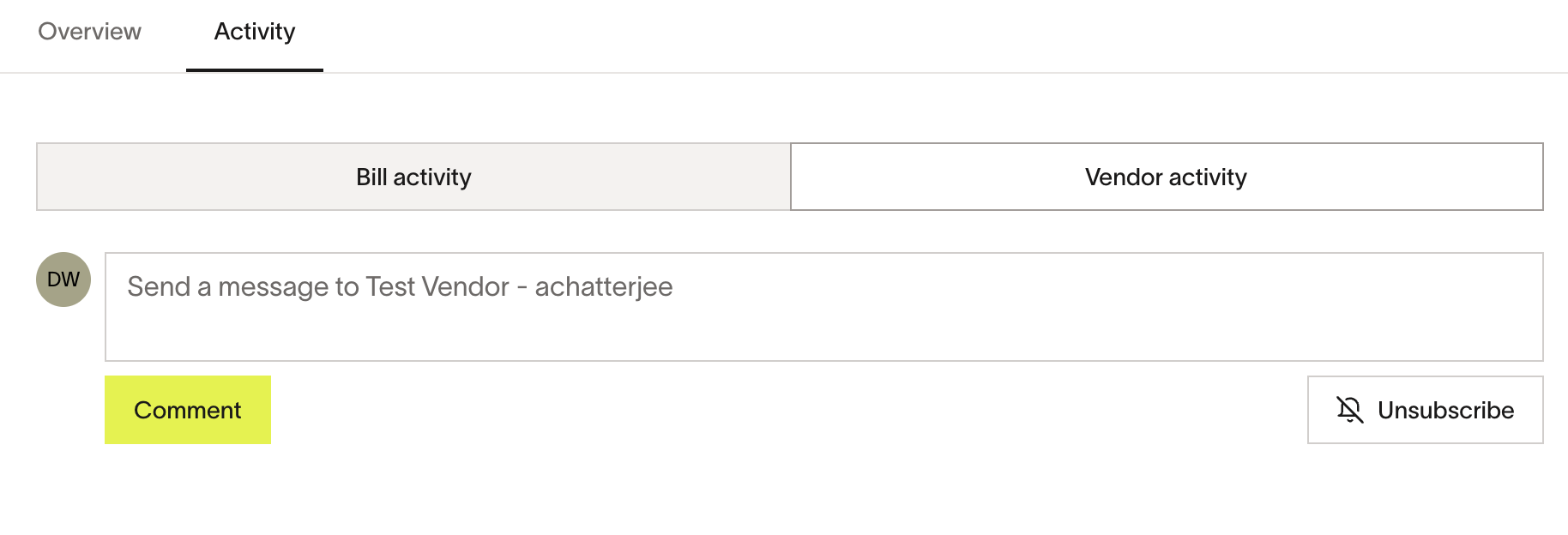
Payers and vendors can comment on bills between themselves and centralize discussion/updates directly on the bill. To do this, open a bill > click on 'Activity' > 'Vendor Activity'. Note that vendors can only see external activity on bills, so the comment thread between themselves and payers. They cannot see anything on Bill Activity, like the audit log or internal comments.
Frequently asked questions
When can vendors see bills I create and what can they see?
- A vendor you're connected to on the Vendor Network will be able to view a bill shared with them after the bill has been created (moved out of drafts), but it doesn't need to be approved
- Vendors can see the: vendor memo, total, invoice document, Vendor activity, and payment delivery status on the bill.