Splitting transactions or reimbursements
Overview
Ramp supports splitting transactions, reimbursements and bills into multiple line items across accounting fields that your connected accounting provider makes available for split line items, such as category, department, or location. This ensures accurate financial tracking and reporting.
How to turn split transactions on or off for cardholders
Admins can control whether cardholders can split their own transactions from Policy > Travel & expenses > Additional controls > Expense requirements. Open the relevant submission policy, then in the Accounting section turn Split expenses on or off.
Turning Split expenses off stops cardholders from creating or editing splits on their own transactions. It does not remove split access for users with full accounting write access.
How to split a transaction or reimbursement
Reimbursement splitting requires a connected accounting provider and permission to modify accounting fields. Your accounting provider's settings must allow cardholder splitting unless you have permission to manage accounting settings. After submission, the reimbursement must remain editable, meaning it is neither ready to sync nor already synced.
From the transaction or reimbursement view on the web
To split a transaction, open it, select Options, then select Split transaction.
To split a reimbursement while creating or editing a draft, select Split under Accounting. After submission, while the reimbursement remains editable, open it and select Options, then select Split reimbursement or Edit split.
Add as many lines as you need.
- Note: Amounts must add up to the transaction or reimbursement total.
- Each line can be coded differently by category, department, location, and custom fields.
From the accounting page on the web
Select the three dots to the right of the transaction within the table and click "Split Transaction" or "Split Reimbursement".
Note: For international mileage reimbursements, the split amount will show in USD. Splitting transactions bypasses submission policy requirements.
From the mobile app
Mobile splitting is available when you can edit accounting fields on the transaction or reimbursement and your accounting provider supports the split. If you do not see the split action, ask an Admin with accounting permissions to check your eligibility.
iOS: Open the transaction or reimbursement, tap More options (the three dots in the top right), then select Split. If the reimbursement is already split, select Edit split.
Android: Open the transaction or reimbursement, tap Actions (the three dots in the top right), then select Split. If the reimbursement is already split, select Edit split.
Cardholders can split transactions when Split expenses is enabled in the applicable submission policy. Mobile reimbursement split actions appear only after submission.
How to remove a split from a transaction or reimbursement
Open the split transaction or an editable reimbursement, then select Delete split. Reimbursement splits can be removed after submission while the reimbursement remains editable. This returns that item to a single expense instead of multiple split lines.
Removing a split only affects that transaction or reimbursement. It does not turn off split transactions for other users or future expenses.
Which fields are splittable?
Fields may be split based on how you have configured your accounting provider. You may split any field that your accounting provider allows. Fields fall into two different buckets:
- Non-splittable fields . Within the ERP, these tend to be at the header or body level. Examples are the Vendor field for all accounting systems and Location for QuickBooks Online, however this may vary for any business depending on your set up.
- Splittable fields. All splittable fields appear under each line item section:
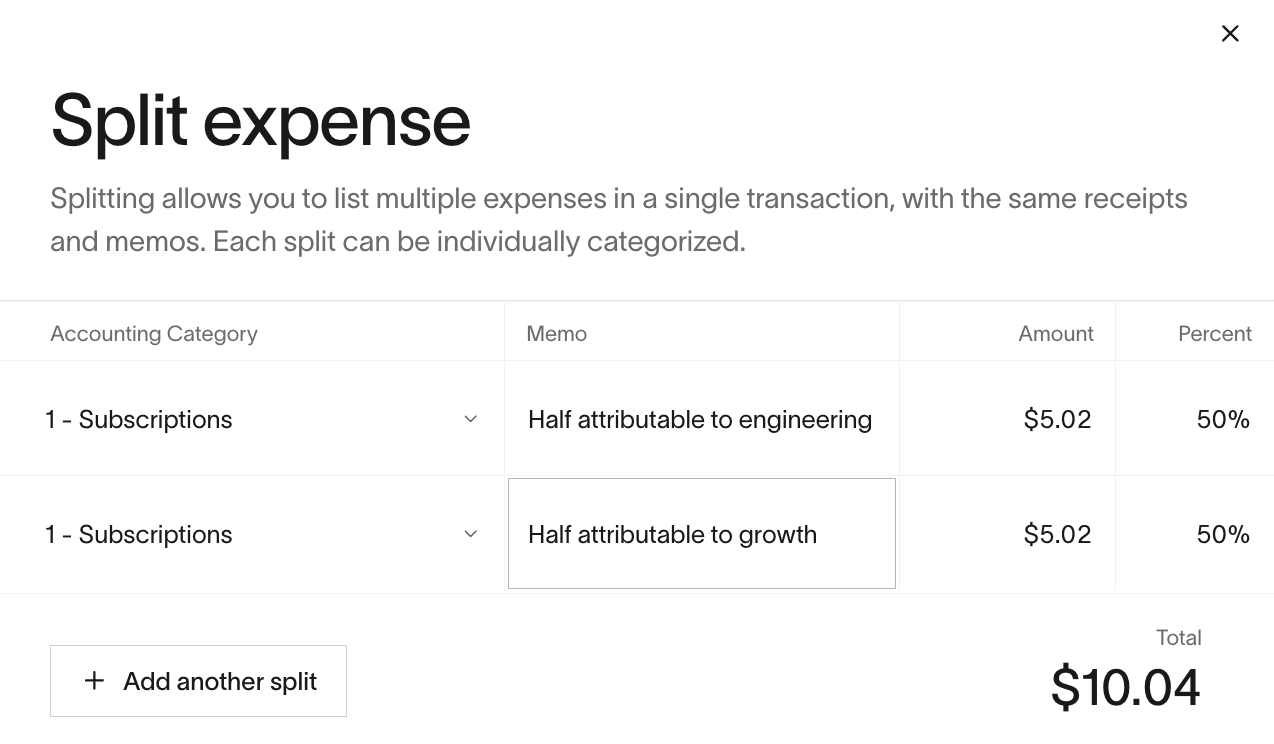
Splits can be updated in the table view to adjust amounts, categories, and other fields. However, a split transaction can only be saved if all split lines are valid. Once a transaction is split, it will be updated on your accounting dashboard by the merchant name.
Which platforms support this?
Transaction splitting is compatible with all accounting providers. Reimbursement splitting requires a connected accounting provider.
How to automate splitting transactions?
You can create Saved Splits to use for any transaction, reimbursement or bill. Additionally, you can create a rule to automatically split a transaction given certain conditions within Accounting Settings -> Coding Rules -> Advanced Rules. Rules will only apply to transactions and reimbursements.
How does Ramp handle splitting multi-currency transactions?
Splitting is done in the transaction's original currency. For example, If a Canadian Card purchases at a vendor who charges in Euros, then Ramp will sync the transaction in Euros.
Multi-currency may not be available to your accounting provider, please reference: /netsuite-international-accounting-support
Additional details
- Users can add attendees on anything that’s categorized as restaurant or bars & alcohol
- Admins may update/edit the attendee list on transactions
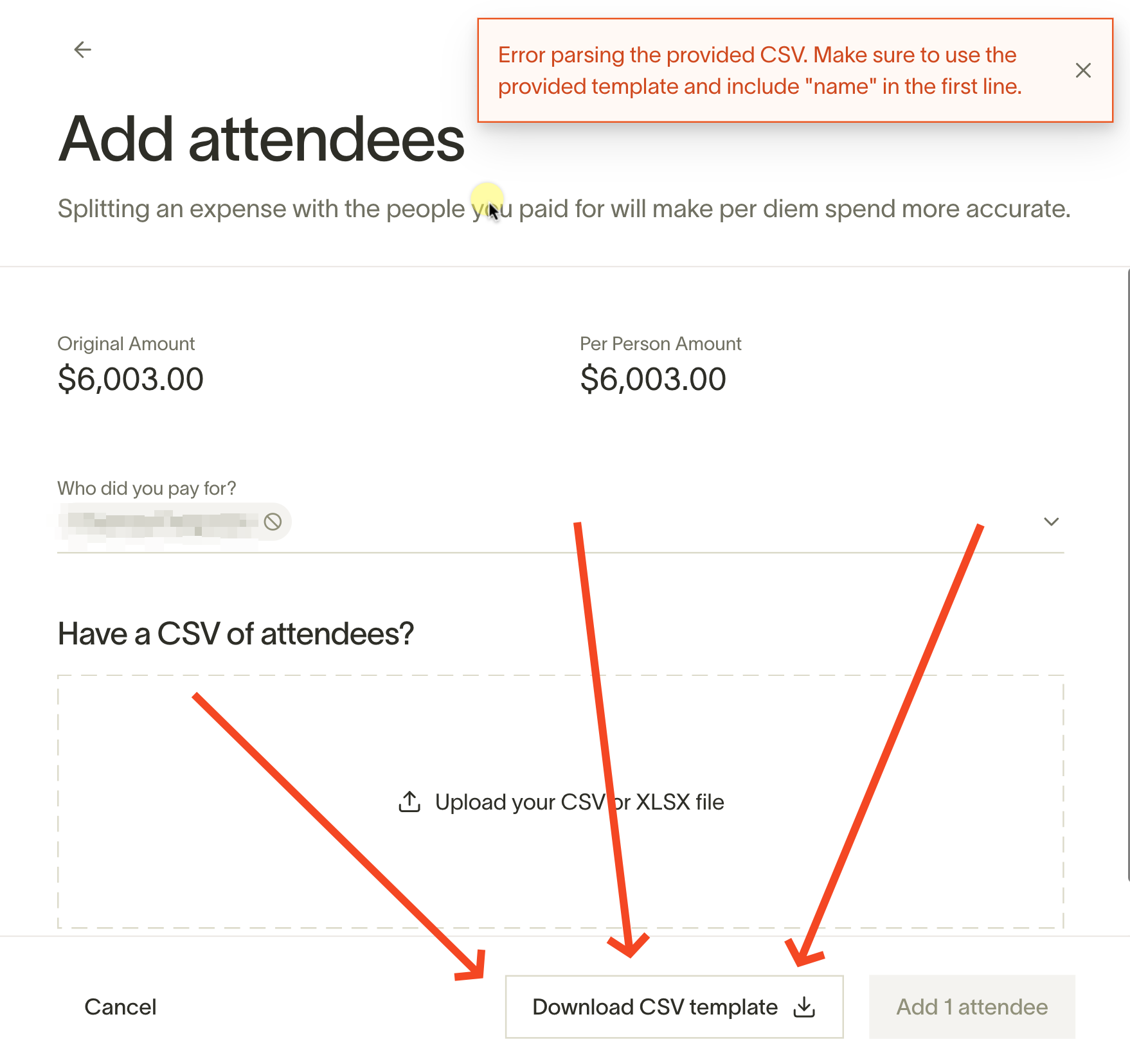
- Attendees can be added in bulk by uploading a CSV or XLSX (excel) file.
- The fileMUSTfollow the provided templateEXACTLY . Otherwise, they will get an error:
Split transaction errors
Generally, split transaction errors occur when the total amount of the original transaction has changed. Therefore, the split transaction amounts no longer add up to the original transaction causing an error.
For example, a Ramp card is used at a restaurant. The initial charge to Ramp card is $100 and the transaction was split in half ~ $50 / $50. However, when the charge cleared the tip amount was added to the Ramp card, so the transaction is now $120, not $100. Therefore, the split transaction amounts add up to $100, but the transaction is $120. The split amounts need to be changed to $60 / $60 for the transaction to sync.
To resolve this issue, go to the original transaction, and re-enter the correct split amounts with the new total.
Error Message: