Change Orders
Overview
- Employees can request changes within Ramp for previously approved purchase orders
- Admins can set up a separate approval workflow for change orders
- When a change order is approved, the changes will be applied to the original PO with clear event history for auditing
- Admins can configure a dedicated change order form with custom questions, separate from the original intake form
- Questions on the change order form can be shown or hidden conditionally based on what changed in the original request
- Approval workflows can route approvals and notifications based on what was changed in the change order
How it works
Who can request changes to a purchase order: The request owner of the original PO, approvers, and Accounts Payable and Admin roles.
When can you request changes to a purchase order: When a purchase order has been approved.
Who can reject or approve change orders: The approval chain set for the Spend Program will be triggered. The people in the approval chain can reject or approve a change order.
Set up a change order approval workflow
Change orders will trigger the same approval workflow as the original PO unless an admin sets up a separate approval workflow. To do this:
Edit Spend Program
Select the Procurement Spend Program you want to set up a change order approval policy for.
Set up change order approval workflow
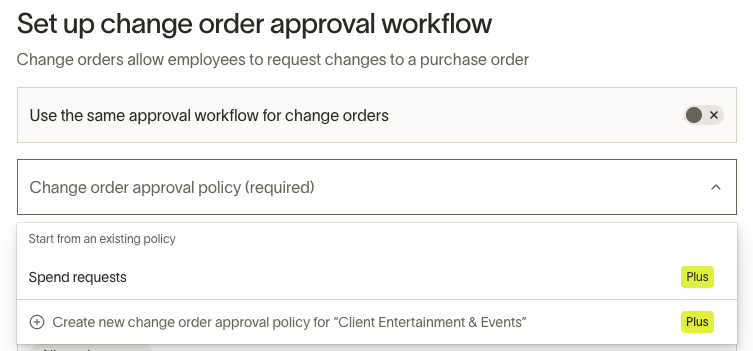
Scroll down below Set up approval workflow, and you will see the option to configure a separate change order workflow. Turn off the toggle under Use the same approval workflow for change orders to create a new workflow.
Save changes to the Spend Program
This workflow will only be applied to change orders in this specific Spend Program. You can disable or edit the workflow at any time.
Configure a custom change order form
Admins can configure a dedicated set of custom questions that appear when someone submits a change order. This form is separate from the original intake form, allowing you to collect change-order-specific information such as the reason for the change.
Add questions to the change order form
- Go to the Spend Program you want to configure.
- In the program configuration, find the What's on the change order form? section.
- Expand the Questions subsection to add custom questions.
- Add questions using the same question builder used for intake forms. Supported question types include text, single select, multi-select, boolean, and more.
- To designate a question as the reason for the change, use the Change request fields mapped field type and select Request reason . You can only map one question to this field.
- Save your changes to the Spend Program.
Note: The change order form is configured per Spend Program. Different Spend Programs can have different change order forms.
What users see when submitting a change order
When a change order form is configured, the submission flow becomes a multi-step process:
- The user clicks Request changes on the PO and edits the relevant fields.
- After editing, the user clicks Next to proceed to the Change order questions step, where they answer the custom questions.
- The user clicks Review changes to see a summary of all changes and answers before submitting.
- The user clicks Submit change order to finalize.
If no change order form is configured, the flow works as before: the user edits fields and reviews changes without a separate questions step.
Add conditional questions to the change order form
Questions on the change order form can be shown or hidden based on conditions. This lets you ask targeted follow-up questions only when specific changes are made.
Types of conditions for change order questions
When adding conditions to a change order form question, you can base them on:
- Main intake form questions — Show or hide a question based on whether an answer from the original PO request form was changed to a specific value. For example, show a question only when Does this vendor process customer data? is changed to Yes . This works with boolean, single-select, and multi-select question types.
- Other change order form questions — Show or hide a question based on answers to other questions within the change order form itself. This uses the same conditional logic as standard intake forms.
Configure conditional questions
- Go to the Spend Program and open the What's on the change order form? section.
- Add or edit a question in the change order form.
- In the question configuration, add a condition. The condition builder lets you select from Main intake form questions (to detect changes to original answers) or other change order form questions.
- For conditions based on original form changes, the operator is is changed to , meaning the question appears only when the original answer was changed to the value you specify.
- Save your changes.
Note: Conditional visibility is evaluated when the user reaches the Change order questions step. If the user changes an answer on the main form, the questions shown on the change order form update to reflect what changed.
Set up conditional approval routing
Admins can configure approval workflows that route approvals and notifications based on what changed in the change order. This lets you automatically require additional approvals or notify specific people when certain fields or form answers are modified.
Configure conditions in the approval workflow
When setting up a change order approval workflow (see Set up a change order approval workflow), the Workflow Builder includes Request form questions as a condition category. Within that category, you can add conditions that check whether a specific answer on the original intake form was changed to a particular value.
For example, you can add a condition that triggers when Does this vendor use our data? is changed to Yes, and then route the change order to a Security reviewer for approval.
Configure edits during approval
In the Blank Canvas Workflow Builder, the Edits during approval section lets you define what happens if someone edits a request while it is waiting for approval. You can add condition-action pairs:
- Click Add to create a new condition-action pair.
- Select a condition from the available options under Request form questions . This includes conditions that detect when an original form answer was changed to a specific value.
- Select an action to take when the condition is met:
- Add approvers — Require additional approvers for the change order. Select the users or groups to add.
- Notify — Send a notification to specific users or groups without requiring their approval.
- Restart workflow — Restart the approval workflow from the beginning.
- Save the workflow configuration.
Each condition-action pair is displayed as a summary, such as If [condition], [action], making it easy to review the routing rules at a glance.
Submit a change order
Request changes
Click the Request changes button at the bottom of the PO to open the change order form.

There you can write a description of why you are submitting a change order and edit any other information initially submitted. You cannot delete line items that have already been matched to a bill. The vendor and currency cannot be changed on a change order.
Note: The PO number cannot be changed in the change order. This can only be changed after the change order is approved.
Answer change order questions
If the Spend Program has a custom change order form configured, you will see a Change order questions step after editing the PO fields. Answer the questions on this step, then proceed to review. Some questions may appear or disappear based on the changes you made to the original form.
Review changes
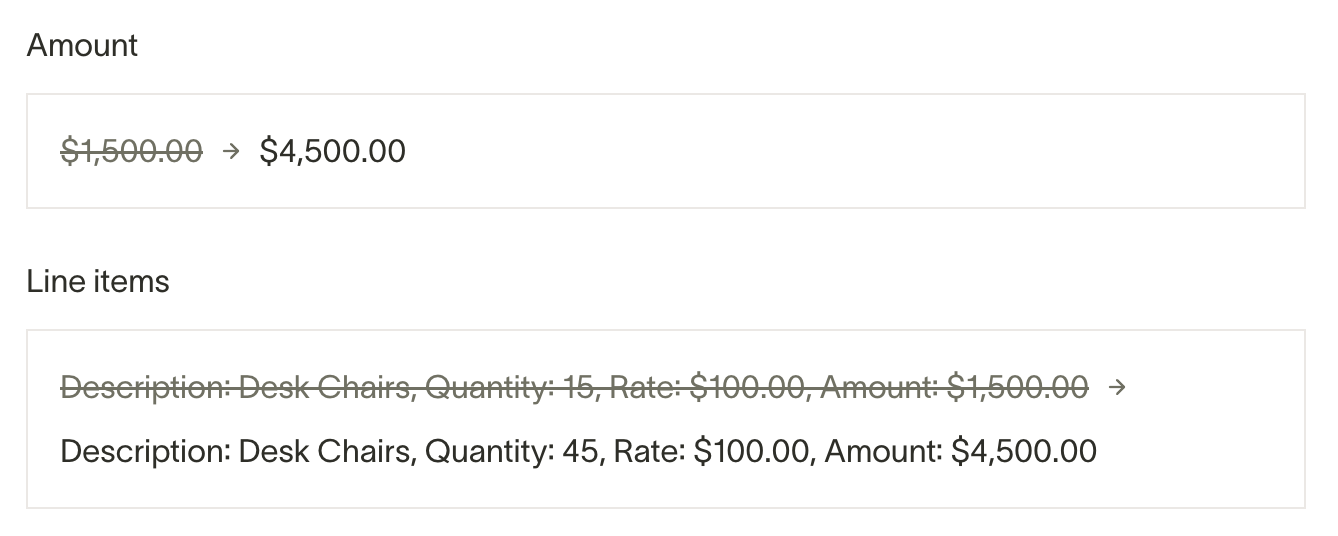
Once you click Review changes, you will see a screen summarizing the changes you made before proceeding.
Submit change order and track status
You will see the created change order after clicking Submit change order. Here you can view a summary of the changes made and see where approvals stand. If you view the current purchase order, you will see the status of the change order on there.

Change orders will also appear in the Requests and Purchase Orders tables as seen below:

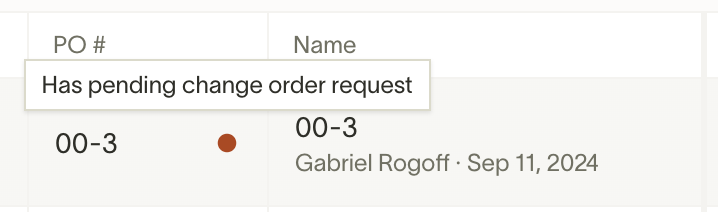
All status updates made to change orders will appear in the activity section of the purchase order. If a change order is rejected, you will be notified and the existing purchase order will stand. If a change order is approved, the changes will be applied to the original purchase order.
Submit a change order on behalf of another user
When submitting a change order, you can select a different user as the requestor. This is useful when an admin or manager needs to submit a change on behalf of the PO owner or another team member.
- Open the PO and click Request changes .
- In the Who is requesting section, use the Requestor dropdown to select the user you are submitting the change order for. By default, this is set to the PO owner.
- Complete the change order form and submit as usual.
The selected user will be recorded as the change request submitter. Approval workflows evaluate based on the selected requestor, not the person who physically submitted the form.
Review a change order
Review change order
Approvers can view change orders, review the changes made, then decide if they want to approve or reject it.
If you reject a change order, the original PO will stand and the change order will still be viewable. If you approve a change order, you can view the original PO and see the approved changes have been applied.
If the change order includes answers to custom change order questions, these will be displayed in a Change order questions section on the request detail page.
View audit history
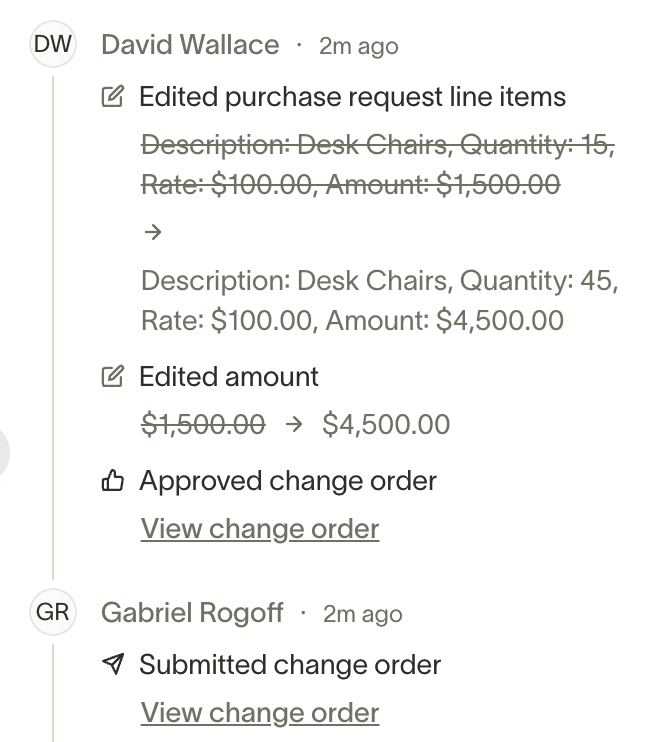
You can view all changes made in the activity section of the purchase order for full audit history.
Use cases and examples
- Extending end date for engagement with a vendor or contractor
- Adding line items or amount corrections
- Seat add-ons or contract expansions
- Editing any custom fields previously filled out
- Collecting additional justification when a vendor data handling question changes from No to Yes
- Automatically routing a change order to Security review when a data processing answer changes
- Submitting a change order on behalf of a team member who is unavailable
Frequently asked questions
What is the difference between the intake form and the change order form?
The intake form is what users fill out when creating a new purchase request. The change order form is a separate set of questions that users answer when requesting changes to an existing, approved PO. Admins configure each form independently at the Spend Program level.
Can I use the same form for both new requests and change orders?
No. The change order form is a separate configuration. If you want to ask similar questions, you need to set them up on both the intake form and the change order form within the Spend Program settings.
What happens if I do not configure a change order form?
The change order flow works as before: users edit the PO fields and submit the change directly without a separate questions step.
Can conditional questions detect any type of change?
Conditional questions based on original form changes work with boolean, single-select, and multi-select question types. The condition triggers when the answer is changed to a specific value you define. Other field types such as free text are not supported for change-detection conditions.
What is the difference between conditional approval routing and the standard change order workflow?
The standard change order workflow defines a fixed set of approvers for all change orders in a Spend Program. Conditional approval routing extends this by letting you add approvers, send notifications, or restart the workflow based on what specifically changed in the change order. For example, amount changes above a threshold could require VP approval, while a change to a data handling answer could notify the Security team.