Match transactions to open bills
Overview
Customers can streamline their accounting process by matching and syncing transactions made using their Ramp Cards to open bills in their accounting provider.
Key benefits
- Simplified accounting: Matching and syncing transactions to open bills in your accounting system reduces manual entry and errors, making the accounting process more efficient.
- Enhanced financial management: Keep accurate records of bill payments made with Ramp Cards to gain better visibility and control over your expenses.
How does this work?
Ramp will show open bills that match transactions within the Accounting tab based on the following:
- Vendor name matching an outstanding bill vendor
- Payment amount matching outstanding bill amount
- If a transaction matches an outstanding bill in your accounting provider, Ramp will surface for your review.
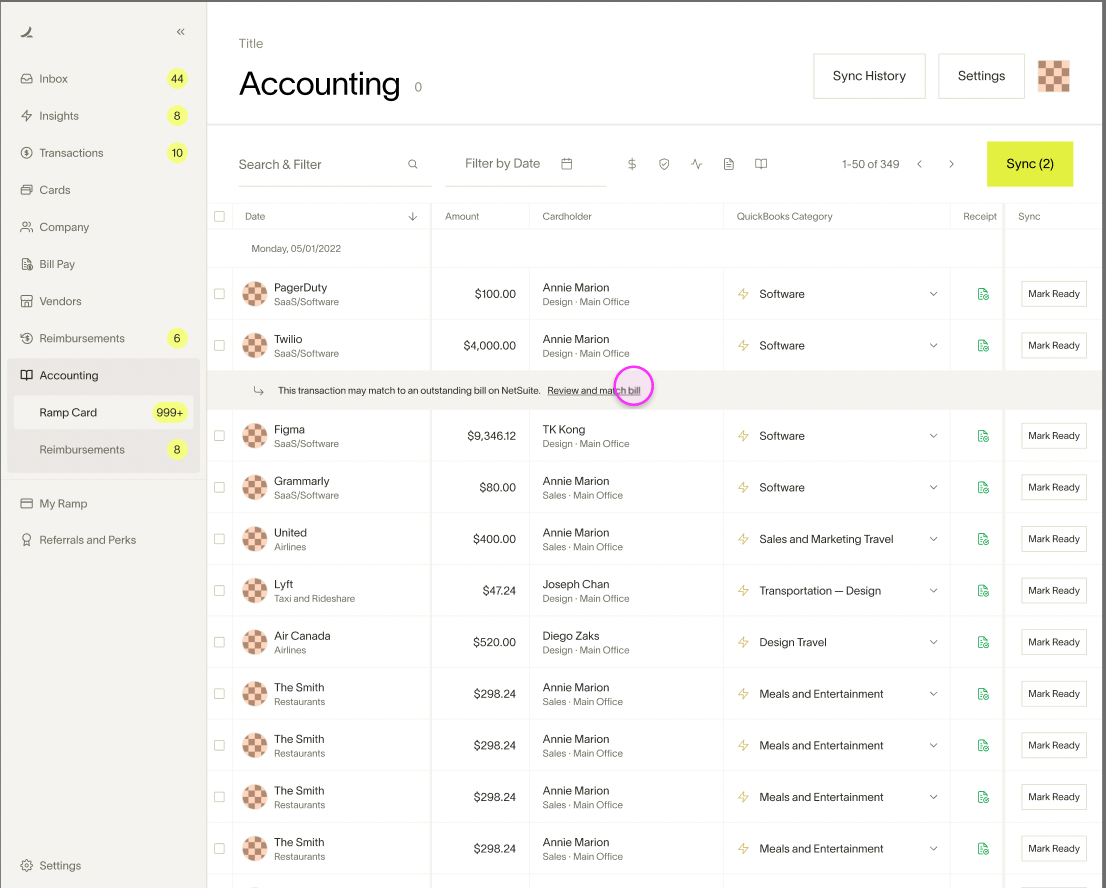
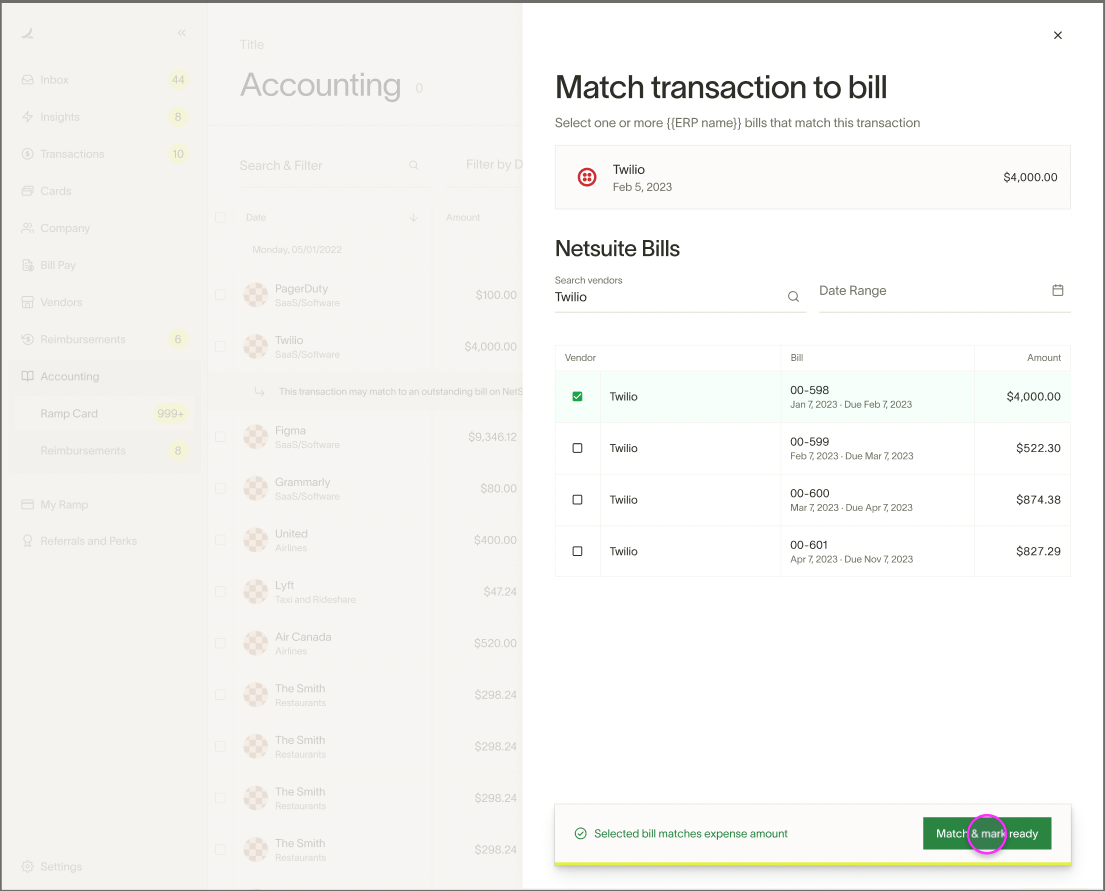
- You will have the ability to match the transaction to Bills from your accounting provider.
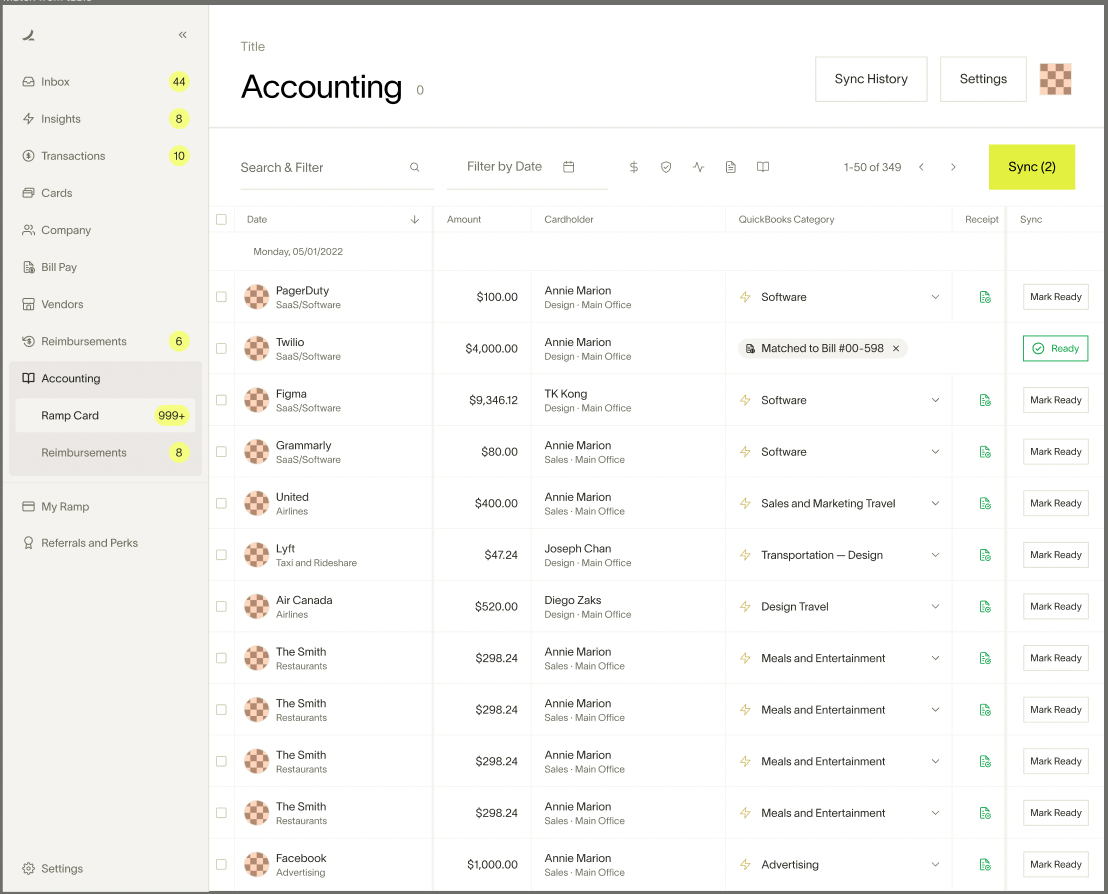
- Once a transaction is matched to a bill, this will be reflected into the Accounting tab.
Accounting impact
Decrease the Bill AP
Increase to the Credit Card AP
This will not show up as a credit card expense, but it will hit the Credit Card account. Therefore, this expense will be pulled into any report that looks at the Credit Card Liability account.
Frequently asked questions
What is the Match Transactions to Open Bills feature?
Match Transactions to Open Bills is a feature that streamlines your accounting process by allowing you to match and sync transactions made with Ramp Cards to open bills in your accounting provider.
Note: This feature is limited to bills that were created in your accounting provider. Therefore, it won't apply to open bills created in Ramp.
How does Match Transactions to Open Bills simplify the accounting process?
This feature reduces manual entry and errors by matching and syncing transactions to open bills in your accounting system. It makes the accounting process more efficient and saves time for your accounting team.
How does the matching process work?
Ramp matches transactions based on the vendor name and payment amount. If the vendor name in a transaction matches an outstanding bill vendor and the payment amount matches the outstanding bill amount, Ramp will surface this match for your review.
What happens after a transaction is matched to a bill?
Once a transaction is matched to a bill, this information will be reflected in the Accounting tab in your Ramp account. This allows for enhanced financial management and visibility over your expenses.
Can I match a transaction to multiple open bills?
Yes, the Match Transactions to Open Bills feature allows you to match a transaction to multiple open bills. If you need to allocate a transaction to several bills, select the relevant open bills during the matching process in your Ramp account. This will help you maintain accurate records and better manage your expenses.
Note for Xero users: This feature will currently only match bills when the Ramp card transaction and bill are 1:1.
Can I match multiple transactions to an open bill?
Currently, the option to match multiple transactions to an open bill is unavailable within the Ramp product. In the meantime, you can create a separate bill for each transaction. You can upload the same invoice for each bill created and edit the invoice amount within each bill. From there, you can then match each transaction to their respective bill.
What bills do we pull into Ramp from your accounting provider?
We only pull in USD bills. When you view bills for a transaction, there's an additional filter that requires the bill to be in the same entity as the transaction and have a $ amount equal to or smaller than the transaction.
**Note:**For multi-currency customers using Sage Intacct, bills cannot be matched at the top credit card level. These bills have to be opened and created at the entity level.
Why am I receiving the error "Invalid Bill type" when syncing a matched bill?
This error occurs because the Bill you are matching the transaction to either 1) no longer exists in your accounting provider or 2) has already been paid in your accounting provider. If this is the case, the workaround is to unmatch the transaction in Ramp.
How can I unmatch transactions from bills?
Currently, there is no self-service option available to unmatch transactions from bills directly through the Ramp dashboard. If you need to unmatch a transaction from a bill, please contact Ramp support for assistance.
Troubleshooting: transaction does not appear for matching
- If you do not see the expected transaction when matching to a bill:
- Open the bill and select Search Transactions .
- In the Search Transactions modal, click the cardholder name filter at the top.
- Change the filter to All cards so all eligible card transactions are displayed.
- Select the correct transaction to complete the match.
Additional notes
Please note: that if you match a transaction to an open bill, it will stay open if the transaction was paid in USD and the bill is in a foreign currency.