Outlook integration: Set up for admins
Note: This article primarily applies to Ramp Administrators.
Overview
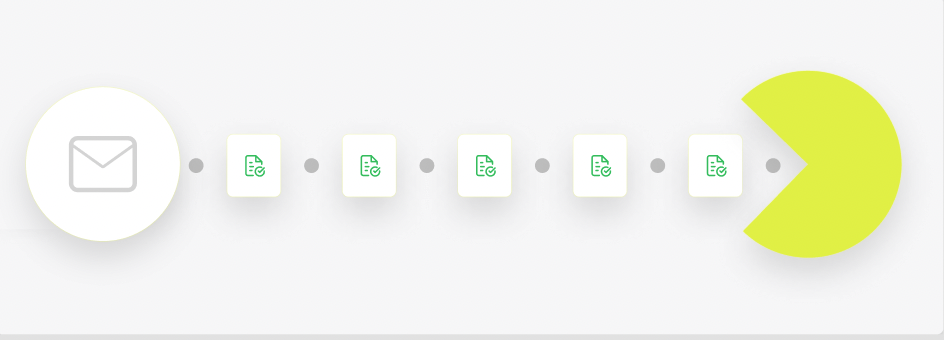
Introducing Ramp's Outlook integration. Simply set up the integration once, and Ramp will automatically fetch receipts and payment confirmation from all of your employees’ Outlook inboxes and use image recognition technology to match it to the correct transaction. Increase employee productivity and free up finance teams to focus on strategic work.
For IT & Security teams: read the full security brief which explains how your data is protected→
Similar to our other integrations, Ramp’s Outlook integration is easy to install and secure. Our email processing is isolated from our core application:we strictly limit access, avoid pulling data we don't need, and delete data when it is no longer used.
Important information:
- Admins need Outlook Admin permissions to set up Outlook integration at the company level (employees don't set it up individually). If you are not an Outlook Admin, there is an option in the Ramp setup flow to contact your company's administrator for assistance.
- The integration is currently offered only to users based in the United States.
- The integration does not support Microsoft 365 Government Community Cloud High.
- The integration picks up PDFs, including invoice PDFs, and does not show itemized details.
- Once the integration is set up, it will attach receipts from the past 7 days and going forward.
- Internal emails, emails based on certain keywords in the email subject, and specific inboxes can be excluded from data access
Inbox controls
The Ramp email integrations give you control of which inboxes we access. By default, Ramp queries only those inboxes that have an associated active Ramp account. We never attempt to access inboxes that do not have a corresponding Ramp user.
You may also set the following mailbox controls from the Ramp integration (see the following section for setup):
- Exclude specific inboxes.
- Exclude all internal emails sent between employees
- Exclude emails based on certain keywords in the email subject
Setup
Interactive demo: Set up Outlook integration
Ramp’s Outlook Integration requires global admin privileges on Azure. It takes just4 clicksto set up.
Step 1:
In Ramp, navigate to Receipt Capture in yourRamp Settings(Company > Integrations > Receipt capture).
Step 2:
Select Outlook, and click the yellow "Try it" button in the upper right-hand corner.
Step 3:
You can choose whether to exclude internal emails, emails based on certain keywords in the subject line, or specific inboxes.
Step 4:
Review the terms and conditions, then choose to set it up yourself or send your organization's IT team a magic link to complete the integration.
Step 5:
Select your Microsoft account and proceed with the prompts on the screen to connect, and you're all set! Admins and Owners will receive an email letting them know the integration has been successful.
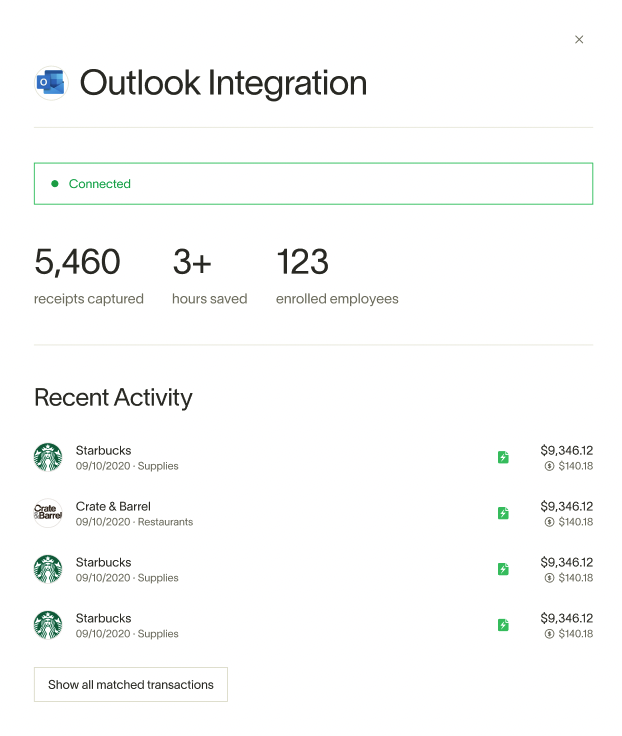
To view how the Outlook integration has been saving you time, navigate back to Settings > Integrations >
Automatic receipt capture > Outlook. The drawer will show the number of receipts captured, hours saved, enrolled employees, and recent activity. The bottom of the drawer will also present the option to disconnect your integration, and you will need to disconnect from your Azure dashboard as well.
Security brief
By enabling this integration, you are trusting Ramp with access to your business’s emails. We take this trust extremely seriously and have additional measures in place to secure our Outlook integration. Read the full security brief, which explains how your data is protected→