Edit your policy when using Policy Agent
Once Policy Agent is set up, you can refine your policy at any time. The agent-facing policy is fully versioned, supports draft and published states, and allows complex rules—including entity-specific logic, department-based rules, card-specific requirements, and hidden exceptions. This article explains how to safely update your policy, manage versions, and ensure the agent interprets your rules correctly.
How drafts and publishing work
All edits to your agent-facing policy begin as drafts. Drafts allow you to modify rules without affecting existing or new expense evaluations.
In a draft, you can:
- Rewrite or restructure rules
- Add clarifications or examples
- Add group- or entity-specific exceptions
- Add card-specific purchase requirements
- Add hidden notes for sensitive or executive exceptions
- Replace the policy with a new starting document
Draft changes do not take effect until you select Publish.
Publishing:
- Updates Policy Agent’s knowledge center
- Does not change the employee-facing PDF automatically
- Does not force employees to re-sign the policy
- Applies to future expenses and, by default, up to 200 related unreviewed expenses
After initial setup, Policy Agent evaluates recent expenses and notifies you on your homepage when the results are ready. Once you publish an update, Policy Agent immediately uses it for future transactions, although Ramp may take up to five minutes to finish processing the update.
View and manage version history
The Policy Agent editor includes a full version history.
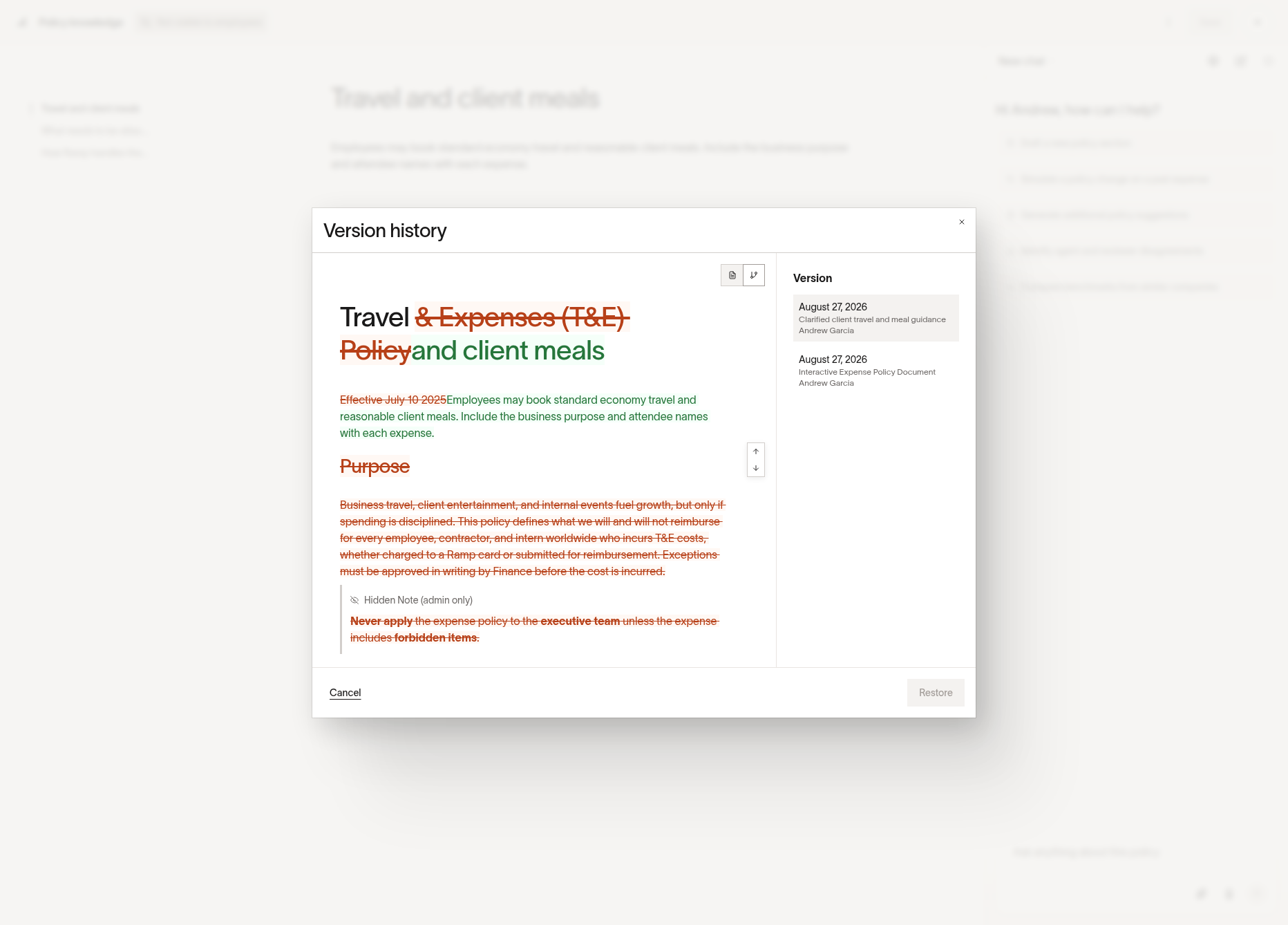
To view history:
- Open the policy editor
- Click the three-dot menu in the top-right corner
- Select See version history
Version history shows:
- Every published version
- Who made each change
- Publish dates
- A change log describing what was updated
- A Changes view comparing the selected version with the previous version
- The option to revert to any previous published version
FAQ – How can I see what changes were made to Policy Agent’s knowledge center? Use the three-dot menu → See version history, then select Changes to compare a version with the previous version.
Edit rules, exceptions, and hidden notes
Your agent-facing policy should reflect the exact rules you want enforced. When writing or editing rules:
State rules in plain English
Clearly describe:
- Limits (per-person, per-day, per-trip)
- Allowed and disallowed spend
- Required information (receipts, attendees, memos, trip details)
- Conditions that require additional review
Avoid vague terms like “reasonable” or “after hours” without definitions.
Write explicit exceptions
Exceptions may apply to teams, roles, offices, departments, or specific people.
Example:
Note: “Sales team may expense alcohol when dining with customers.”
Team or department names must match exactly how they appear in Ramp.
Use hidden notes for sensitive exceptions
Hidden notes:
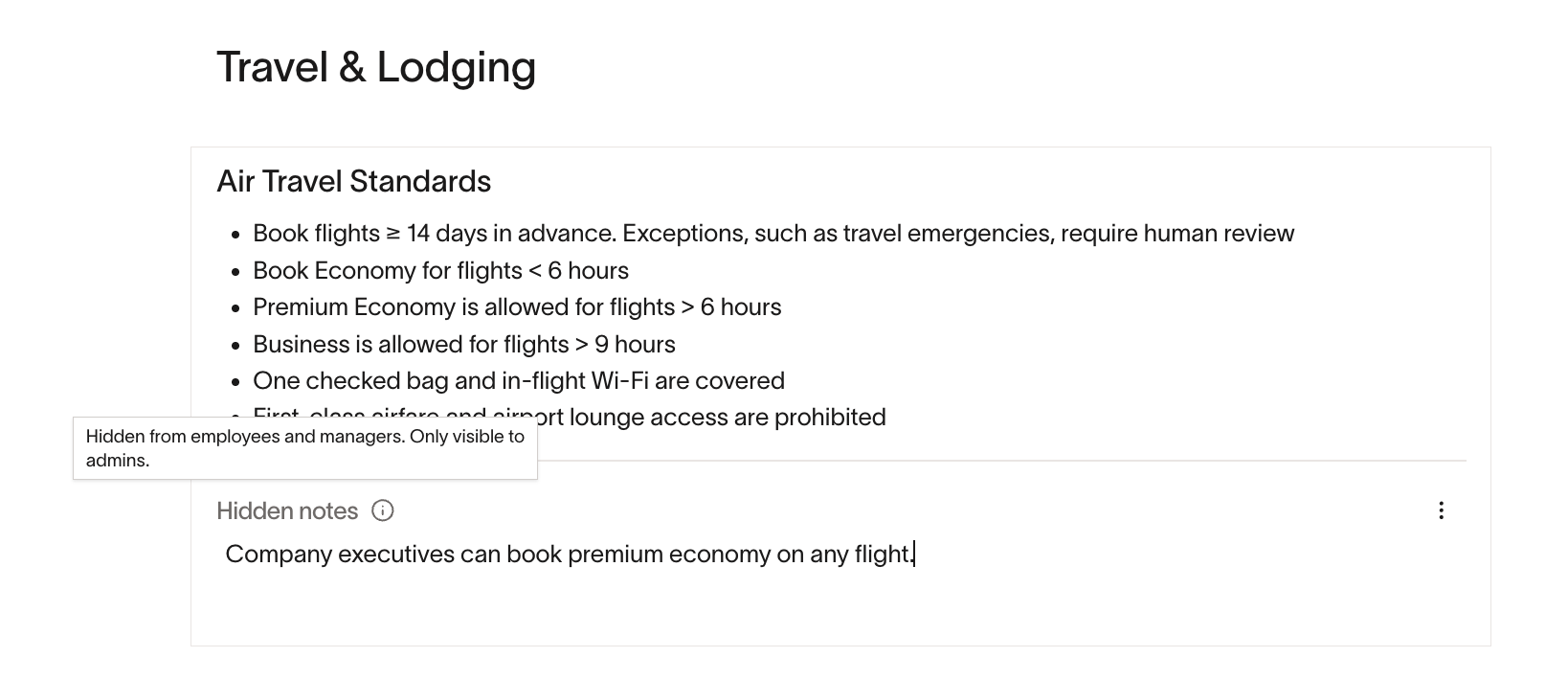
- Are visible only to admins and Policy Agent
- Do not appear to employees
- Work like normal rules for evaluation
- Are ideal for executive or confidential exceptions
FAQ – Can I add hidden notes or exceptions? Yes. Hidden notes allow you to include exceptions or rules visible only to admins and the agent.
Write group-specific rules (entities, departments, roles, locations)
Policy Agent can apply different rules to different groups as long as you express them clearly.
Multi-entity logic
Write entity-specific rules directly within the relevant section.
Example:
Note: “For US Entity, economy class is required for domestic flights. For UK Entity, premium economy is allowed for all flights over 3 hours.”
Entity names must match exactly what appears in Ramp.
FAQ – How can I set up multiple entities? Specify rules for each entity in plain English within the same thematic section. Do not split them into separate documents.
Department-, role-, or location-based rules
Policy Agent supports tailoring rules using HRIS or custom fields already in Ramp.
Example:
Note: “Employees in the Engineering department may spend up to $100 per month on home office supplies.”
If you reference "role," "department," or “location,” those fields must exist in Ramp.
Use custom fields correctly
Custom fields allow you to encode structured criteria such as job level, region, team type, or travel tier.
To use them:
- Create custom fields in Custom data
- Use exact field names in your policy text
- Add a clear description when creating the field—this helps both admins and the agent interpret the field reliably
Example:
Note: “Employees with Level = L4 may book premium economy on flights over 5 hours.”
FAQ – Does Policy Agent know my HRIS data? Policy Agent only knows HRIS data that already exists in Ramp. Add custom fields to introduce additional employee data.
Write card-specific purchase rules
Policy Agent can enforce rules that require purchases to be made on specific cards or Spend Programs. These must be written in plain English in your agent-facing policy.
Examples:
- “Laptop accessories must be purchased on the
IT Procurementvirtual card. Purchases on any other card are out-of-policy.” - “Travel bookings must be made on cards in the
TravelSpend Program. Personal cards or general corporate cards are not allowed.”
When creating these rules:
- Reference the exact name of a virtual card or Spend Program, or use the card’s last four digits
- Include exceptions (entity-, role-, or department-specific) if applicable
- Ensure the rule reflects how your card programs are actually used
How the agent enforces card-specific rules
Policy Agent evaluates:
- Card last 4 digits
- Physical vs virtual card
- Associated Spend Program
If a purchase violates a card requirement:
- Policy Agent may return Rejection recommended (clear violation), or
- Requires review (missing context or ambiguous rule)
FAQ – Will the agent flag a purchase made on the wrong card? Yes. If your policy specifies that purchases must be made on specific cards or programs, Policy Agent will flag violations accordingly.
FAQ – Do I need workflows or flags for card-specific rules? For assessments, policy text is sufficient. For automatic enforcement, pair your policy with workflows and keep any necessary deterministic flags.
Align submission requirements with rules
If your policy relies on context—like attendees, trip details, or specific memo fields—your submission requirements must ensure that information is collected.
Examples:
- If meals require attendee names → enable attendee submission requirements
- If flight rules depend on itinerary → require trip details fields
- If limits depend on purpose → require memo or allocation details
Flags are one input Policy Agent considers alongside your written policy and expense context; they do not override applicable policy evaluations. Ramp submission requirements control whether Policy Agent evaluates rules for fields such as receipts, attendees, and memos. If Ramp does not require a field, Policy Agent treats policy requirements for that field as optional.
Formatting requirements: what the agent can and cannot read
Policy Agent can only interpret plain text.
- Cannot read: images, screenshots, tables-as-images, diagrams, or hyperlinks
- Cannot infer: rules that are implied only by examples or screenshots
- Has best performance when: each rule is stated as a sentence that clearly applies limits or describes conditions
Always rewrite important rules into text, even if your original policy uses tables or visual layouts.
Choose which expenses use a Policy Agent update
Only Admins can publish a policy update. If you are not an Admin, ask your Ramp Admin to publish it.
When publishing a policy update, Apply this version to defaults to unreviewed and future expenses. This re-evaluates up to 200 related unreviewed expenses. To apply the update only to future expenses, select future expenses only.
Choosing unreviewed and future expenses has these effects; no separate refresh action is needed:
- Re-evaluates only unreviewed expenses linked to the edited section
- Does not affect already reviewed expenses
- Helps you quickly apply new clarifications or corrections across recent spend
Who can see drafts
Only admins can view or edit drafts of the agent-facing policy.
Reviewers and employees:
- Do not see draft changes
- Only interact with the published version
FAQ – Who can see drafts? Only admins can see drafts in the policy editor.