Downloading receipts
Note: This article primarily applies to Ramp Administrators. Cardholders may find other articles in the Expense policy and receipts section to be more applicable.
Overview
You can maintain high receipt hygiene by setting expense policies that require receipts to be submitted with transactions. When Ramp users submit receipts by SMS or email, their submissions are automatically matched to the correct transaction and synced directly to your accounting software. Users can also submit receipts for reimbursement. The receipts remain securely linked to the relevant transaction or reimbursement even if the user is offboarded.
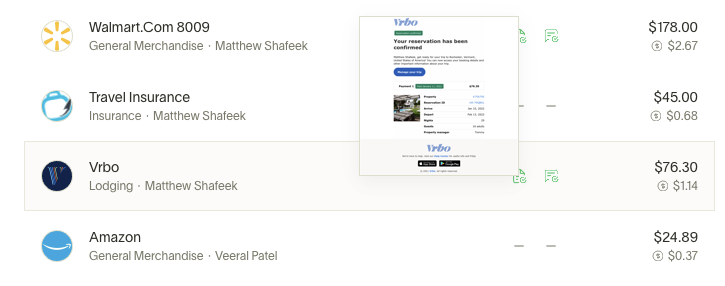
Please note that only admins are able to download receipts. To view and download a single receipt, click on the receipt icon or the transaction and download the receipt.
To download receipts in bulk for Transactions or Reimbursements
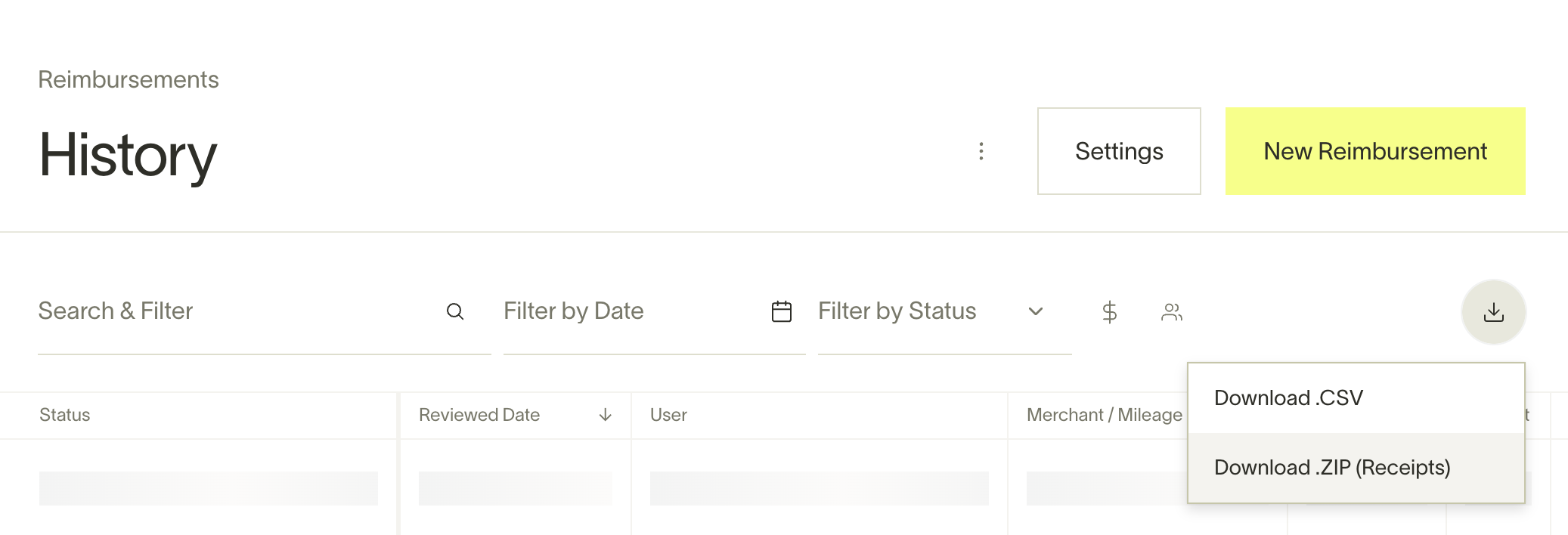
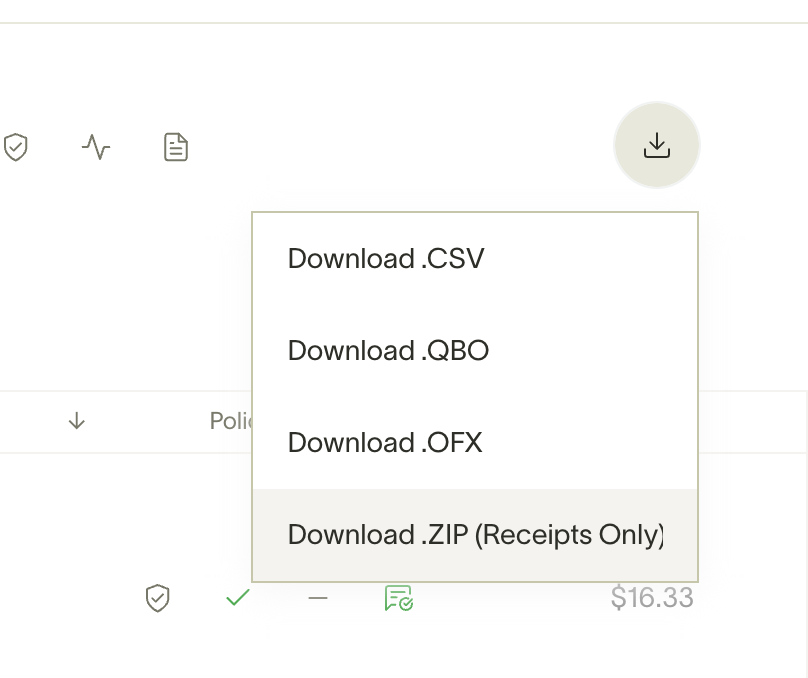
Go to the Expenses > Transactions or Reimbursementstab. Filter the History tab by any date, then click the download icon on the top right and select the file type. If the download is small, you can find it in your browser's download folder. If the download is larger, you'll receive an email with a download link to a ZIP file.
Transaction view
Reimbursements history view