Determining if your clients are properly connected to your Advisor Console
Overview
If you've been granted access to client accounts at Ramp and have transitioned to using the Advisor Console with the same sign-in credentials, you can quickly check on your clients' status. To do this, navigate to the left sidebar and click the arrow beside "Advisor Console."
If you see client accounts listed under "Your Ramp Accounts," this indicates that while you can access them, they have not yet been fully integrated into the Advisor Console.
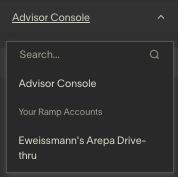
Another sign of incomplete connection is a blank "Your Clients" page or the absence of certain clients you expect to see connected.
Establishing proper client connection
For console Admins:
- Click on the "Add Client" button located in the top right corner of the Advisor Console.
- Select "connect with client already on Ramp."
- Choose the access roles you desire, input the client's email address, and click "send invite email."
- Once the client accepts the invitation by clicking on the link in the email, their connection request will appear in your Advisor Console, where you can accept it.
After a successful connection, client accounts will appear under "Clients" on the navigation bar rather than under "Your Ramp Accounts."
Note: Your own firm's account will continue to be listed under "Your Ramp Accounts" if you're using Ramp services for your firm.
For console users:
- You need to be a Console Admin to invite or connect clients. You should ask a Console Admin for help completing these steps for you.
Assigning yourself access to a client
After connecting a client to your account, you might attempt to assign access to yourself (or another team member) and receive the following message: "[name] has access to [client name] outside of Advisor Console. Contact Ramp Support to migrate access to Advisor Console."
If you encounter this notification, sign in to the client's Ramp account, navigate to "Help" in the bottom left of the sidebar, and provide a screenshot of the message to Ramp Support for assistance migrating your access to the Advisor Console.
With these steps, you will secure a connection to the client through the console, enabling you to utilize the full functionality of the Advisor Console. It's recommended that all clients are appropriately connected to optimize the platform's features.