QuickBooks Desktop integration: Connect to multiple company files
Most QuickBooks Desktop users work in a single company file, the local file that holds all of a company’s accounting data. If you work with multiple company files on the same Windows computer, you can still sync each file with your QuickBooks Desktop integration. The key is that every company file gets its own Web Connector connection and QuickBooks Desktop must stay open with no file loaded.
This guide explains exactly how to set that up, why the “blank” QuickBooks window is required, and what performance trade-offs to expect.
1. Create a Web Connector connection for each company file
You will run your integration’s usual QuickBooks Desktop setup flow once per file.
Open the first company file in QuickBooks Desktop
Start QuickBooks Desktop and open the company file you would like to connect first. Sign in as the Admin user.
Run the QuickBooks Desktop setup flow for your integration
Follow the on-screen steps exactly as you would for a single-file installation. When you finish, a new row appears inside the QuickBooks Web Connector that is linked to only this company file.
Repeat for the remaining company files
Close the first file, open the next company file, and rerun the setup flow. Keep repeating until every company file on the machine has its own connection.
When you are done the Web Connector will look similar to the screenshot below, one connection per company file:
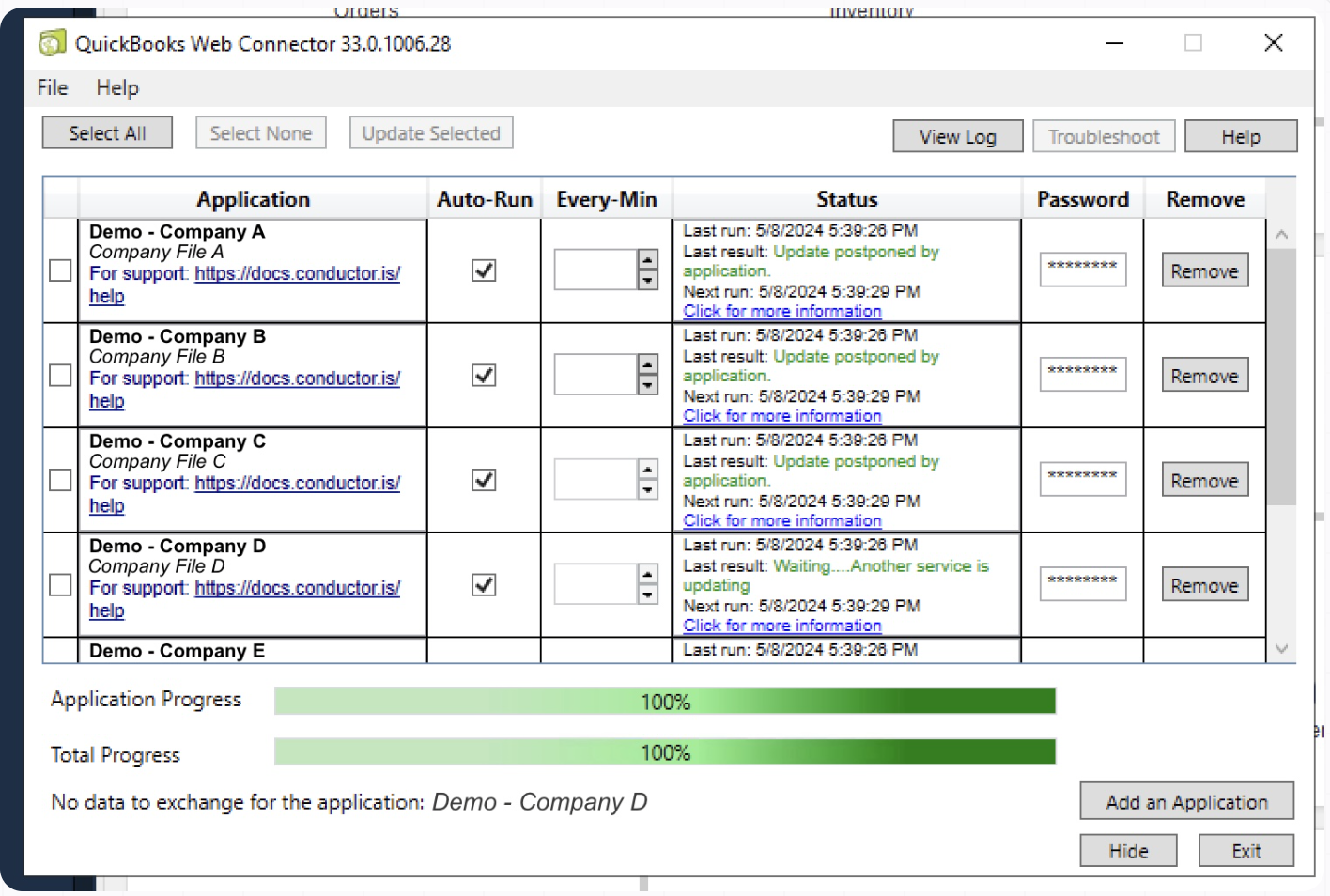
The Web Connector after creating multiple separate connections – one per company file.
2. Keep QuickBooks running without any company file loaded
QuickBooks Desktop must stay open with no company file whenever your integration needs to sync data. This lets the Web Connector open the correct file on-demand, complete the request, and then close it again.
How to return QuickBooks to the No Company Open” state
- Open QuickBooks Desktop.
- Go to the “File” menu.
- Select “Close Company”.
Why is this blank QuickBooks window necessary?
The QuickBooks Web Connector has certain limitations when working with multiple company files on a single computer:
- The Web Connector can only talk to one company file at a time.
- It only talks to the file that is currently open in QuickBooks Desktop.
- It will not force QuickBooks to switch files if another user already has a different file open.
However, if QuickBooks Desktop itself is open but no company file is loaded, the Web Connector is allowed to:
- Open the file that matches the incoming request.
- Process the queued operations.
- Close that file again, returning QuickBooks to the blank state.
That simple workflow makes it possible to serve multiple company files from one computer without disrupting anyone’s work.
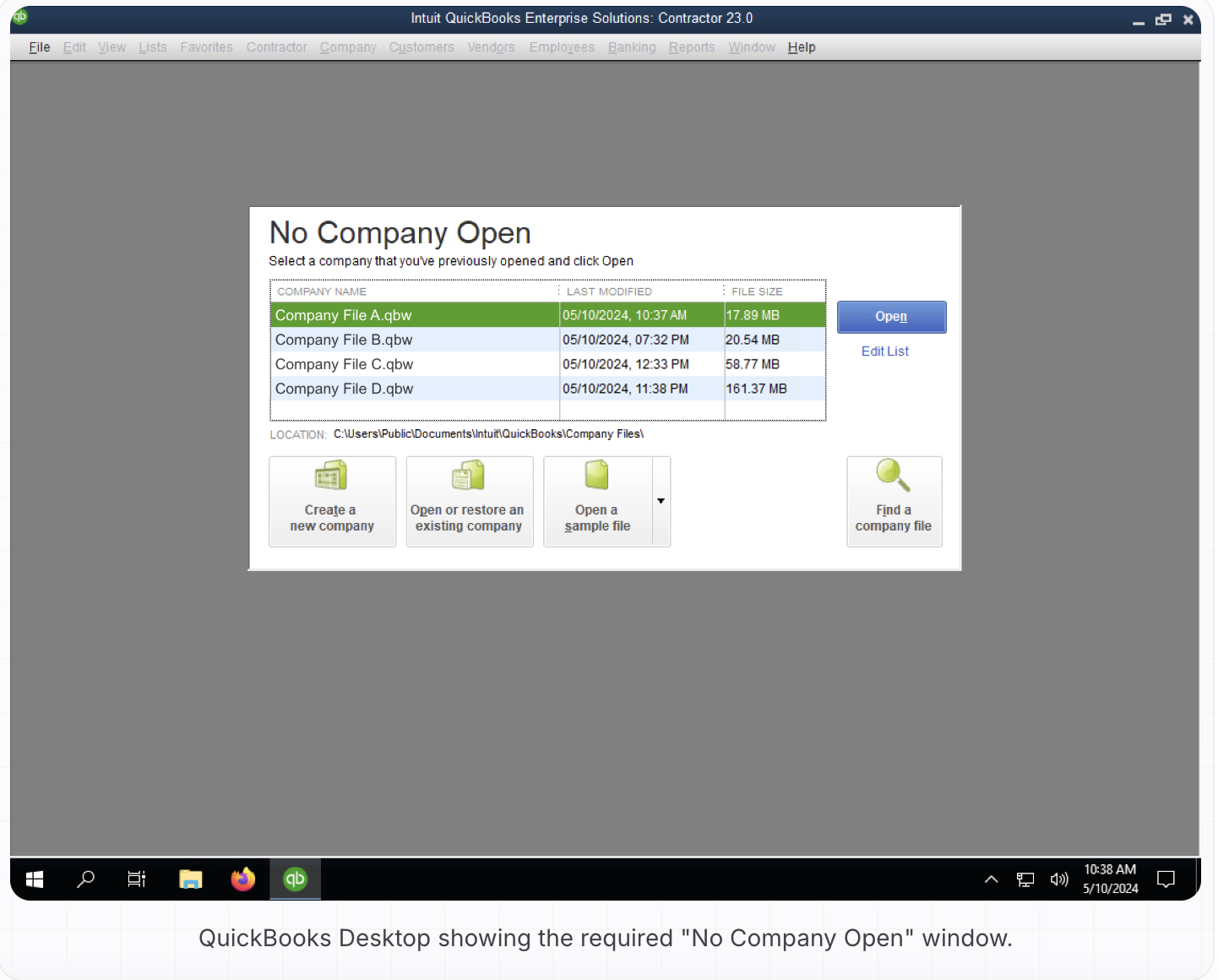
3. Best practices for a reliable multi-file setup
- Use a dedicated Windows server: Most users managing multiple company files already have a Windows server in their office dedicated to managing their QuickBooks Desktop company files. **Set up the Web Connector connections on this server and keep QuickBooks running there instead of on someone’s everyday workstation. **That prevents a user from accidentally opening the wrong file and blocking syncs.
- Launch QuickBooks Desktop automatically on startup. Add QuickBooks to the computer’s startup programs or create a Task Scheduler entry that opens it a minute after boot. This ensures QuickBooks Desktop is always open whenever the computer/server restarts, which eliminates the extra delay of QuickBooks Desktop having to launch every time you sync.
- Technical performance considerations
- Increased request time: Keeping QuickBooks Desktop open without a company file loaded adds 20-40 seconds to each request due to the time it takes to load a company file. However, when your integration sends numerous requests for the same company file in quick succession, the Web Connector will resolve the sequence rapidly because the company file is kept open between these requests.
- Serial processing: The Web Connector can only process requests for one company file at a time because it can only communicate with QuickBooks Desktop when one company file is loaded. Therefore, we manage your requests in a queue, ensuring that the Web Connector processes them serially, opening and closing the appropriate company file for each request.
4. Troubleshooting tips
- If a sync fails with an error about “the wrong company file is open”, switch QuickBooks back to the No Company Open window and try again.
- Make sure only one copy of QuickBooks Desktop is installed. Multiple versions can confuse the Web Connector. See our guide on ensuring only one version of QuickBooks Desktop is installed.
- If you receive an error that says “Your QuickBooks Desktop connection is not active. It was last active…”, see our guide on for troubleshooting this error.