Fireworks AI integration: Connect to AI Spend Management
Overview
Connect Fireworks AI so Ramp can import your organization's usage and cost data into AI Spend Management. Ramp reports spend by API key and model and can attribute spend to people based on each API key's current owner.
Note: Provider setup is the same whether your business has a standalone AI Spend Management account or a core Ramp account.
Before you connect Fireworks AI
Business Admins, Owners, IT Admins, and users with the AI Token Spend Admin Custom Role can connect providers for core Ramp accounts. Owners and Admins can connect providers for standalone accounts. If you do not have one of these roles, ask someone who does to connect the provider.
You must be a Fireworks AI account admin and create an API key that gives Ramp access to exactly one Fireworks AI account. Ramp validates that the key can read account administration, user, API-key, usage, and cost data. A key that accesses no accounts or more than one account cannot connect.
Connect Fireworks AI
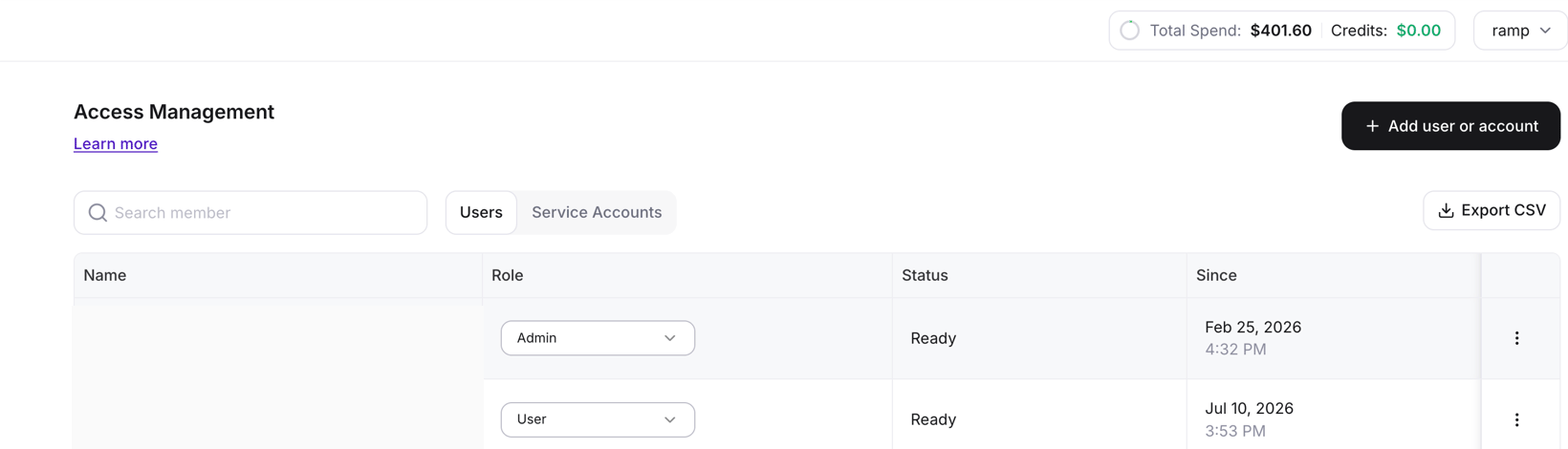
- Open the Fireworks AI Users page, find your user, and confirm that its role is Admin. Access to the Users page alone does not confirm that you are an account admin. If your user does not show the Admin role, you are not a Fireworks AI account admin and must ask one to create the key.
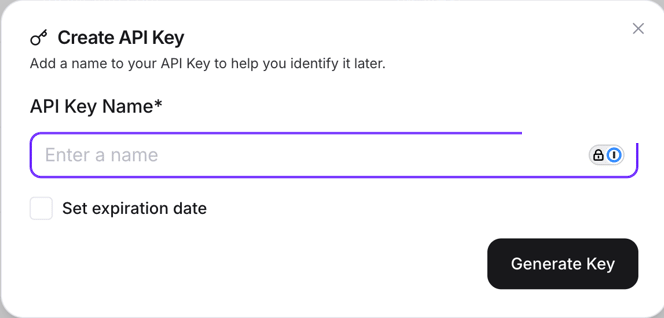
- Open API keys and select Create API Key.

- Enter a descriptive API Key Name.
- To keep scheduled imports active without planned key rotation, do not select Set expiration date. If your company's security policy requires expiring keys, set an expiration date and rotate the saved key in Ramp before it expires. Ramp does not warn you before a Fireworks AI key expires. Select Generate Key, then copy the new API key.
- Open AI Spend Management provider settings.
- Under Available providers, find Fireworks AI and select Connect.
- Enter a unique name in Name your key, paste the key into API key, and select Connect.
Ramp encrypts the API key and starts importing account mappings, usage, and cost data in the background. Recent data is imported first, so reporting may be incomplete while older history continues importing.
Review Fireworks AI usage and cost data
Fireworks AI reporting is available from AI Spend Management. Ramp imports metered usage for serverless, dedicated, and training activity. Ramp also imports rated serverless costs and supports breakdowns by API key and model.
Note: Fireworks AI provides rated per-key serverless costs only for a rolling recent window. Ramp imports up to the latest 99 completed UTC days of costs. Metered usage can extend farther back, so older usage may appear without matching cost data.
Ramp attributes usage to people using the current ownership information associated with each Fireworks AI API key. Reassigning a key can therefore change how its usage is attributed; Fireworks AI does not provide a historical user on each usage record.
Each connected business syncs once daily. During each sync, Ramp also refreshes the previous four completed UTC days so late or corrected provider data can appear in reporting. Fireworks AI does not support a customer-triggered historical usage backfill.
Use Spend Limits with Fireworks AI
When Spend Limits are available for your business, a user-level Spend Limit can include Fireworks AI spend attributed through that user's mapped API keys. You can exclude individual Fireworks AI API keys from that user-level limit.
Fireworks AI API keys cannot be direct Spend Limit targets. Ramp also cannot lock, unlock, or terminate Fireworks AI API keys when a limit is reached. To stop a key from spending, revoke it in Fireworks AI.
Manage a Fireworks AI connection
Open AI Spend Management provider settings, expand Fireworks AI, and open the menu for the configuration you want to manage.
- Rename: Change the configuration's display name.
- Rotate API key: Replace the saved credential with a new Fireworks AI API key. If your key has an expiration date, rotate it before that date to prevent interrupted imports. If the key has already expired, Ramp may still show the connection as connected even though new data is not importing. Rotating to a valid key starts a background import of the account's mappings, usage, and cost data. Recent data may appear first while older history continues importing.
- Delete: Remove the configuration and its stored credential from Ramp. Deleting a configuration does not revoke the API key in Fireworks AI; revoke it from Fireworks AI API keys if it should no longer work.
Previously imported usage and cost data from that configuration no longer appears in Ramp reporting after you delete the connection.
Troubleshoot connecting Fireworks AI
Ramp says the API key is invalid
Confirm that you copied the complete key from Fireworks AI API keys, then use Rotate API key to replace it. If the key was revoked in Fireworks AI, create a new key before rotating it in Ramp.
Ramp says the API key does not have permission
Open the Fireworks AI Users page, find your user, and confirm that its role is Admin. Other roles can view this page but do not have full account administration access. If your role is not Admin, ask a Fireworks AI account admin to create the key.
Ramp says the API key accesses the wrong number of accounts
Use a key that has access to exactly one Fireworks AI account. Ramp cannot connect a key that accesses no accounts or multiple accounts.
Fireworks AI data is missing or assigned to the wrong person
Ramp does not show a completion status or estimated completion time for Fireworks AI imports. After you connect or rotate a key, recent data may appear first in AI Spend Management while older history continues importing. Timing varies with account history and Fireworks AI's response. Ramp assigns Fireworks AI usage based on each API key's current ownership mapping. If data is still missing after you check again later, or is incorrect, contact Ramp Support with the affected date range, API-key name, and model. Do not include the API key value.