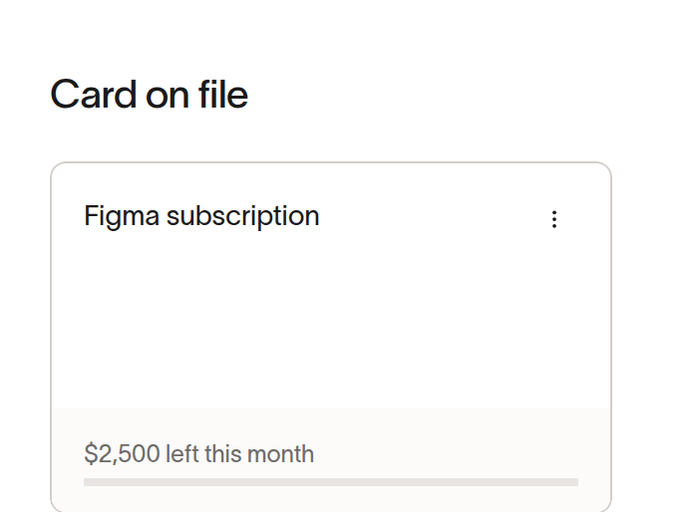
Cards on Vendor Profiles
Overview
Ramp Vendor Management serves as the source of truth for essential vendor information, including payment methods. Ramp surfaces a table on vendor profiles with the card on file, cards and funds that are merchant-restricted to the vendor, and cards and funds that have associated spend on this vendor in the last 365 days. This table is a good opportunity to discover and terminate duplicate cards or cards no longer being used.
How it works
Ramp surfaces cards and funds on a vendor profile using the following hierarchy:
- Card on file
- Merchant-restricted cards and funds
- Category-restricted cards and funds with spend in the last 365 days
- All other cards and funds with spend in the last 365 days
View cards and funds vendor profile
When available, the Cards & funds table appears on a vendor's profile. Cards and funds are shown in the order listed above.
*Note:*You are only shown cards & funds that you have permission to view.
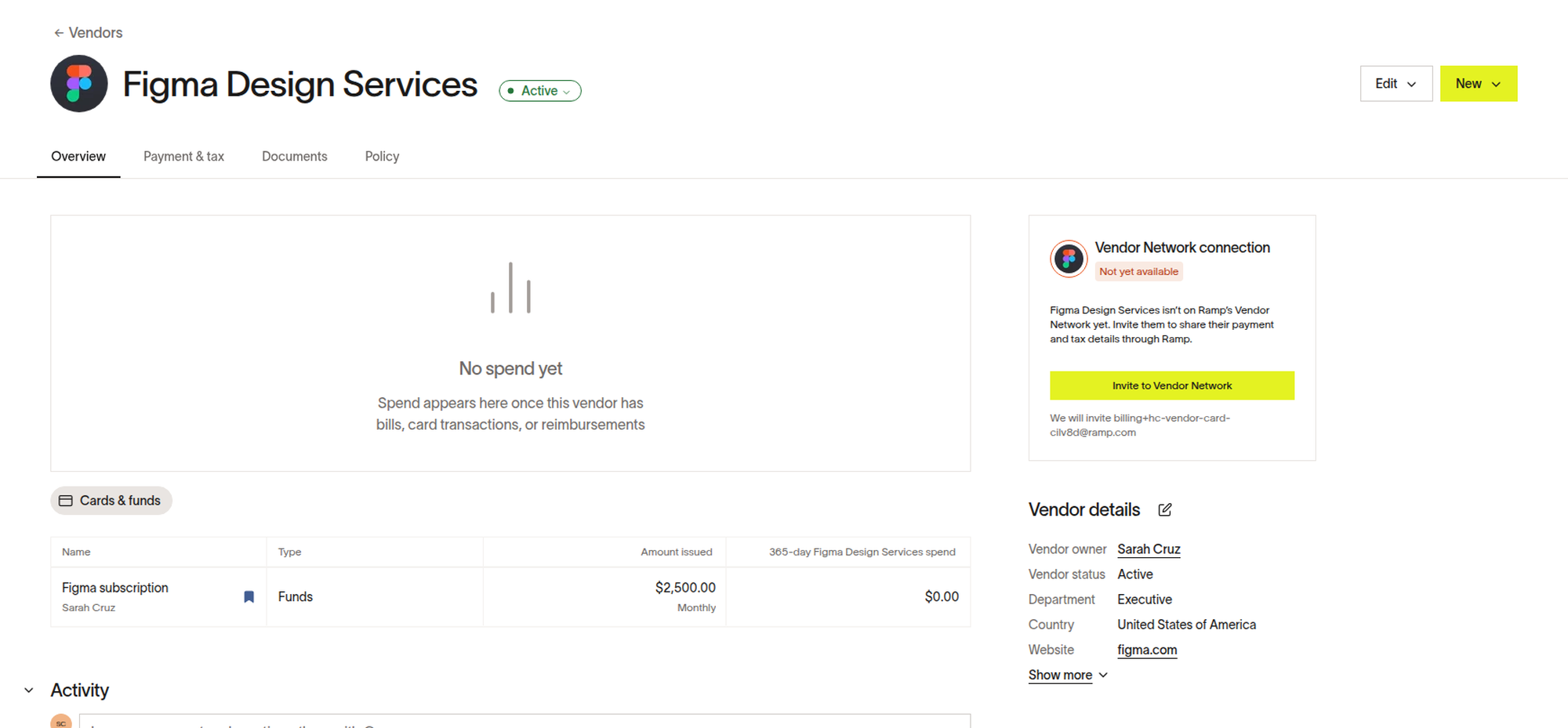
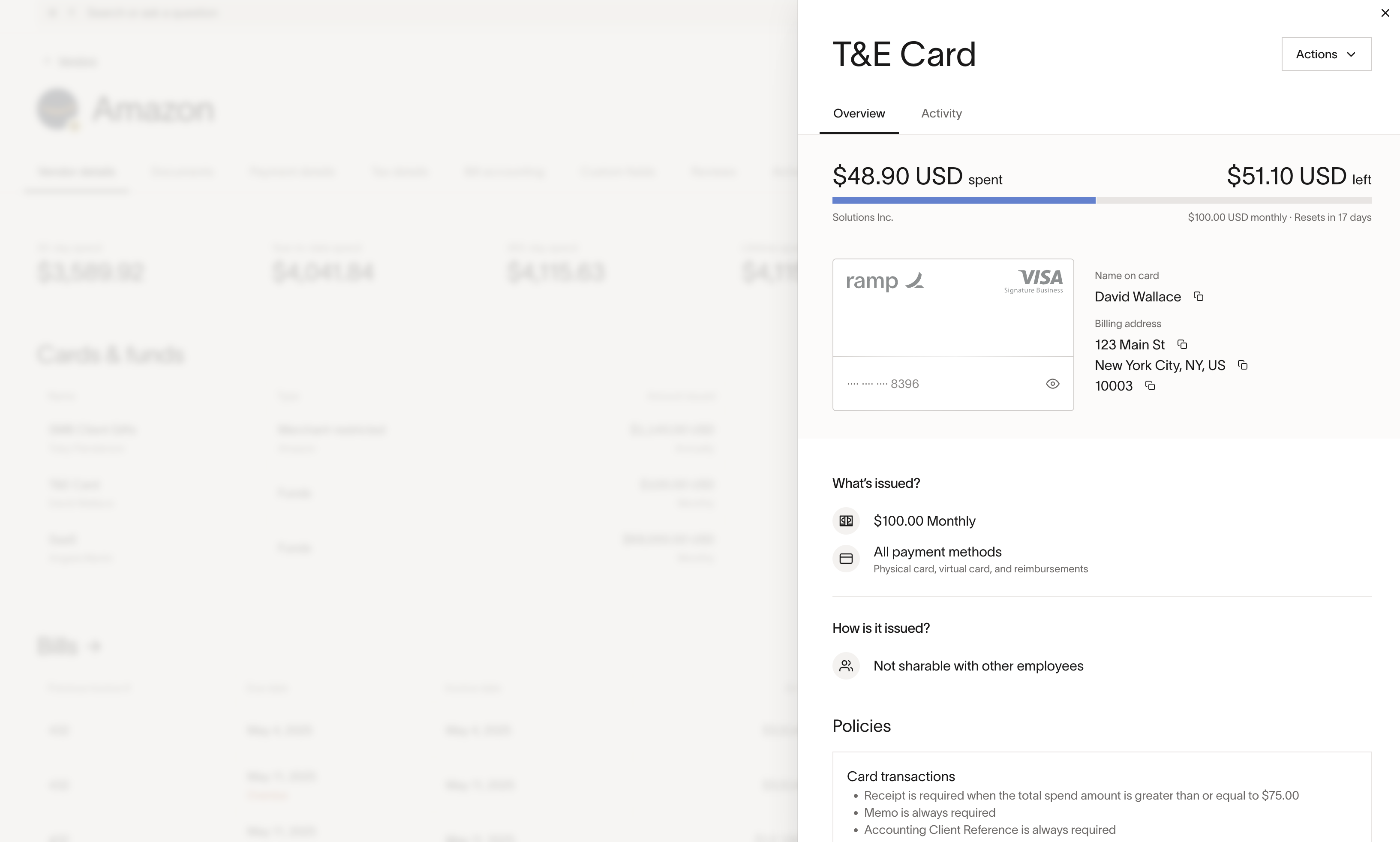
Manage cards and funds from vendor profile
You can open an item from the table to see more details on this card/fund, and take any actions if you have permission.
Card on file
You can select a card as the card on file by using the bookmark action labeled Set as card on file in the Cards & funds table. This highlights the card on the vendor profile and shows it in a bill's Pay by card section. A PO card appears before the card on file when one is available.