Batch reimbursement payment syncing
Ramp now syncs reimbursement payments in batches, ensuring that the amounts recorded in your accounting platform match the actual payments processed. This update improves accuracy and eliminates the need to reconcile multiple records for a single payment.
Note: This feature is available for all native Ramp ERP integrations with the exception of Oracle Fusion and Workday.
Overview
Ramp groups an employee's approved reimbursements into one payment according to the configured reimbursement payment schedule. With batch reimbursement syncing, Ramp now syncs a single payment per batch, just like what you see in your bank account.
This feature applies when batch reimbursement payments are enabled and your connected accounting system supports batch payment syncing. If your accounting system does not support it, Ramp syncs reimbursements and their payments individually.
Key benefits
- Ensures synced reimbursements match actual payouts
- Reduces reconciliation work for finance teams
How it works
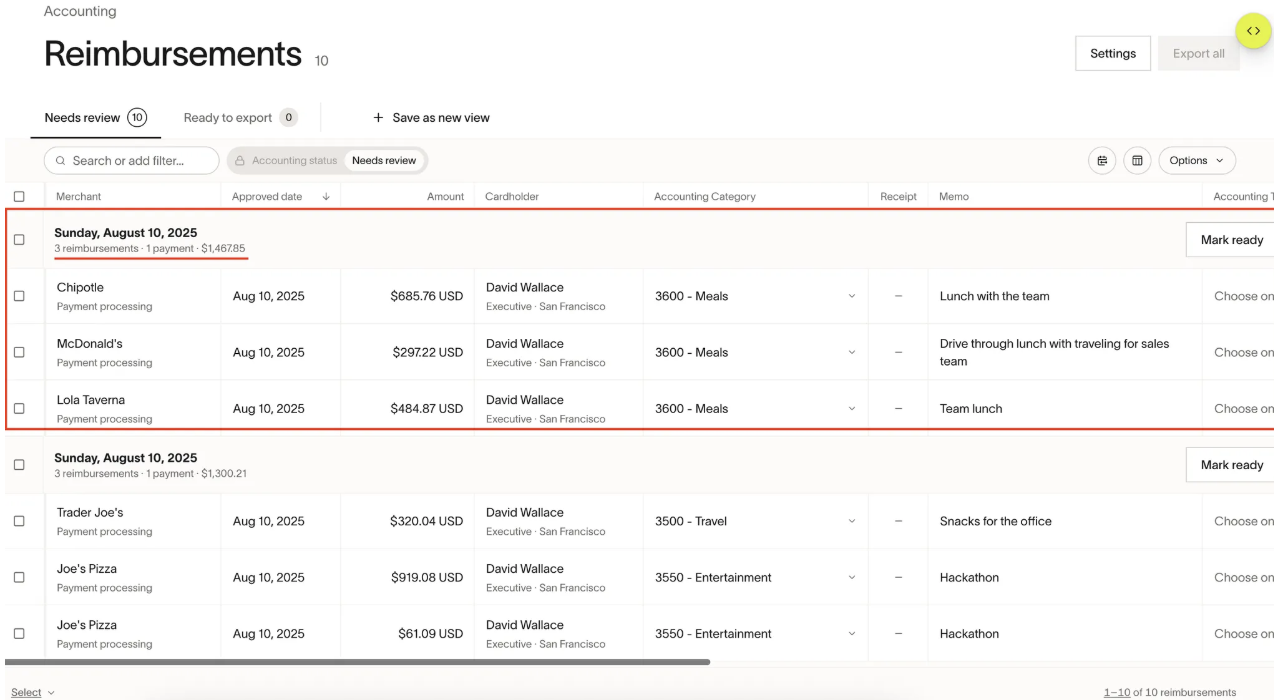
Ramp automatically groups reimbursements by payment batch and syncs the reimbursements with the corresponding payment that matches the financial activity from the bank. This batch syncing happens on the Accounting > Reimbursements page.
Step 1
Submit / Approve reimbursements (e.g., David submits three reimbursements on August 6 and they are approved by his manager and finance team).
Step 2
Ramp initiates one payment to the employee for the total amount (e.g., $2,026 for all three reimbursements).
Step 3
On the Accounting > Reimbursements page, reimbursements are grouped by payment batch. Each batch shows how many reimbursements it includes and the total payment amount
Step 4
Categorize, review and sync over reimbursements to your accounting system. The payment will also be synced as part of this process.
Note: the payment will only sync over once all reimbursements part of that payment are synced over.
Step 6
When performing bank reconciliation, match the payment or journal entry from Ramp to the corresponding financial activity from your bank account.
Role-based functionality
For Admin and accounting roles
Admin and Accounting roles can:
- View reimbursement batches on the Accounting > Reimbursements page
- See sync status by reimbursement
- Control when each reimbursement is marked as ready
- Sync the entire batch once all reimbursements are ready
Employees cannot view or control reimbursement sync behavior.
Use cases and examples
Example: three reimbursements, one payment
David submits three reimbursements for $500, $800, and $726 on the same day. Ramp processes one payment of $2,026. Once all three reimbursements are marked ready and synced, Ramp pushes a single $2,026 payment to your accounting platform, matching the bank payment exactly.
Best practices and tips
- Mark all unsynced reimbursements in a batch as ready. You can sync individual reimbursements, but the payment will only sync once all reimbursements in the payment are synced.
- Check the sync status of each reimbursement on the Accounting > Reimbursements page.
- Avoid partial syncs, as they prevent the payment from appearing in your accounting system.
Frequently asked questions
What happens if one reimbursement in a batch is not synced?
Ramp will not sync the payment until all reimbursements in the batch are ready and synced.
Can I sync individual reimbursements?
Yes, but the payment will only be synced once all reimbursements in the batch are synced.
Why do I not see a payment in my accounting system?
Check the Reimbursements tab to confirm that all reimbursements in the batch have been marked as ready and synced.
Do I need to take any manual steps to enable batch syncing?
No. Ramp applies batch syncing automatically when both eligibility requirements in the Overview are met.