Audit history
Note: This article primarily applies to Ramp Administrators. Cardholders may find other articles in the cards and transactions section to be more applicable.
Overview
We understand the importance of audit readiness and the accessibility of your data. In this article, we'll guide you through the process of exporting data from different sections of our platform and explain the timestamps you may encounter. All your transaction data and receipts are securely stored as long as you remain an active customer.
Data export options
There are several places to export data:
- Insights dashboard
- Transactions
- Funds & cards
- Bill Pay
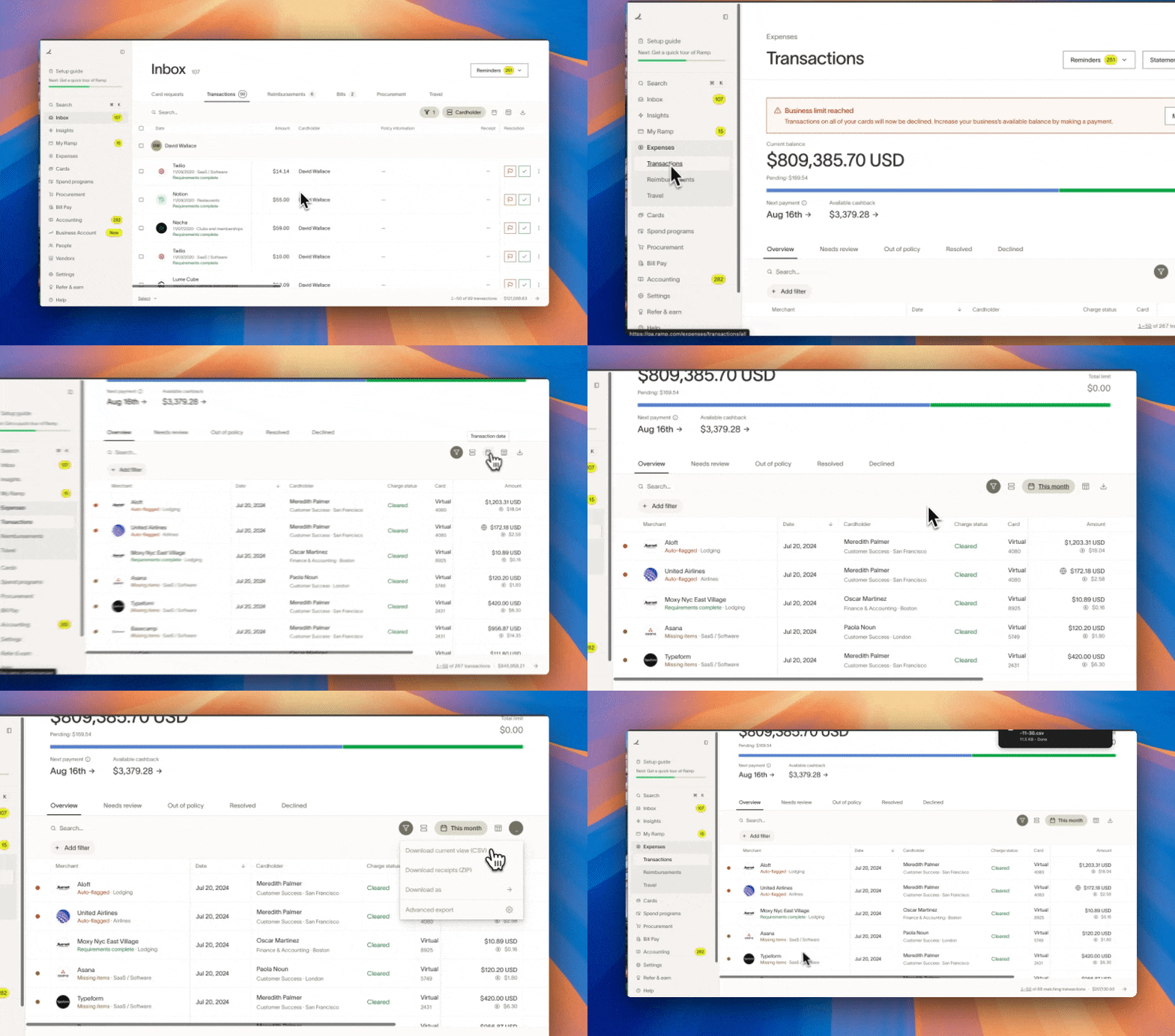
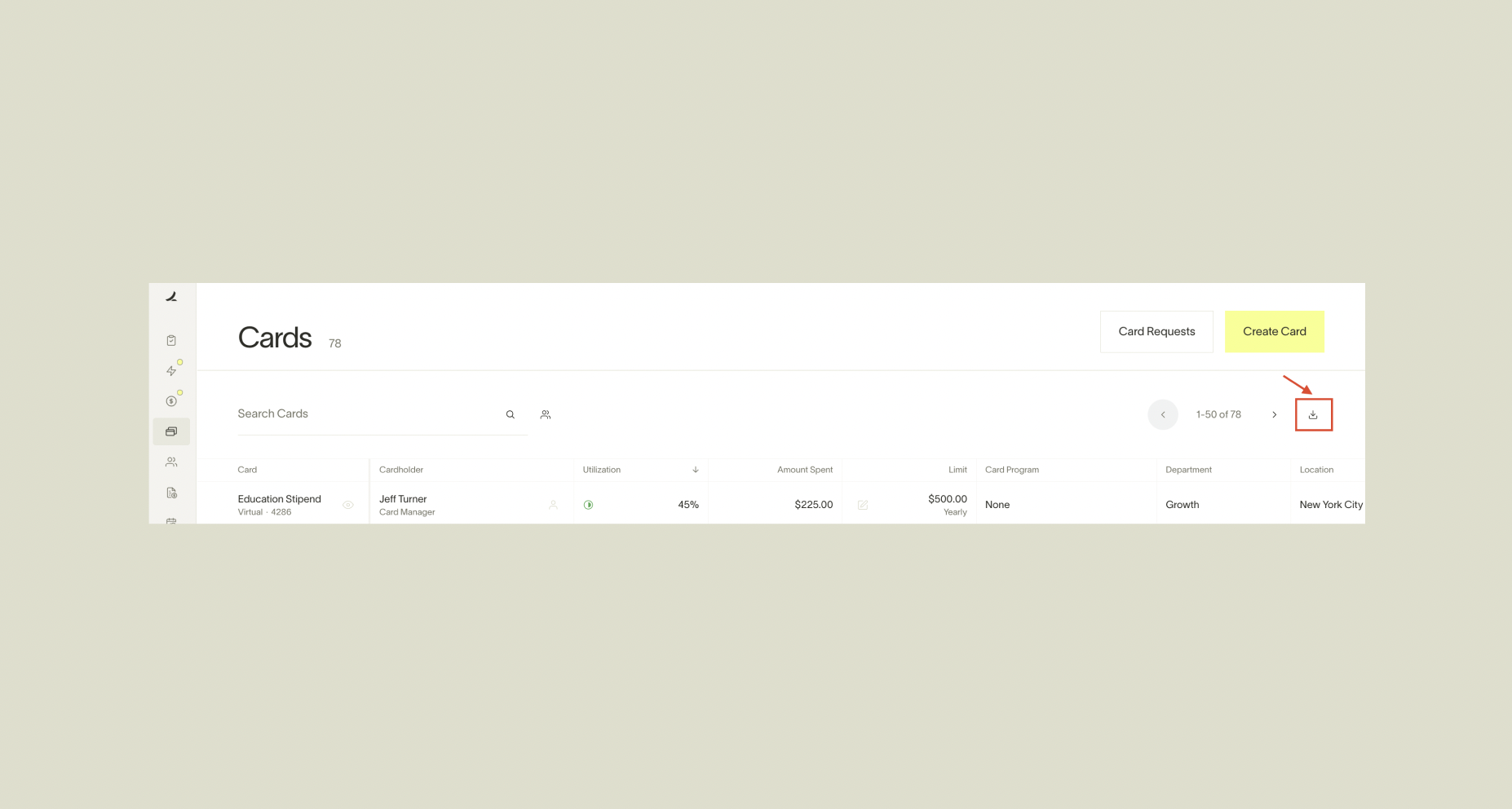
Upon navigating to each section, clicking on the download icon on the right-hand side of the page will export the data in a CSV file. Depending on which tab you are exporting your data from, we'll likely email you this CSV.Admins may also download transactions/reimbursement receipts in bulk, whereas managers can download receipts individually.
Note: If you filter the Insights, Card transactions, Bill Pay, or Cards page, the CSV only contains the filtered items.
Step-by-step to downloading transaction data
-
Open Card transactions.
-
Optionally, apply any filters to the data (transactions for a particular user or department, within a specific timeframe, or over a certain amount, to name a few options).
-
Click Download transactions and choose the desired file type. To select columns that are not shown in the table, choose Export settings.
-
Depending on the volume and data type, your export will either be downloaded directly or sent to your email.
Timestamps in exports
Why does Ramp show different timestamps for the same transaction in different dashboards and in CSV exports? When you see a transaction date posted on Ramp, this will always be in the context of the timezone that you are located in. However, any accounting sync or export will show the transaction posting time in UTC.
Let's consider an example:
- An employee on the East Coast makes a transaction at 1:00 am ET on April 1st.
- If you are on the West Coast, this transaction will show as 10:00 pm PT on March 31st for you.
- However, when exported in a CSV or synced to your accounting provider, the timestamp will appear as occurring at 6:00 am UTC on April 1st.
Ramp posts transactions in UTC to ensure the transaction time is consistent across all time zones.
FAQ
- Event Names are a canonical list of tracked actions (e.g., “User login,” “Request revision,” “Reimbursement paid”) with clear definitions and linked objects the event references.
- Additional Details describe the event-specific metadata shown in the column (e.g., memo text for a reimbursement, IDs/links to the underlying object) and how it’s used in context (actor vs. affected object, with click-through to the source page). This helps admins reliably interpret activity and investigate scenarios like self-approval.