1Password integration: Add Ramp cards
Overview
Ramp cards can be added to the 1Password browser extension to make online purchases easier than ever.
How to add Ramp cards to 1Password
-
Ensure that you have the latest version of 1Passwordinstalled on your browser
-
Visit your Ramp dashboard, click on the card you'd like to add, and click the eye icon to reveal card details
-
Click Save in 1Password.
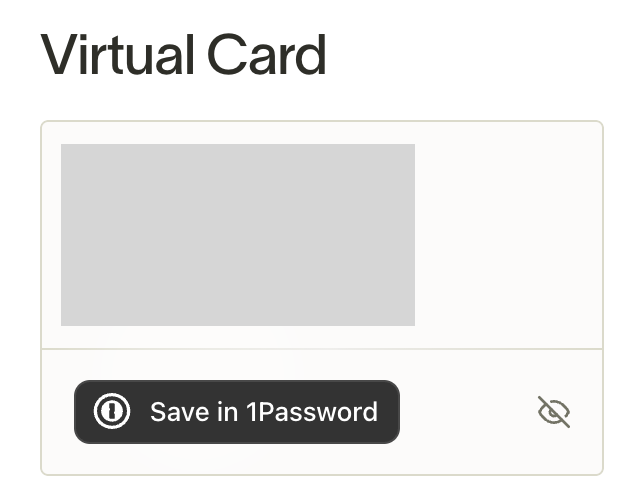
- You'll be prompted by 1Password to save the card information under a specific folder (this choice is up to you).
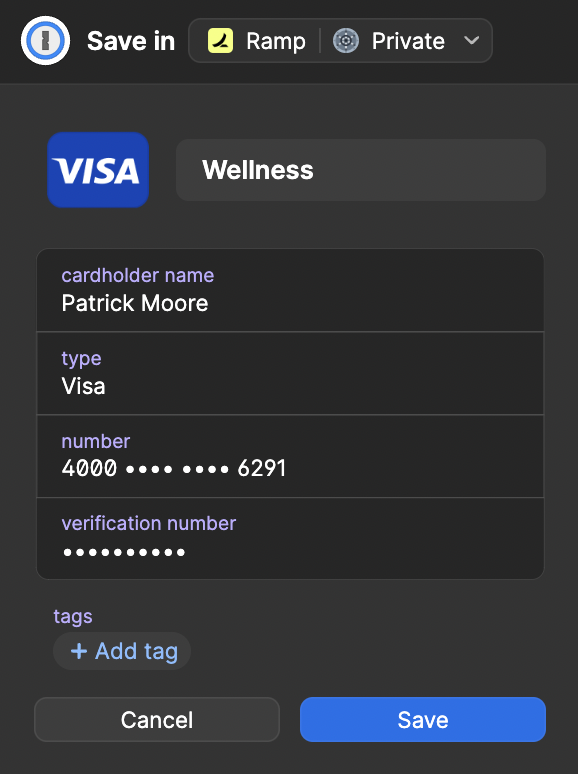
You'll now be able to find your card information by clicking on the 1Password browser extension. Going forward, you'll be able to autofill your card details during online checkout.