Accounting filters and custom views
Filtering transactions
Ramp offers a wide variety of options to filter transactions from the Accounting tab, including:
- Accounting Fields (Completed fields for sync/export or Missing required fields for sync/export)
- Amount (Min - Max $)
- Receipt Status
- Submission Policy Status
- Accounting Status (Needs review or Ready to sync/export)
- Card Type (Virtual or Physical)
- Program
You can also filter by existing fields such as Class, Department, Location, or Card merchant.
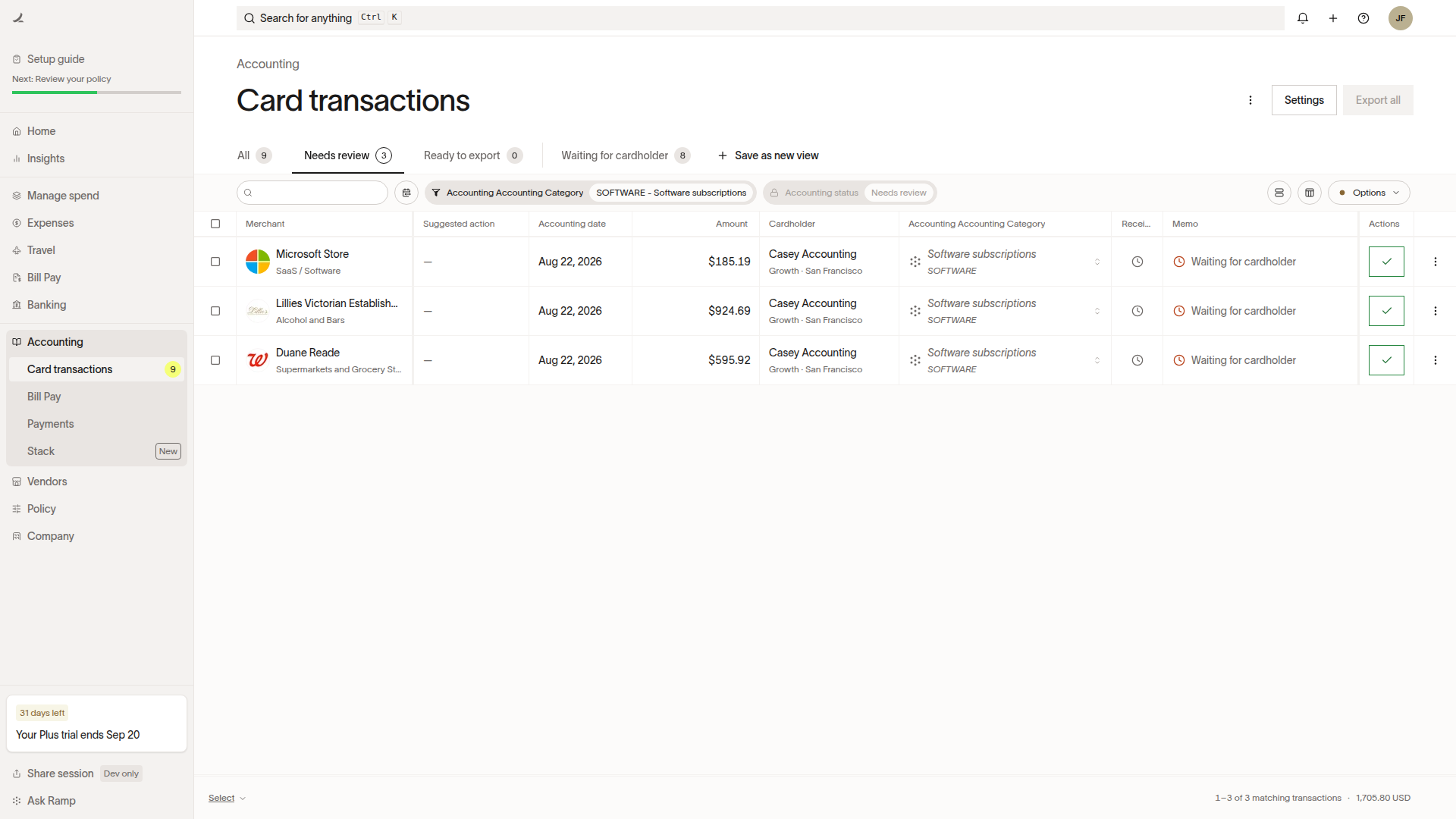
Apply filters from Search or filter… at the top of the table by selecting from the list of available options.
Create and save custom views
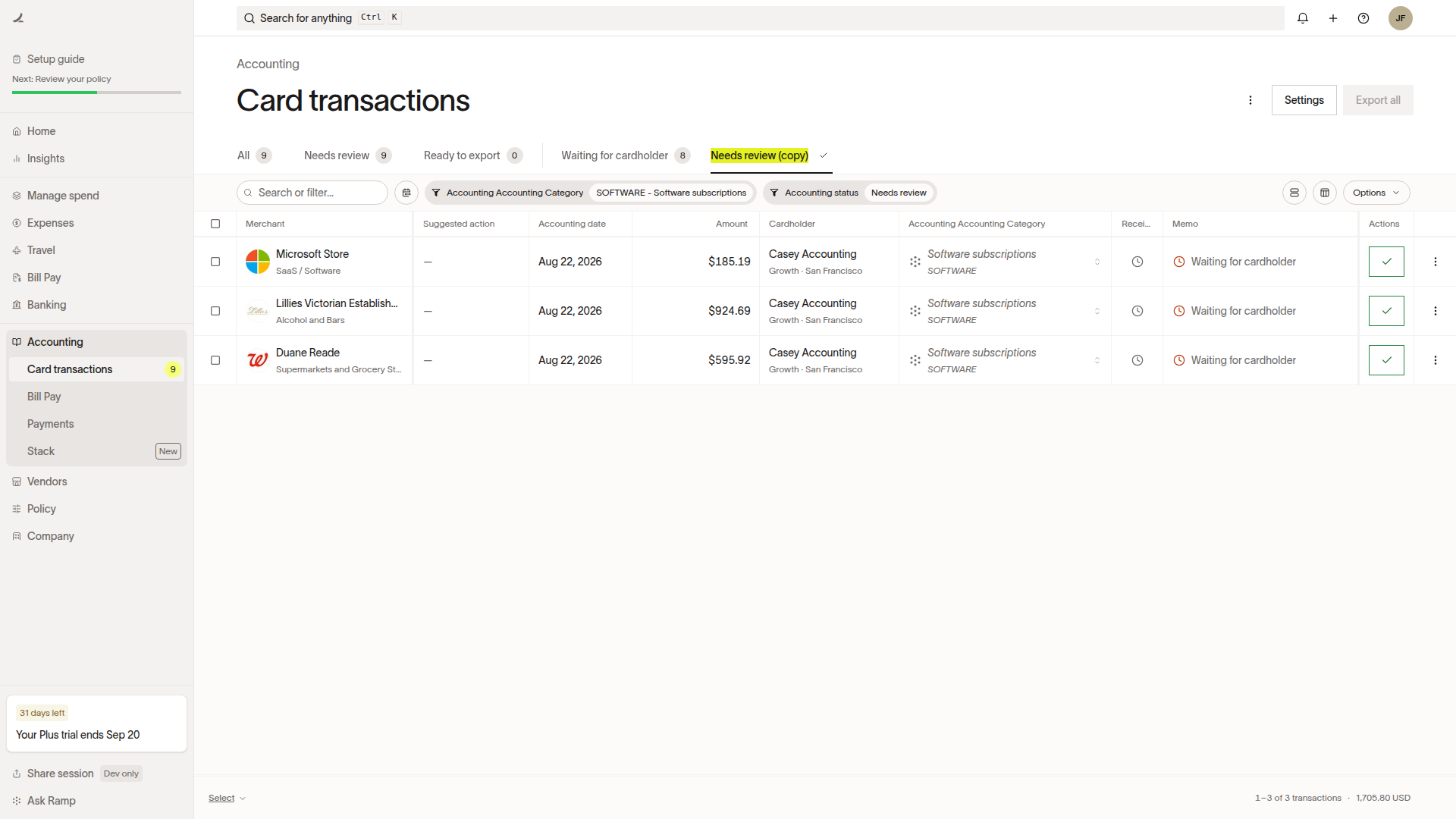
With custom views, you can tailor the display of your card transactions and reimbursements to suit your specific needs. Then, when you apply a filter to the Needs review, Ready to sync, or Ready to export tab, you can save that view by selecting + Save as new view at the top of the table.
Once it's been saved, it will stay in your table view until it is manually removed.
Custom views are also available on the Expenses tab.
Apply bulk actions
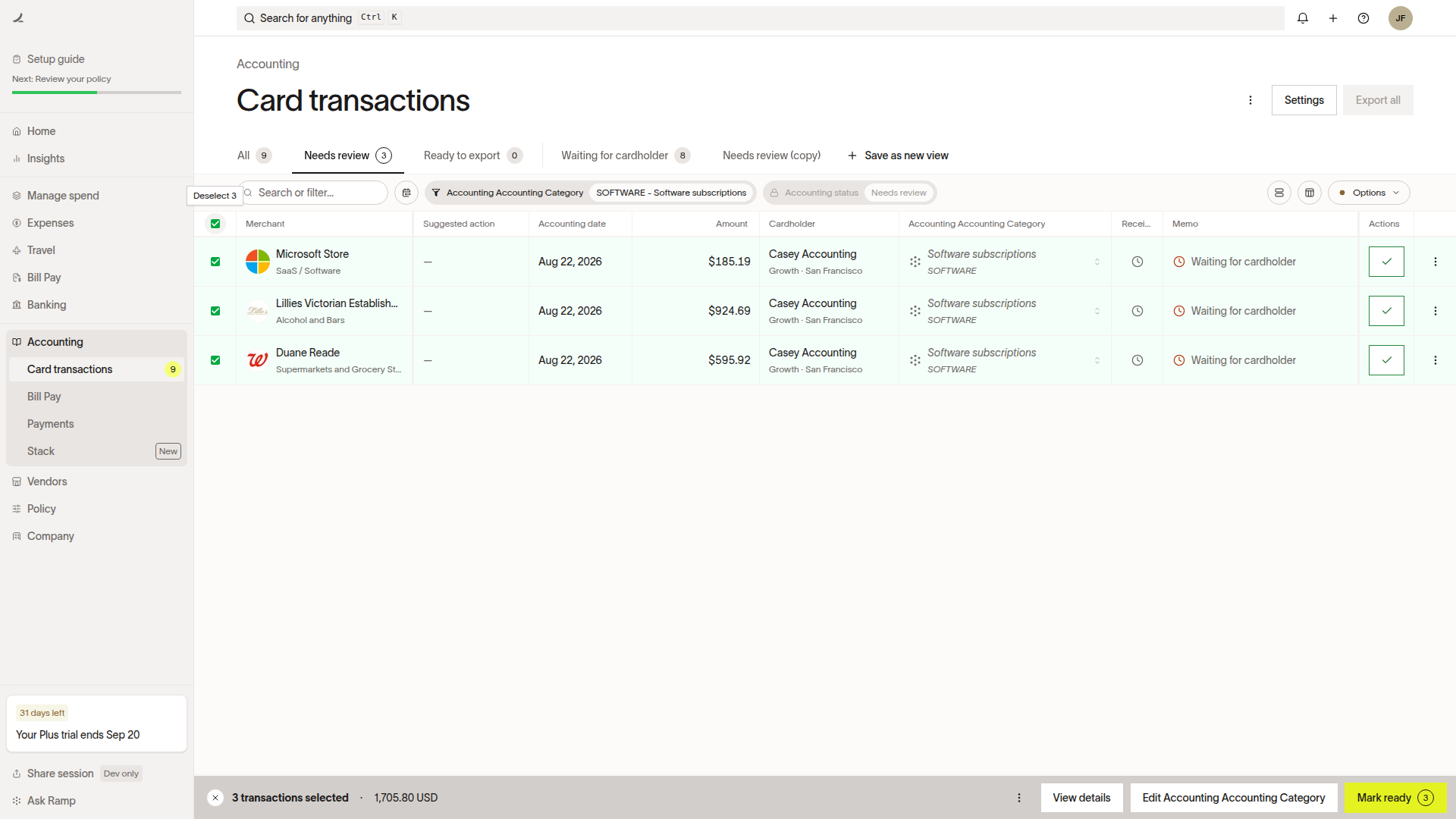
Ramp also offers the option to bulk edit the accounting fields of your transactions. By selecting multiple transactions, you can apply actions such as coding or marking them ready to sync or export. Once you have selected your transactions, there will be a bar at the bottom of the screen you can apply edits to.
You can edit accounting fields again after a bulk update. To reverse a ready status, select the transactions from the Ready to sync or Ready to export tab and select Mark not ready.